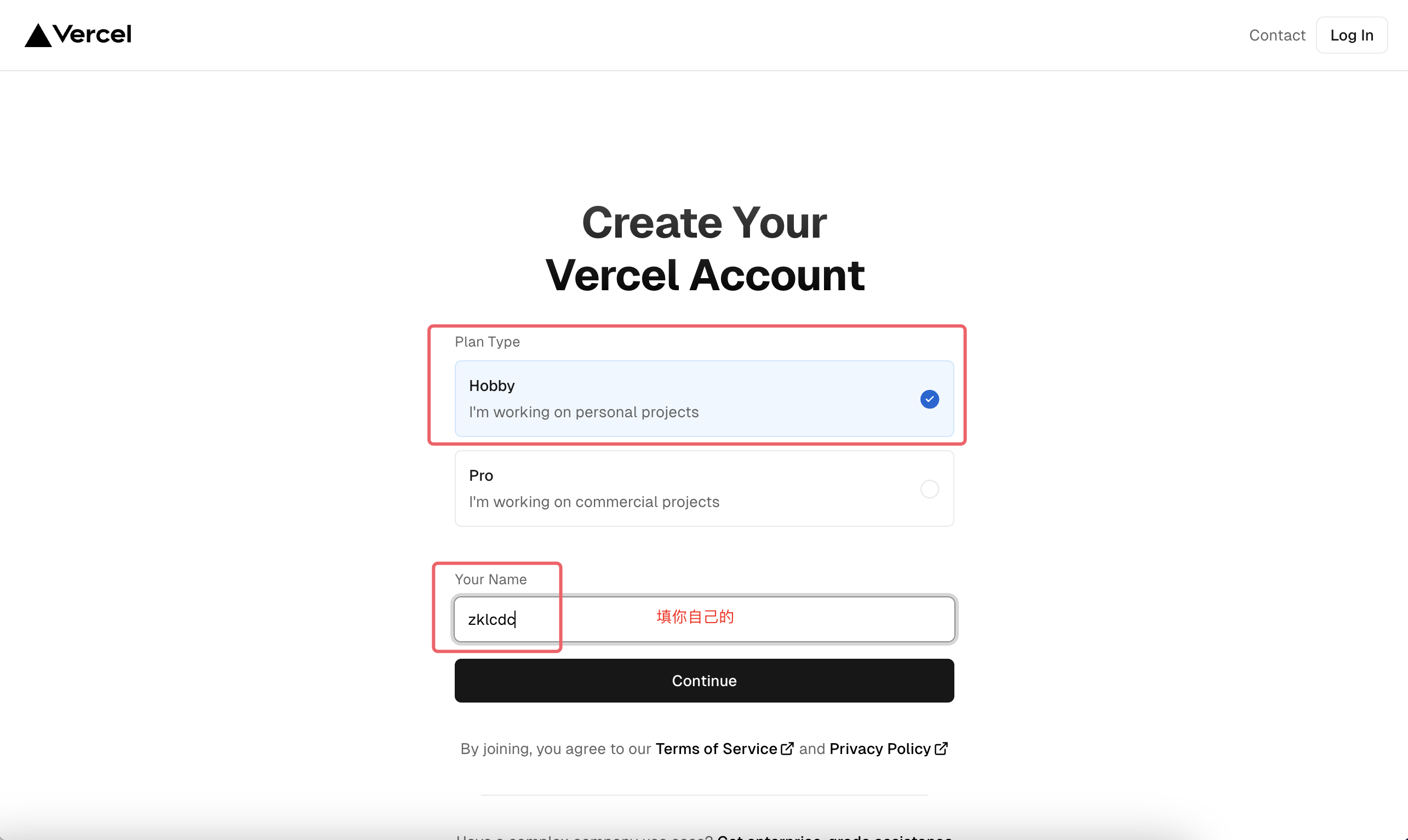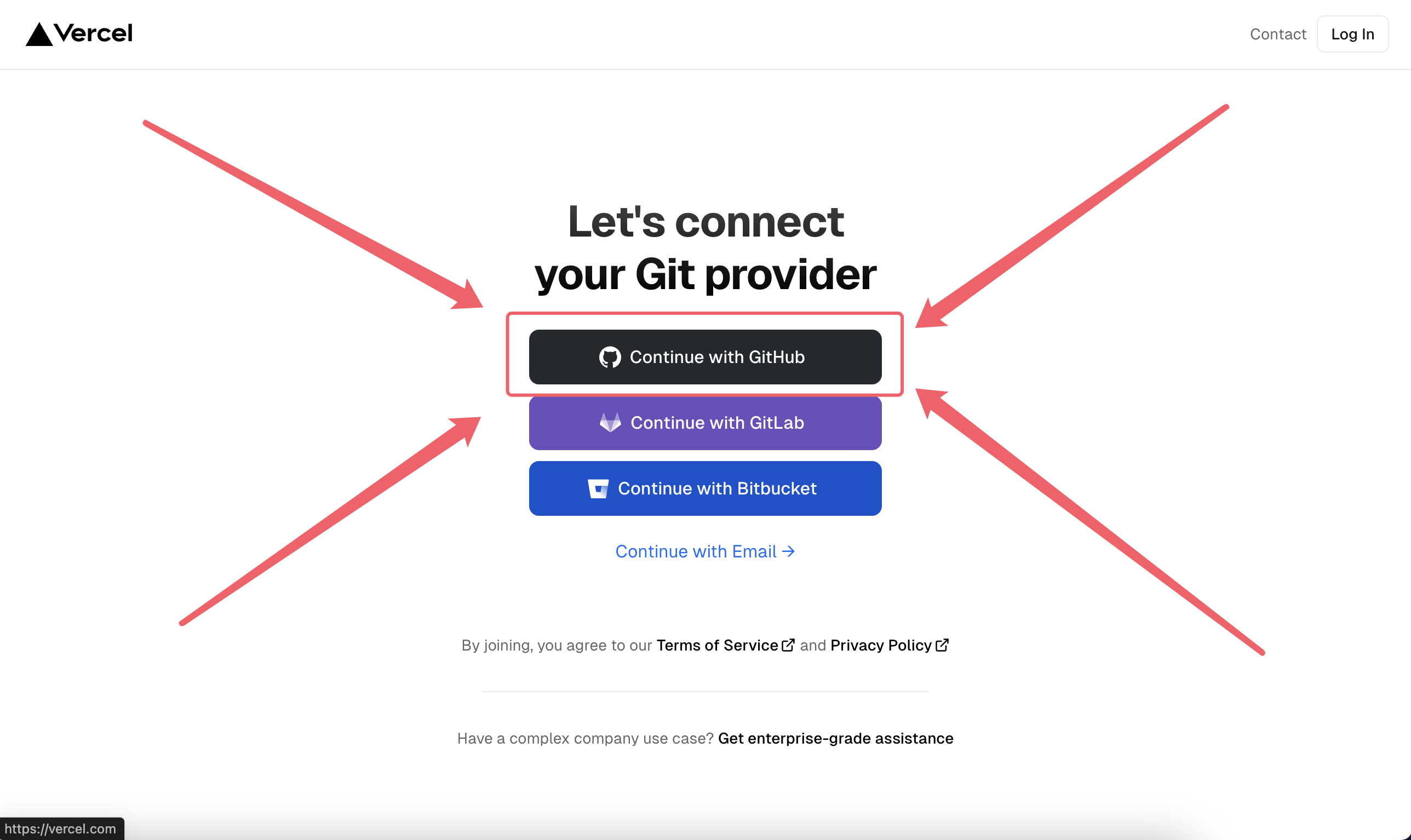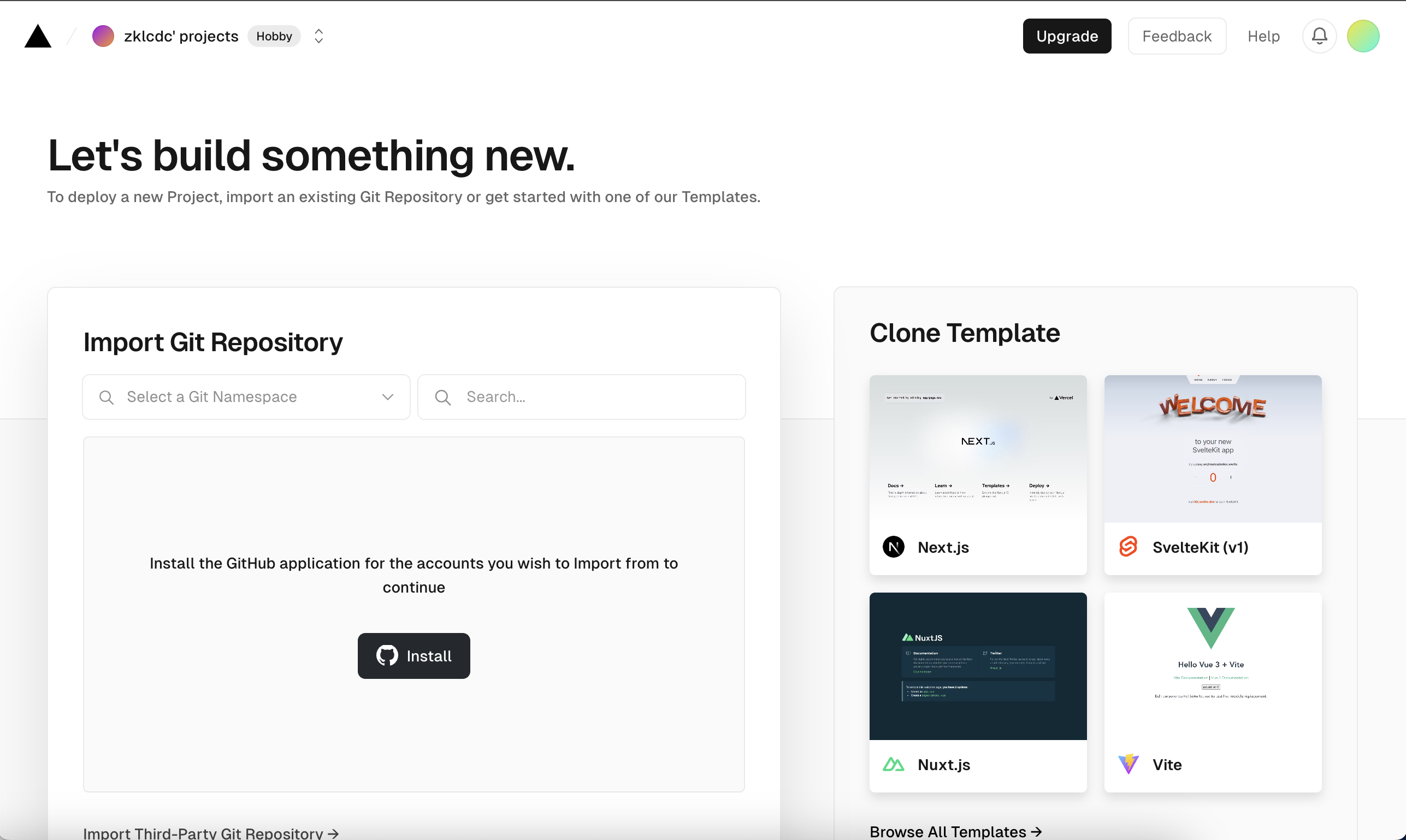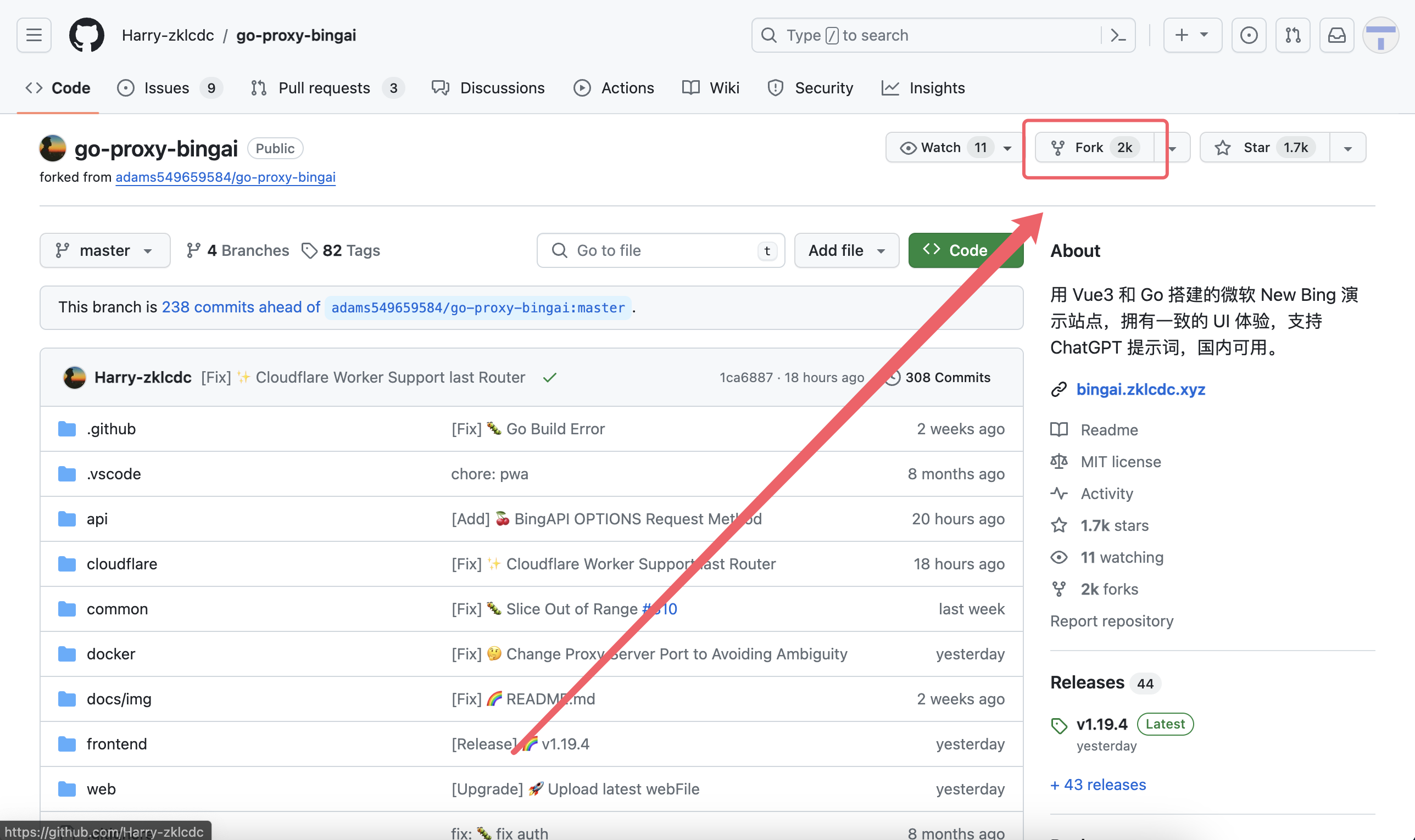
<?xml version="1.0" encoding="utf-8"?>
<feed xmlns="http://www.w3.org/2005/Atom">
  <title>Jonas</title>
  
  <subtitle>热爱生活,追逐梦想</subtitle>
  <link href="http://www.laogou717.com/atom.xml" rel="self"/>
  
  <link href="http://www.laogou717.com/"/>
  <updated>2024-08-31T00:08:45.393Z</updated>
  <id>http://www.laogou717.com/</id>
  
  <author>
    <name>JonasTech</name>
    
  </author>
  
  <generator uri="https://hexo.io/">Hexo</generator>
  
  <entry>
    <title>注册就送14天会员!GPT4、Claude3.5免费用！</title>
    <link href="http://www.laogou717.com/2024/08/23/AI%20era/cursor/"/>
    <id>http://www.laogou717.com/2024/08/23/AI%20era/cursor/</id>
    <published>2024-08-23T07:30:00.000Z</published>
    <updated>2024-08-31T00:08:45.393Z</updated>
    
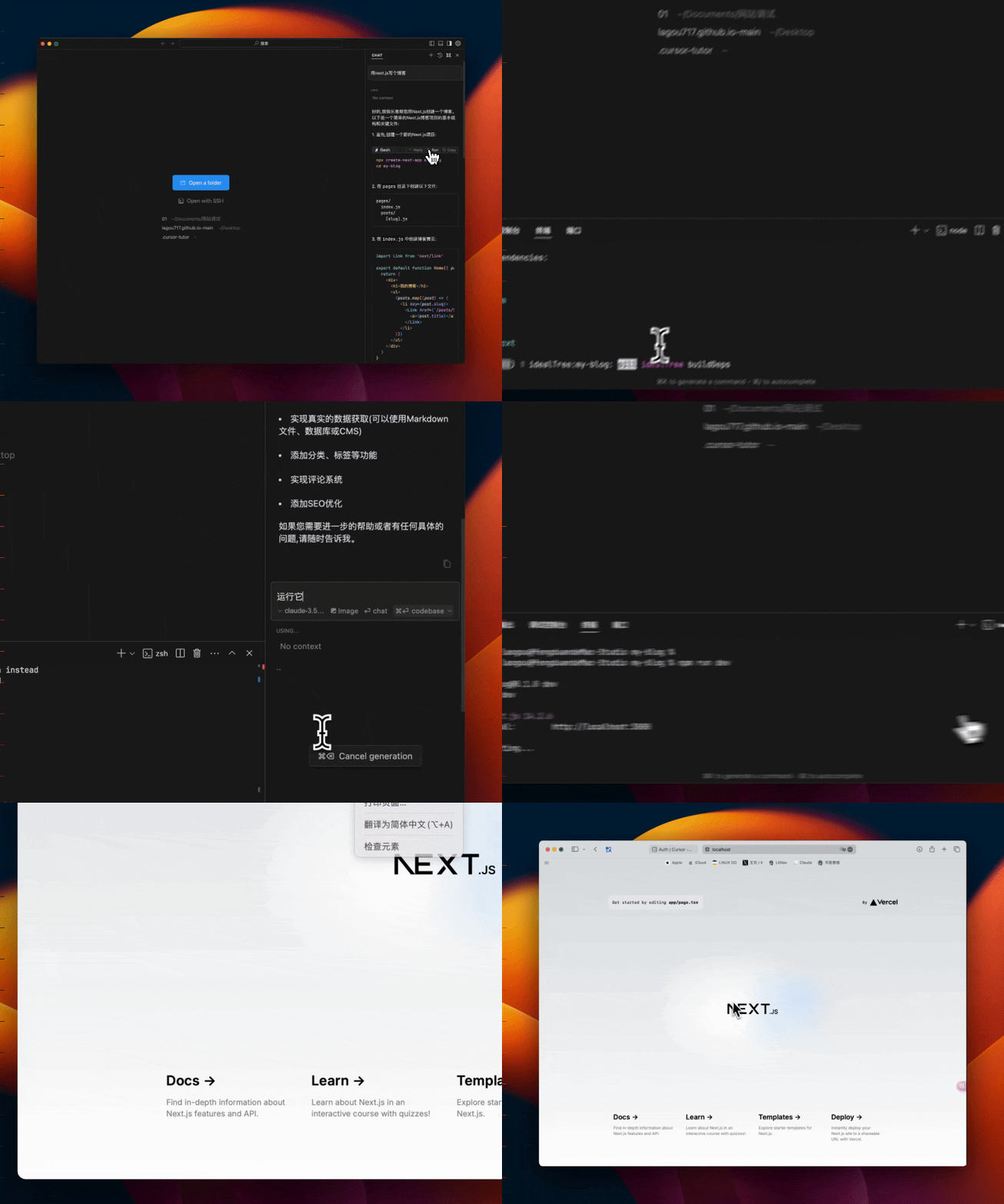
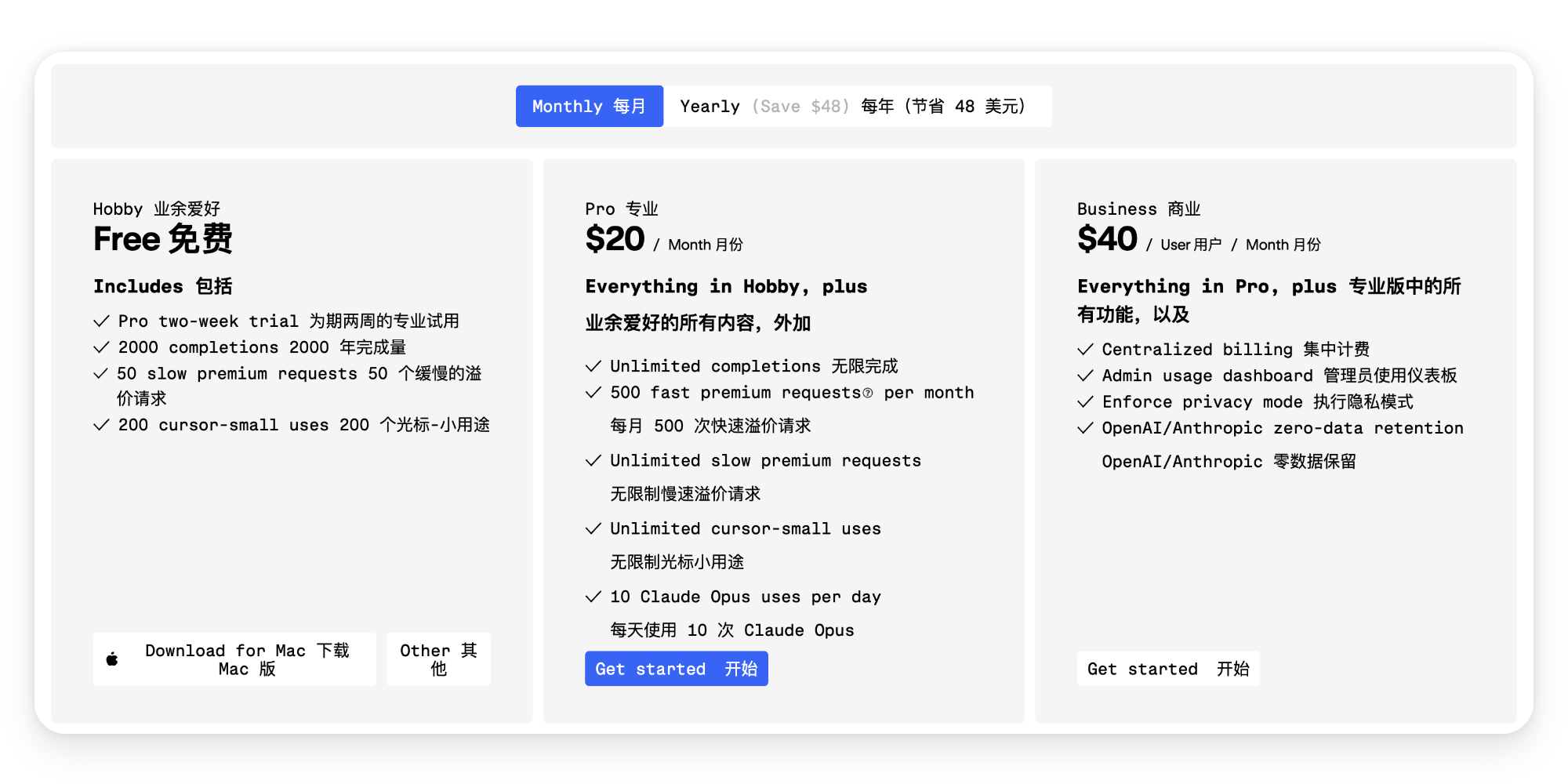
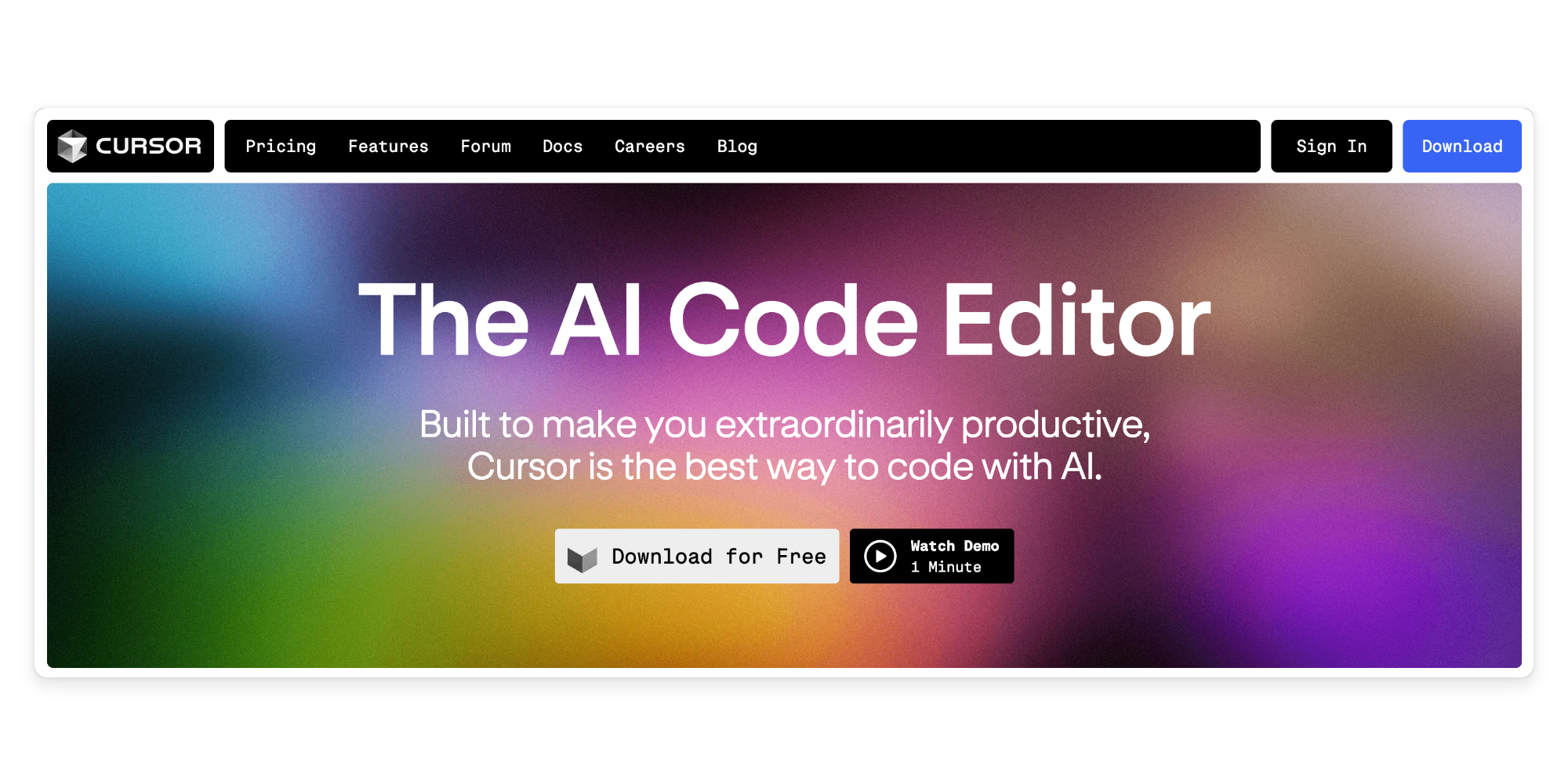
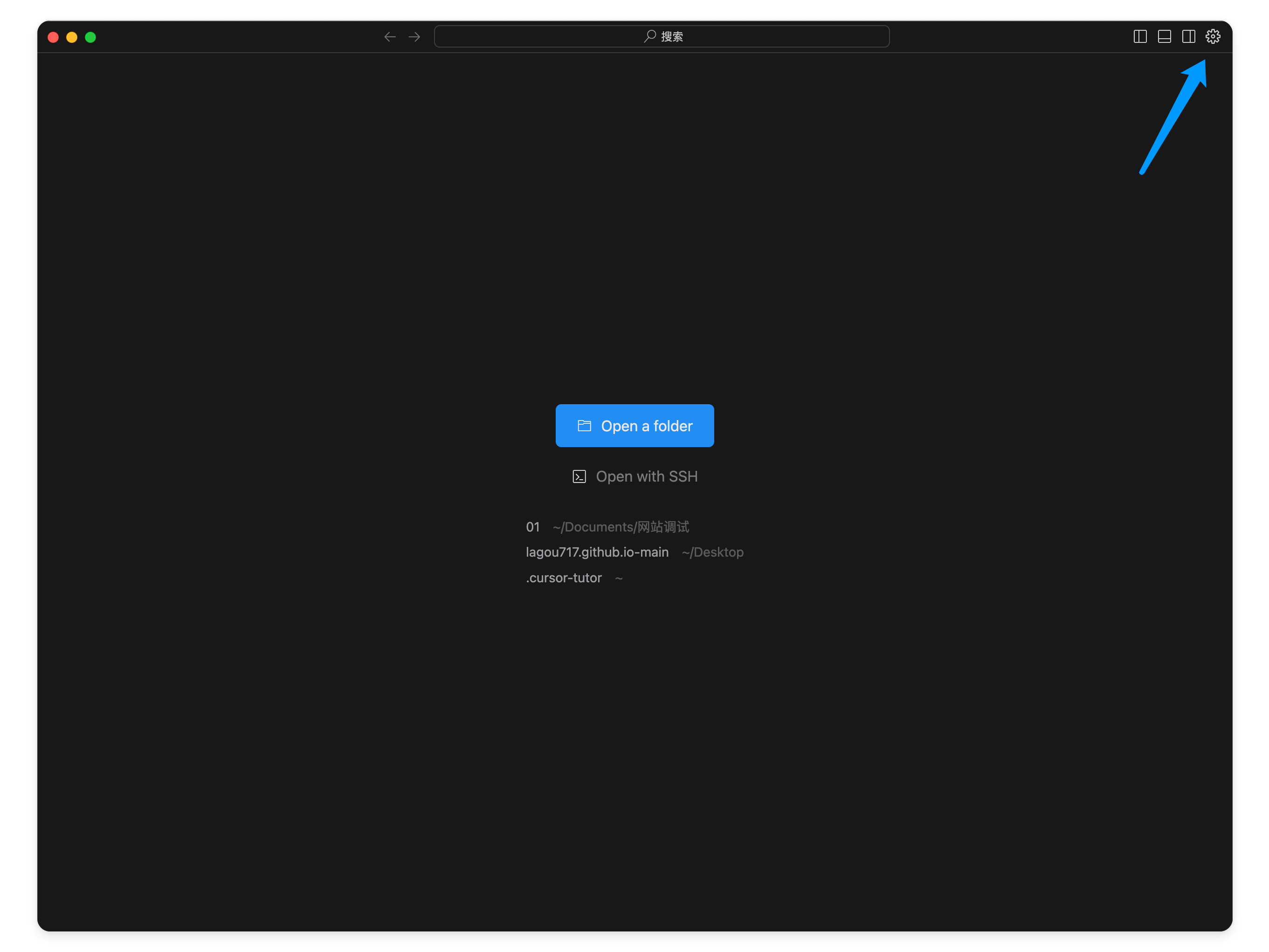
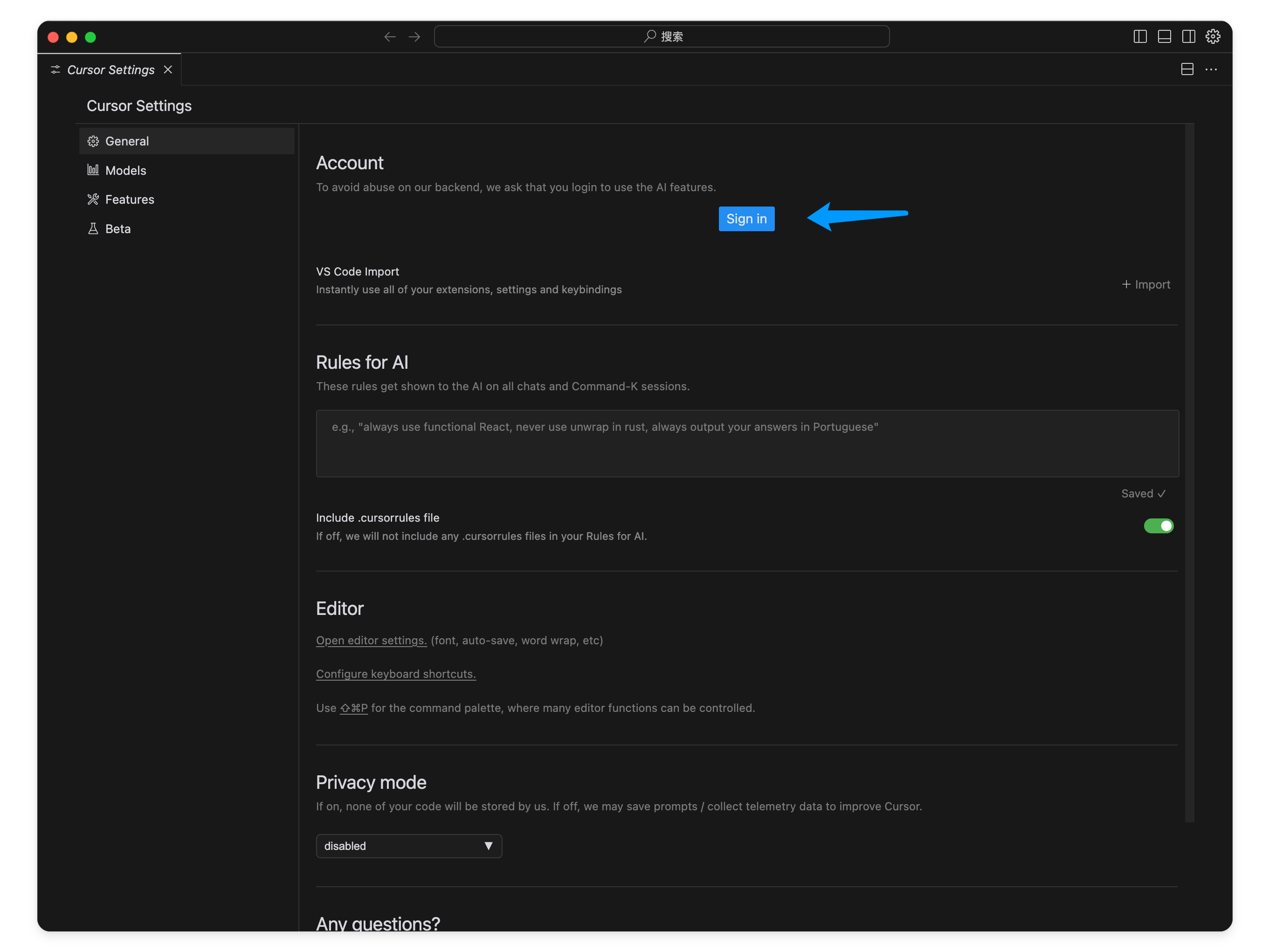
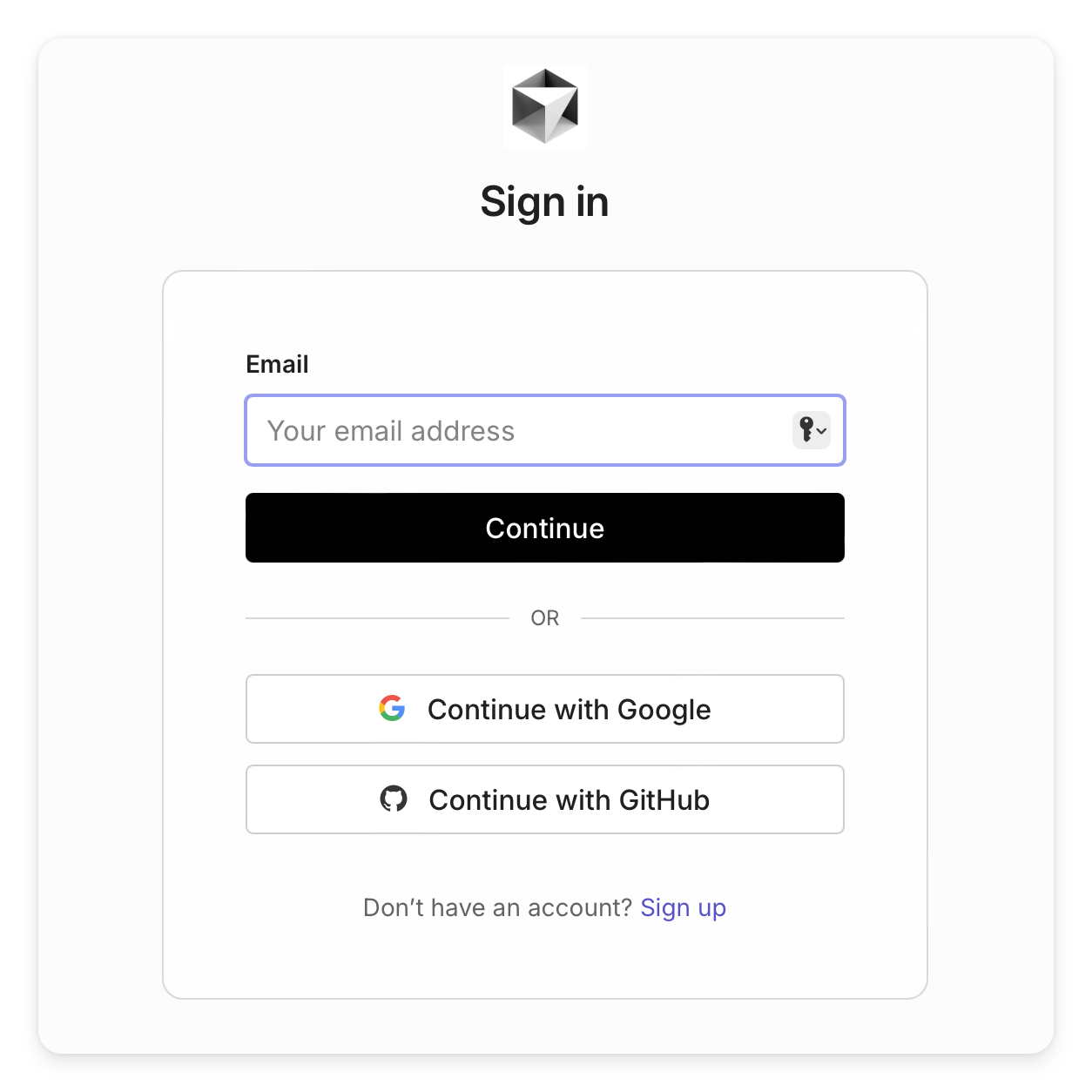
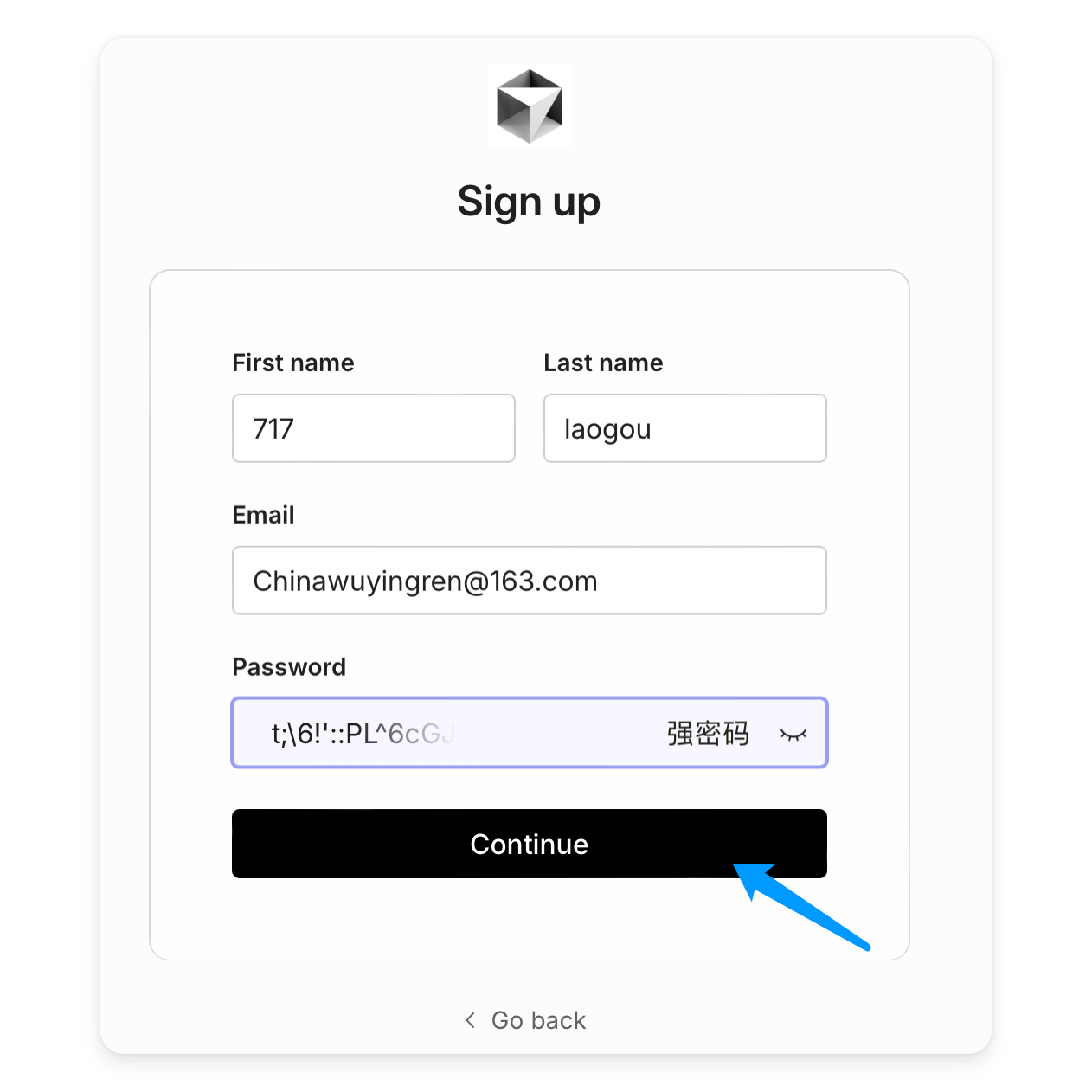
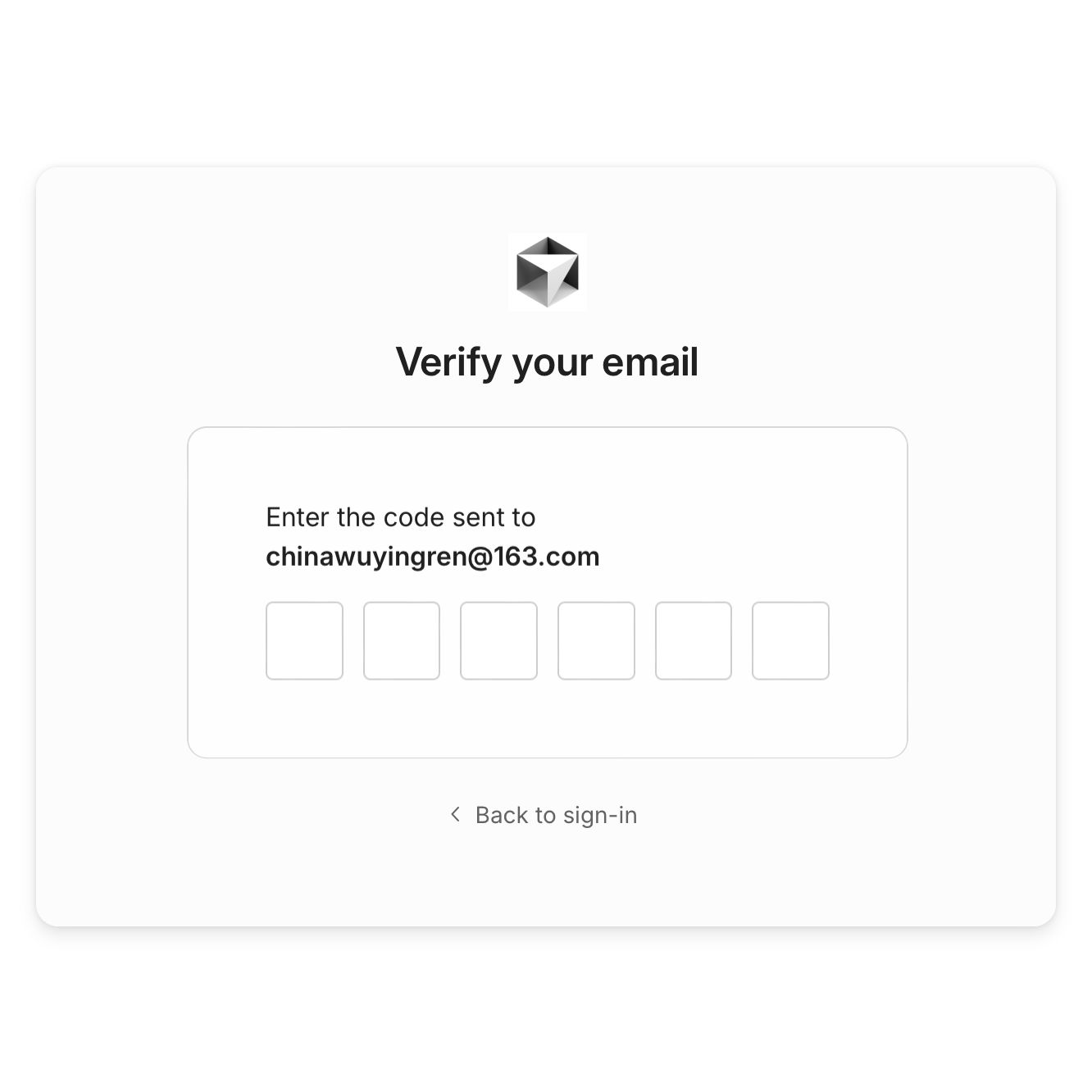
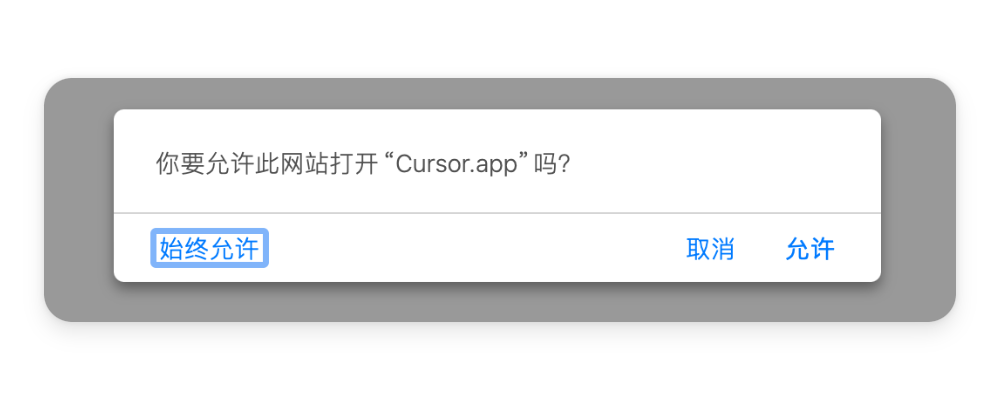
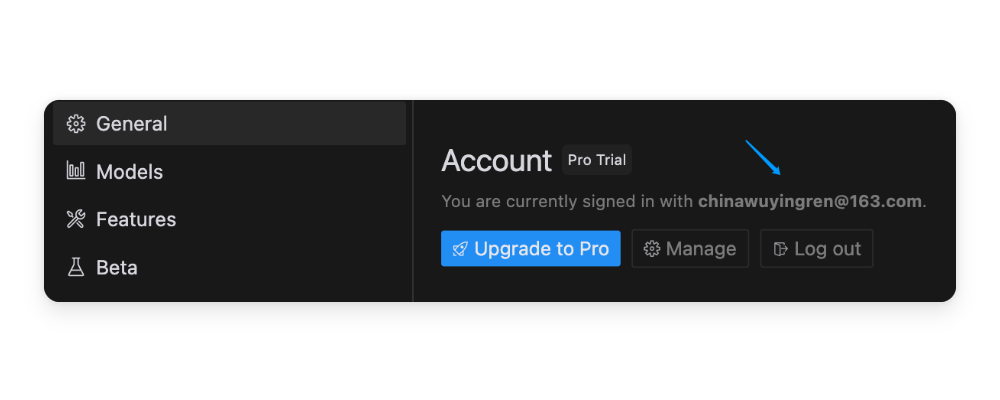
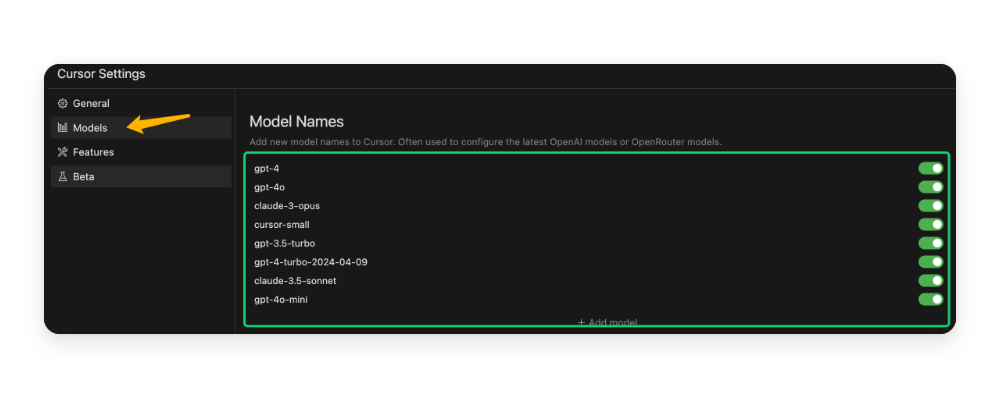
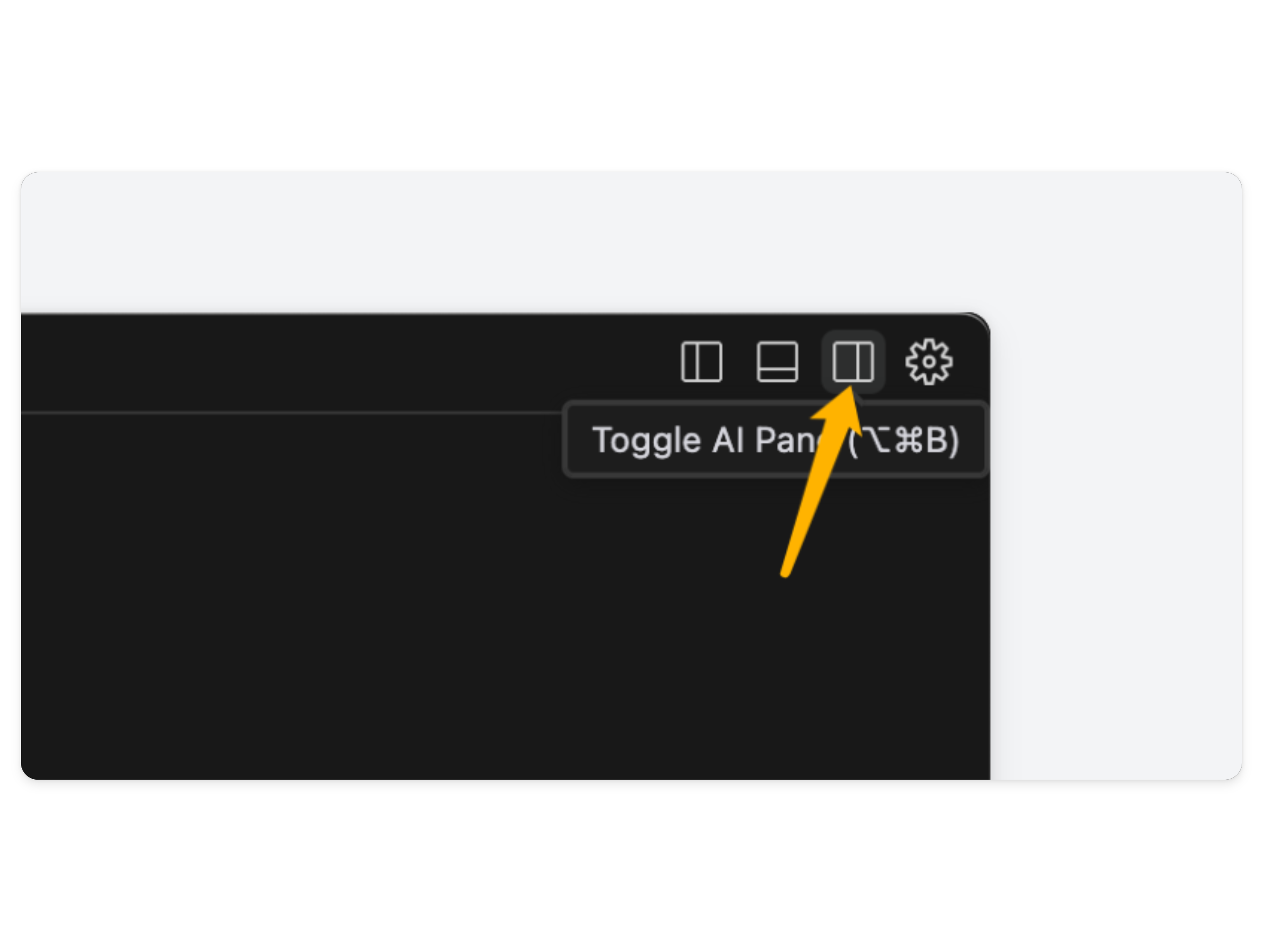
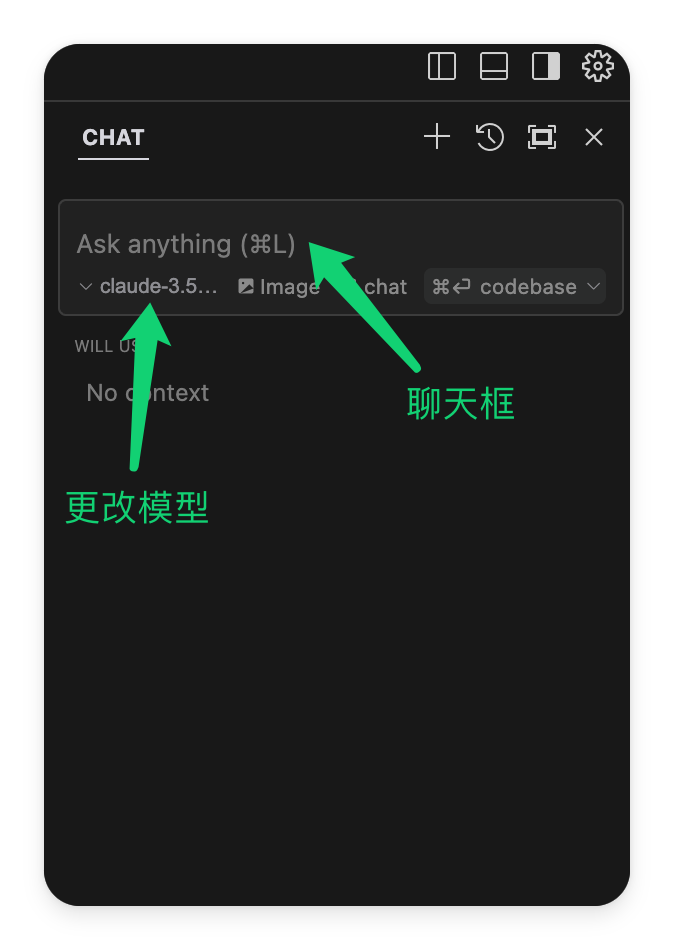
    <content type="html"><![CDATA[<p><img src="https://img.laogou717.com/file/b23a2b15ecf4255420686.gif" alt="快速"></p><h2 id="前言"><a href="#前言" class="headerlink" title="前言"></a>前言</h2><blockquote><p><strong>Cursor</strong> 是一个编程软件,就像<strong>Vscode</strong>一样,可以让你轻松地编写、调试和运行代码。不一样的是它内置了<strong>8个热门AI模型</strong>,什么<strong>GPT4、Claude3</strong>最新模型,都能免费试用<strong>14天</strong>,我们只需要任意邮箱注册账号,然后下载程序即可。</p></blockquote><p><img src="https://img.laogou717.com/file/20c3cd4a499d2f86ca10a.png" alt="计划"></p><h2 id="具体用法"><a href="#具体用法" class="headerlink" title="具体用法"></a>具体用法</h2><h3 id="下载程序"><a href="#下载程序" class="headerlink" title="下载程序"></a>下载程序</h3><p>进入<a href="https://www.cursor.com/">Cursor官网</a>,在右上角点击<strong>下载并安装</strong><br><img src="https://img.laogou717.com/file/bdf38263c1424b392a32a.png" alt="下载"></p><h3 id="登陆授权"><a href="#登陆授权" class="headerlink" title="登陆授权"></a>登陆授权</h3><p>安装后打开软件,点击右上角的<strong>设置按钮</strong><br><img src="https://img.laogou717.com/file/ad6c824e9a019c29b2d1a.png" alt="设置"><br>然后点击<strong>登陆</strong>,不出意外应该会弹出<strong>授权</strong>窗口<br><img src="https://img.laogou717.com/file/b0a7d23fedbaab5bf1f9d.png" alt="登陆"><br><img src="https://img.laogou717.com/file/b2b1c019088ac81823919.png" alt="登陆注册"><br>可以选择用<strong>GitHub</strong>或<strong>Google</strong>账号进行登陆,也可以直接点击注册,输入邮箱进行注册登陆,我这里以<strong>网易邮箱</strong>举例<br><img src="https://img.laogou717.com/file/c3c9fe8d336289279ecf0.png" alt="注册"><br>这里有概率<strong>提示验证失败</strong>,可以<strong>重试</strong>一般就会提示我们填入“<strong>邮箱验证码</strong>”<br><img src="https://img.laogou717.com/file/9d5a1d10e3e465b5cddeb.png" alt="邮箱"><br>填入验证码进入下一步后,询问我们是否允许打开<strong>Cursor</strong>软件,这里<strong>点允许</strong><br><img src="https://img.laogou717.com/file/f235357928178729a0470.png" alt="允许授权"><br>允许后就我们的软件后台就会显示这样的页面,如果<strong>没有显示</strong>就重新再点一次登陆进行重新授权<br><img src="https://img.laogou717.com/file/fcb716804e90d379f81d2.png" alt="账号"></p><h3 id="查看支持的模型"><a href="#查看支持的模型" class="headerlink" title="查看支持的模型"></a>查看支持的模型</h3><p>点击左侧的<strong>Models</strong>,可以看到支持的模型,勾选的模型就是我们可以使用的模型<br><img src="https://img.laogou717.com/file/25ee64b9c116a6bbf7aed.png" alt="Models"></p><h2 id="如何使用"><a href="#如何使用" class="headerlink" title="如何使用"></a>如何使用</h2><p>点击右上角的<strong>分屏图标</strong><br><img src="https://img.laogou717.com/file/f2042e91a3c1ceba06268.png" alt="使用"><br>这时我们看到了一个<strong>分屏</strong>窗口,在这里可以直接与AI进行沟通<br><img src="https://img.laogou717.com/file/55c01c064049c9357a313.png" alt="聊天"></p><h2 id="引用"><a href="#引用" class="headerlink" title="引用"></a>引用</h2><ul><li><a href="https://www.cursor.com/">Cursor官网</a></li></ul>]]></content>


    <summary type="html">&lt;p&gt;&lt;img src=&quot;https://img.laogou717.com/file/b23a2b15ecf4255420686.gif&quot; alt=&quot;快速&quot;&gt;&lt;/p&gt;
&lt;h2 id=&quot;前言&quot;&gt;&lt;a href=&quot;#前言&quot; class=&quot;headerlink&quot;</summary>


    <category term="染上白嫖了" scheme="http://www.laogou717.com/categories/%E6%9F%93%E4%B8%8A%E7%99%BD%E5%AB%96%E4%BA%86/"/>
    
    
    <category term="GPT4" scheme="http://www.laogou717.com/tags/GPT4/"/>
    
    <category term="Claude3.5" scheme="http://www.laogou717.com/tags/Claude3-5/"/>
    
    <category term="Cursor" scheme="http://www.laogou717.com/tags/Cursor/"/>
    
    <category term="14天Pro计划" scheme="http://www.laogou717.com/tags/14%E5%A4%A9Pro%E8%AE%A1%E5%88%92/"/>
    
  </entry>
  
  <entry>
    <title>Midjourney 网页版全面开放，免费试用！</title>
    <link href="http://www.laogou717.com/2024/08/23/AI%20era/Midjourney/mjprompt/"/>
    <id>http://www.laogou717.com/2024/08/23/AI%20era/Midjourney/mjprompt/</id>
    <published>2024-08-23T07:30:00.000Z</published>
    <updated>2024-08-28T08:45:53.811Z</updated>
    
    <content type="html"><![CDATA[<h3 id="前言："><a href="#前言：" class="headerlink" title="前言："></a>前言：</h3><blockquote><p><a href="https://www.midjourney.com/imagine">Midjourney</a> 网页版终于向<strong>所有用户开放</strong>，无需再通过候补计划。为了吸引更多用户体验他们的图像生成功能，Midjourney 推出了限时的<strong>免费试用计划</strong>。所有用户都可以免费生成多达100张AI图片。</p></blockquote><p>当然，为了帮助各位更好地<strong>利用 Midjourney</strong>，我为你整理了一些<strong>提示词编写的技巧</strong>，以及几个适合<strong>生成电影感图像</strong>的提示词示例。</p><h3 id="提示词编写技巧："><a href="#提示词编写技巧：" class="headerlink" title="提示词编写技巧："></a>提示词编写技巧：</h3><p><img src="https://img.laogou717.com/file/f10922502693a83d57ca4.png"></p><ol><li><p><strong>明确主题和细节</strong>：在提示词中包含<strong>清晰的主题</strong>和<strong>详细描述</strong>。例如，不仅仅是说“生成一个风景图”，而是具体描述为“生成一个夕阳下的森林场景，有光线透过树叶，地面覆盖着金黄色的落叶”。这种细致的描述可以帮助 Midjourney 更准确地理解你的意图。</p></li><li><p><strong>指定风格或摄影效果</strong>：在提示词中加入<strong>特定的艺术风格</strong>或<strong>摄影师的名字</strong>，可以获得更具艺术感的图像。例如，“拍摄一个在公园长椅上坐着的女人，风格为乔尔·梅耶罗维茨”。</p></li><li><p><strong>设定光线和环境</strong>：光线和环境对图像的最终效果有很大影响。你可以在提示词中指定<strong>光照条件</strong>，比如“在晨光中的大海景观，带有淡淡的雾气”和“阴天的城市街道，灯光昏暗”。</p></li><li><p><strong>利用参考案例</strong>：可以参考一些成功的提示词案例，并在此基础上提出自己的要求。例如，如果你看到某个提示词效果很好，可以在此基础上进行<strong>微调</strong>，如更改角度或添加新的元素。</p></li><li><p><strong>注意禁用词汇</strong>：避免使用 Midjourney 的<strong>禁用词汇</strong>，例如与暴力、色情、敏感话题相关的词汇，这样可以避免生成不符合要求或无法生成的图像。</p></li><li><p><strong>使用控制词条</strong>：在提示词中使用<strong>专门的控制词条</strong>可以帮助你更精确地定义生成图像的风格和内容。例如，<code>-v</code> 选择 Midjourney 的版本，<code>-ar</code> 设置图像的宽高比，<code>-s</code> 控制图像的风格化程度，<code>-chaos</code> 增加图像的随机性，<code>-no</code> 排除某些元素。</p></li></ol><h3 id="电影感提示词示例："><a href="#电影感提示词示例：" class="headerlink" title="电影感提示词示例："></a>电影感提示词示例：</h3><ol><li><strong>科幻</strong>：<code>&quot;A futuristic cityscape at night, neon lights, flying cars -v 5 -ar 16:9&quot;</code></li></ol><p><img src="https://img.laogou717.com/file/42b671945764b886f470f.png" alt="科幻"><br>2. <strong>黑色电影</strong>：<code>&quot;A shadowy alleyway, dim streetlights, noir film style -s 800&quot;</code></p><p><img src="https://img.laogou717.com/file/ec3ec0b56d287bfd92730.png" alt="黑色电影"><br>3. <strong>史诗奇幻</strong>：<code>&quot;A towering castle on a misty mountain, full moon, dark fantasy art -q 2&quot;</code></p><p><img src="https://img.laogou717.com/file/27be5618e5c5f4f5f9a4b.png" alt="史诗奇幻"></p><h3 id="关于悟空的提示词："><a href="#关于悟空的提示词：" class="headerlink" title="关于悟空的提示词："></a>关于悟空的提示词：</h3><p>在深入探讨提示词编写技巧时，我和ChatGPT也扯皮了一会,如何结合孙悟空的形象特点来生成具备写实电影感的图像。以下是一个示例提示词，说是可以生成一个具有压迫感和暗黑风格的孙悟空形象：</p><p><strong>提示词示例</strong>：</p><figure class="highlight text"><table><tr><td class="gutter"><pre><span class="line">1</span><br></pre></td><td class="code"><pre><span class="line">Sun Wukong, the legendary Monkey King, depicted in a dark, cinematic, and photorealistic style. His fierce, golden eyes shine with an eerie glow against his shadowy, fur-covered face. The scene is illuminated with dramatic low-key lighting, emphasizing the textures of his hair and the cold, metallic sheen of his magical staff, Ruyi Jingu Bang. The setting features deep shadows and stark contrasts, with light seeping through in narrow beams, creating a mysterious and ominous atmosphere. The camera angle is a low shot, enhancing his intimidating presence, while the background is shrouded in darkness, only faintly lit to suggest an otherworldly environment.</span><br></pre></td></tr></table></figure><div class="gallery">  <div class="fj-gallery page_img_lazyload lazyload btn_album_detail_lazyload data" data-rowHeight="220" data-limit="2">    <span class="gallery-data">[{"url":"https://img.laogou717.com/file/611d0a65c44dbe81b07c9.png","alt":""},{"url":"https://img.laogou717.com/file/a44bcbae91cd3ad0a8800.png","alt":""},{"url":"https://img.laogou717.com/file/e4cedfc5036632bb54d69.png","alt":""},{"url":"https://img.laogou717.com/file/245bded4f15a6660a7634.png","alt":""}]</span>  </div><button class="gallery-load-more" style="opacity:0">  <span>加载更多</span>  <i class="anzhiyufont anzhiyu-icon-arrow-down"></i>  </button></div><h3 id="总结："><a href="#总结：" class="headerlink" title="总结："></a>总结：</h3><p><strong>提示词技巧</strong>：</p><ul><li><strong>明确主题和细节</strong>：清晰描述你想要的图像。</li><li><strong>指定风格或摄影效果</strong>：加入特定风格或艺术家的名字。</li><li><strong>设定光线和环境</strong>：控制图像的光照条件和环境。</li><li><strong>利用参考案例</strong>：在成功案例的基础上进行微调。</li><li><strong>注意禁用词汇</strong>：避免使用敏感词汇。</li><li><strong>使用控制词条</strong>：精确定义图像风格和内容。</li></ul><p><strong>链接</strong>: <a href="https://www.midjourney.com/imagine">Midjourney 官方网站</a></p>]]></content>


    <summary type="html">&lt;h3 id=&quot;前言：&quot;&gt;&lt;a href=&quot;#前言：&quot; class=&quot;headerlink&quot; title=&quot;前言：&quot;&gt;&lt;/a&gt;前言：&lt;/h3&gt;&lt;blockquote&gt;
&lt;p&gt;&lt;a</summary>


    <category term="染上白嫖了" scheme="http://www.laogou717.com/categories/%E6%9F%93%E4%B8%8A%E7%99%BD%E5%AB%96%E4%BA%86/"/>
    
    
    <category term="AI绘画" scheme="http://www.laogou717.com/tags/AI%E7%BB%98%E7%94%BB/"/>
    
    <category term="Midjourney" scheme="http://www.laogou717.com/tags/Midjourney/"/>
    
    <category term="免费" scheme="http://www.laogou717.com/tags/%E5%85%8D%E8%B4%B9/"/>
    
    <category term="提示词" scheme="http://www.laogou717.com/tags/%E6%8F%90%E7%A4%BA%E8%AF%8D/"/>
    
  </entry>
  
  <entry>
    <title>一篇非常啰嗦的网站搭建教程</title>
    <link href="http://www.laogou717.com/2024/07/31/AI%20era/Hexo/"/>
    <id>http://www.laogou717.com/2024/07/31/AI%20era/Hexo/</id>
    <published>2024-07-30T16:30:00.000Z</published>
    <updated>2024-07-31T06:58:59.614Z</updated>
    
    <content type="html"><![CDATA[<h2 id="前言"><a href="#前言" class="headerlink" title="前言"></a>前言</h2><blockquote><p>本来想写一篇长文的,但精神不济,所以各位就凑活看视频吧</p></blockquote><h3 id="一些链接"><a href="#一些链接" class="headerlink" title="一些链接"></a>一些链接</h3><ul><li><a href="https://nodejs.org/">Node.js</a> 必需的环境 安装最新版Node.js。</li><li><a href="http://git-scm.com/">git</a> 必需的环境 版本控制，管理代码。</li><li><a href="https://watt-toolkit.org/">watt toolkit</a>国内访问GitHub就靠它了</li><li><a href="https://npmmirror.com/">npmmirror</a>源淘宝NPM镜像源</li><li><a href="https://hexo.io/">Hexo</a>博客官网,可以查找更多主题</li><li><a href="GitHub.conm">GitHub</a>需要有一个GitHub账号，用来保存你的代码。</li><li><a href="https://code.visualstudio.com/">Vscode</a>方便后续操作非必需</li></ul><h3 id="一些命令"><a href="#一些命令" class="headerlink" title="一些命令"></a>一些命令</h3><h4 id="验证Node-js和npm版本"><a href="#验证Node-js和npm版本" class="headerlink" title="验证Node.js和npm版本"></a>验证Node.js和npm版本</h4>  <figure class="highlight bash"><table><tr><td class="gutter"><pre><span class="line">1</span><br><span class="line">2</span><br><span class="line">3</span><br></pre></td><td class="code"><pre><span class="line">node -v</span><br><span class="line">npm -v</span><br><span class="line">git -v</span><br></pre></td></tr></table></figure><p>  如果显示版本号，则代表安装成功。</p><h4 id="安装Hexo"><a href="#安装Hexo" class="headerlink" title="安装Hexo"></a>安装Hexo</h4>  <figure class="highlight bash"><table><tr><td class="gutter"><pre><span class="line">1</span><br></pre></td><td class="code"><pre><span class="line">npm install -g hexo-cli</span><br></pre></td></tr></table></figure><p>  如果网络被阉，可以使用阿里云镜像源进行安装：<br>  <figure class="highlight bash"><table><tr><td class="gutter"><pre><span class="line">1</span><br><span class="line">2</span><br></pre></td><td class="code"><pre><span class="line">npm install -g cnpm --registry=https://registry.npmmirror.com</span><br><span class="line">cnpm install -g hexo-cli</span><br></pre></td></tr></table></figure></p><h4 id="初始化Hexo项目"><a href="#初始化Hexo项目" class="headerlink" title="初始化Hexo项目"></a>初始化Hexo项目</h4><p>  选择一个位置创建Hexo项目文件夹：<br>  <figure class="highlight bash"><table><tr><td class="gutter"><pre><span class="line">1</span><br></pre></td><td class="code"><pre><span class="line">hexo init laogou</span><br></pre></td></tr></table></figure><br>  卡死了可以直接按下 <strong>CTRL+C</strong> 终止。<br>  然后CD进入项目目录：<br>  <figure class="highlight bash"><table><tr><td class="gutter"><pre><span class="line">1</span><br></pre></td><td class="code"><pre><span class="line"><span class="built_in">cd</span> laogou</span><br></pre></td></tr></table></figure><br>  手动切换阿里镜像源安装项目依赖：<br>  <figure class="highlight bash"><table><tr><td class="gutter"><pre><span class="line">1</span><br></pre></td><td class="code"><pre><span class="line">cnpm install</span><br></pre></td></tr></table></figure></p><h4 id="出现SSL错误-可绕过证书验证（仅用于开发环境）："><a href="#出现SSL错误-可绕过证书验证（仅用于开发环境）：" class="headerlink" title="出现SSL错误,可绕过证书验证（仅用于开发环境）："></a>出现SSL错误,可绕过证书验证（仅用于开发环境）：</h4>  <figure class="highlight bash"><table><tr><td class="gutter"><pre><span class="line">1</span><br></pre></td><td class="code"><pre><span class="line">git config --global http.sslVerify <span class="literal">false</span></span><br></pre></td></tr></table></figure><h4 id="选择并安装主题"><a href="#选择并安装主题" class="headerlink" title="选择并安装主题"></a>选择并安装主题</h4><ul><li>选择一个Hexo主题，例如Butterfly。</li><li>访问主题的GitHub页面，点击Code，下载压缩包。解压缩包到Hexo项目的<code>themes</code>目录下。或者直接通过git进行克隆</li><li>修改Hexo根目录配置文件<code>_config.yml</code>(非主题的_config.yml)<br>设置主题：<figure class="highlight yaml"><table><tr><td class="gutter"><pre><span class="line">1</span><br></pre></td><td class="code"><pre><span class="line"><span class="attr">theme:</span> <span class="string">butterfly</span></span><br></pre></td></tr></table></figure></li></ul><h4 id="本地生成和预览"><a href="#本地生成和预览" class="headerlink" title="本地生成和预览"></a>本地生成和预览</h4><ul><li>清理缓存：<figure class="highlight bash"><table><tr><td class="gutter"><pre><span class="line">1</span><br><span class="line">2</span><br></pre></td><td class="code"><pre><span class="line">hexo clean</span><br><span class="line"><span class="comment"># 或者简写为 hexo c 或 hexo cl</span></span><br></pre></td></tr></table></figure></li><li>生成静态文件：<figure class="highlight bash"><table><tr><td class="gutter"><pre><span class="line">1</span><br><span class="line">2</span><br></pre></td><td class="code"><pre><span class="line">hexo generate</span><br><span class="line"><span class="comment"># 或者简写为 hexo g</span></span><br></pre></td></tr></table></figure></li><li>启动本地服务器进行预览：<figure class="highlight bash"><table><tr><td class="gutter"><pre><span class="line">1</span><br><span class="line">2</span><br></pre></td><td class="code"><pre><span class="line">hexo server</span><br><span class="line"><span class="comment"># 或者简写为 hexo s</span></span><br></pre></td></tr></table></figure>在浏览器中访问<code>http://localhost:4000</code>查看效果。</li></ul><h4 id="推送或部署到GitHub"><a href="#推送或部署到GitHub" class="headerlink" title="推送或部署到GitHub"></a>推送或部署到GitHub</h4><ul><li>确保已经在GitHub上创建了一个仓库。</li><li>安装Hexo部署插件：<figure class="highlight bash"><table><tr><td class="gutter"><pre><span class="line">1</span><br><span class="line">2</span><br><span class="line">3</span><br><span class="line">4</span><br></pre></td><td class="code"><pre><span class="line">官方源</span><br><span class="line">npm install hexo-deployer-git --save  </span><br><span class="line">阿里源</span><br><span class="line">cnpm install hexo-deployer-git --save</span><br></pre></td></tr></table></figure></li><li>配置Hexo部署信息，在<code>_config.yml</code>文件中的规范写法：<figure class="highlight yaml"><table><tr><td class="gutter"><pre><span class="line">1</span><br><span class="line">2</span><br><span class="line">3</span><br><span class="line">4</span><br></pre></td><td class="code"><pre><span class="line"><span class="attr">deploy:</span></span><br><span class="line">  <span class="attr">type:</span> <span class="string">git</span></span><br><span class="line">  <span class="attr">repo:</span> <span class="string">https://&lt;你的访问令牌&gt;@github.com/你的用户名/你的仓库名.git</span></span><br><span class="line">  <span class="attr">branch:</span> <span class="string">main</span></span><br></pre></td></tr></table></figure>例如：<figure class="highlight yaml"><table><tr><td class="gutter"><pre><span class="line">1</span><br><span class="line">2</span><br><span class="line">3</span><br><span class="line">4</span><br></pre></td><td class="code"><pre><span class="line"><span class="attr">deploy:</span></span><br><span class="line">  <span class="attr">type:</span> <span class="string">git</span></span><br><span class="line">  <span class="attr">repo:</span> <span class="string">https://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@github.com/GGB60/blog.git</span></span><br><span class="line">  <span class="attr">branch:</span> <span class="string">main</span></span><br></pre></td></tr></table></figure></li><li>推到GitHub：<figure class="highlight bash"><table><tr><td class="gutter"><pre><span class="line">1</span><br><span class="line">2</span><br></pre></td><td class="code"><pre><span class="line">hexo deploy</span><br><span class="line"><span class="comment"># 或者简写为 hexo d</span></span><br></pre></td></tr></table></figure></li></ul><h3 id="使用免费容器进行部署"><a href="#使用免费容器进行部署" class="headerlink" title="使用免费容器进行部署"></a>使用免费容器进行部署</h3><ul><li>例如:<a href="https://zeabur.com/">https://zeabur.com</a></li><li>用GitHub账户进行授权 </li><li>从GitHub仓库中进行同步</li></ul><h3 id="总结"><a href="#总结" class="headerlink" title="总结"></a>总结</h3><p>通过以上步骤，你应该已经成功安装并配置了Hexo博客，并且能轻易将其部署到互联网。</p>]]></content>


    <summary type="html">&lt;h2 id=&quot;前言&quot;&gt;&lt;a href=&quot;#前言&quot; class=&quot;headerlink&quot; title=&quot;前言&quot;&gt;&lt;/a&gt;前言&lt;/h2&gt;&lt;blockquote&gt;
&lt;p&gt;本来想写一篇长文的,但精神不济,所以各位就凑活看视频吧&lt;/p&gt;
&lt;/blockquote&gt;
&lt;h3</summary>


    <category term="搭建网站" scheme="http://www.laogou717.com/categories/%E6%90%AD%E5%BB%BA%E7%BD%91%E7%AB%99/"/>
    
    
    <category term="GitHub" scheme="http://www.laogou717.com/tags/GitHub/"/>
    
    <category term="部署" scheme="http://www.laogou717.com/tags/%E9%83%A8%E7%BD%B2/"/>
    
    <category term="网站搭建" scheme="http://www.laogou717.com/tags/%E7%BD%91%E7%AB%99%E6%90%AD%E5%BB%BA/"/>
    
    <category term="Hexo" scheme="http://www.laogou717.com/tags/Hexo/"/>
    
  </entry>
  
  <entry>
    <title>Chat ttsAI语音项目-发布十天狂砍20K⭐️!</title>
    <link href="http://www.laogou717.com/2024/06/06/AI%20era/Chattts/"/>
    <id>http://www.laogou717.com/2024/06/06/AI%20era/Chattts/</id>
    <published>2024-06-05T21:00:00.000Z</published>
    <updated>2024-06-05T23:22:31.994Z</updated>
    
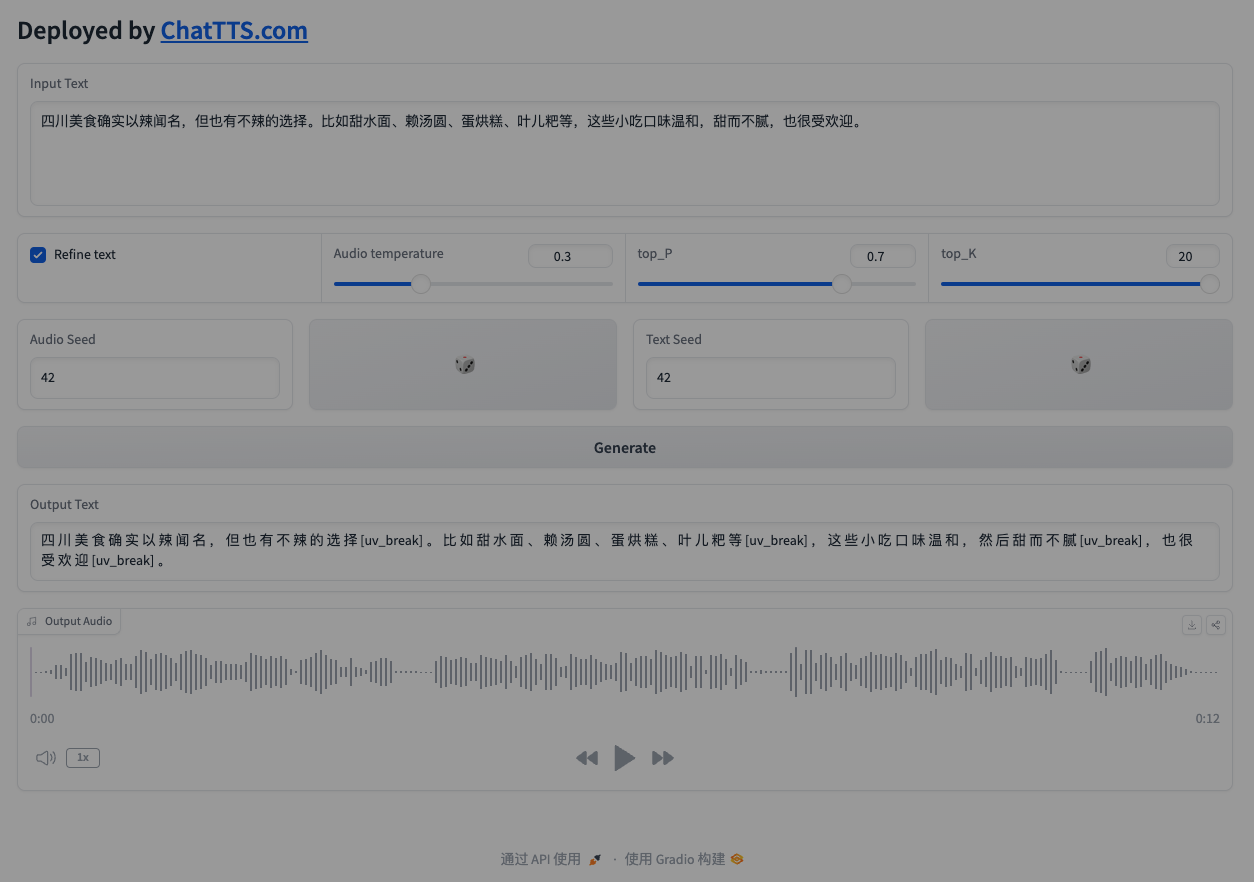
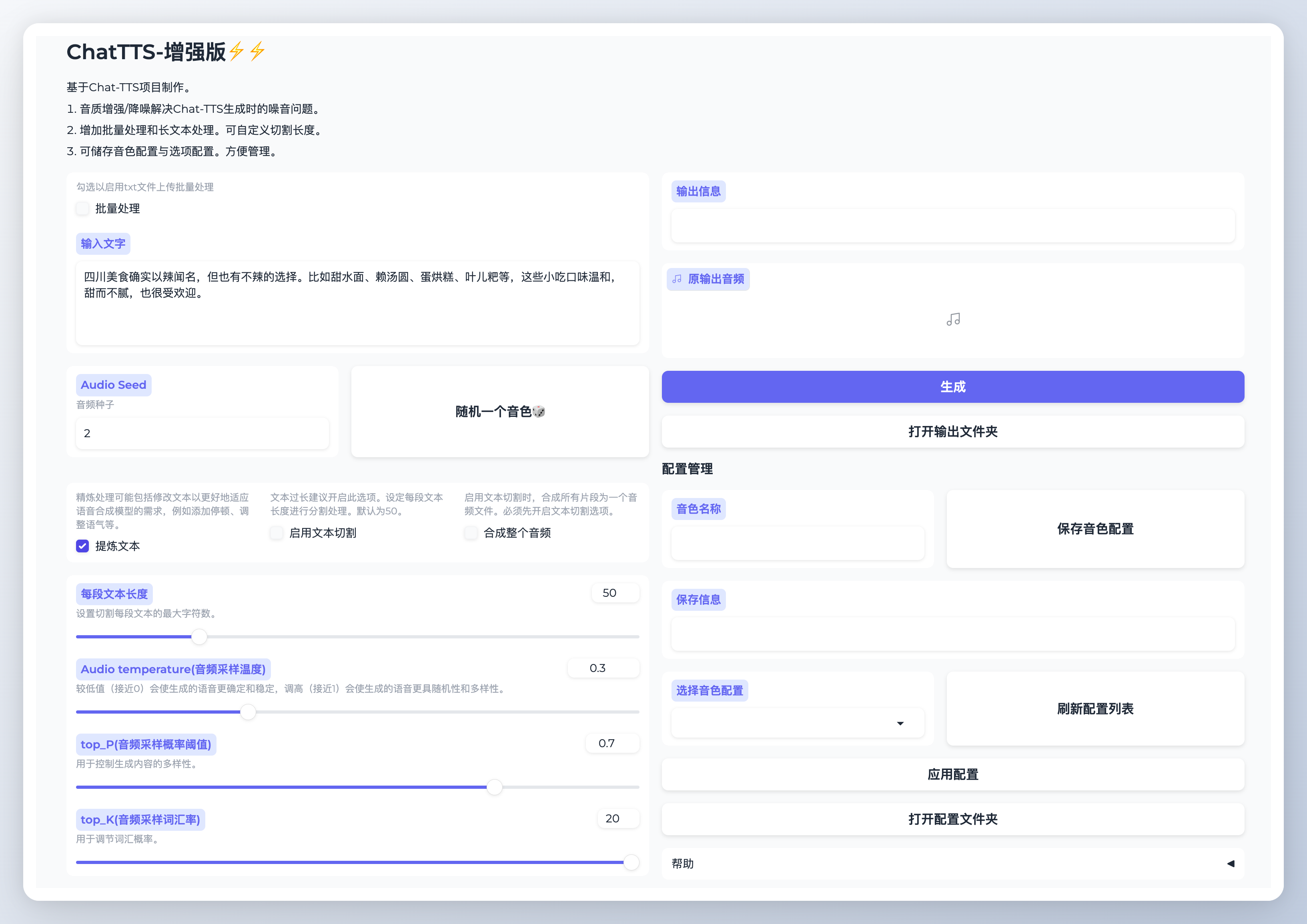
    <content type="html"><![CDATA[<p><img src="https://img.laogou717.com/file/d3aeab11e0f7a814593ad.jpg"></p><h2 id="前言"><a href="#前言" class="headerlink" title="前言"></a>前言</h2><blockquote><p>🤔 最近GitHub上一个叫做<a href="https://github.com/2noise/ChatTTS">Chattts</a>的超酷项目非常火,短短十天就在GitHub上收获了<strong>20K的star</strong>,今天我们就来看看怎么样去使用它吧。</p></blockquote><h2 id="亮点"><a href="#亮点" class="headerlink" title="亮点"></a>亮点</h2><h3 id="对话语音合成"><a href="#对话语音合成" class="headerlink" title="对话语音合成"></a>对话语音合成</h3><p>ChatTTS 能支持多说话人互动对话，效果非常自然，像真人聊天一样。还能预测和控制语音中的笑声、停顿等细节，让语音更加生动。<br>在语调上，ChatTTS 真的超越了大多数开源的 TTS 模型，听起来更加自然和有表现力。</p><h2 id="如何快速开始使用"><a href="#如何快速开始使用" class="headerlink" title="如何快速开始使用"></a>如何快速开始使用</h2><h3 id="在线体验"><a href="#在线体验" class="headerlink" title="在线体验"></a>在线体验</h3><p>访问<a href="https://chattts.com/">chattts.com</a>即可进行在线操作体验。<br><img src="https://img.laogou717.com/file/f23cd0dd2f722edf047b5.png"></p><iframe src="https://dzkaka-chattts.hf.space/" width="100%" height="600px"></iframe><h2 id="本地部署"><a href="#本地部署" class="headerlink" title="本地部署"></a>本地部署</h2><p>说实话非常<strong>不推荐</strong>在本地部署,因为<strong>太tm卡了</strong><img no-lazy class="inline" src="https://img.laogou717.com/file/818be20f77a753b2a9790.png" style="height:40px;"/> 不过如果你想的话,可以通过以下步骤在本地安装和运行ChatTTS。</p><details class="folding-tag" 参数（可选）><summary> 点击查看部署教程😁 </summary>              <div class='content'>              <h3 id="步骤1：从GitHub下载代码"><a href="#步骤1：从GitHub下载代码" class="headerlink" title="步骤1：从GitHub下载代码"></a>步骤1：从GitHub下载代码</h3><p>打开终端并运行以下命令来克隆ChatTTS代码库：</p><figure class="highlight sh"><table><tr><td class="gutter"><pre><span class="line">1</span><br></pre></td><td class="code"><pre><span class="line">git <span class="built_in">clone</span> https://github.com/2noise/ChatTTS</span><br></pre></td></tr></table></figure><h3 id="步骤2：安装依赖项"><a href="#步骤2：安装依赖项" class="headerlink" title="步骤2：安装依赖项"></a>步骤2：安装依赖项</h3><p>确保你已经安装了Python和pip。接着运行以下命令来安装必要的依赖项：</p><figure class="highlight sh"><table><tr><td class="gutter"><pre><span class="line">1</span><br></pre></td><td class="code"><pre><span class="line">pip install torch ChatTTS</span><br></pre></td></tr></table></figure><h3 id="步骤3：导入所需的库"><a href="#步骤3：导入所需的库" class="headerlink" title="步骤3：导入所需的库"></a>步骤3：导入所需的库</h3><p>在你的Python脚本中导入必要的库：</p><figure class="highlight python"><table><tr><td class="gutter"><pre><span class="line">1</span><br><span class="line">2</span><br><span class="line">3</span><br></pre></td><td class="code"><pre><span class="line"><span class="keyword">import</span> torch</span><br><span class="line"><span class="keyword">import</span> ChatTTS</span><br><span class="line"><span class="keyword">from</span> IPython.display <span class="keyword">import</span> Audio</span><br></pre></td></tr></table></figure><h3 id="步骤4：初始化ChatTTS"><a href="#步骤4：初始化ChatTTS" class="headerlink" title="步骤4：初始化ChatTTS"></a>步骤4：初始化ChatTTS</h3><p>创建一个ChatTTS类的实例并加载预训练的模型：</p><figure class="highlight python"><table><tr><td class="gutter"><pre><span class="line">1</span><br><span class="line">2</span><br></pre></td><td class="code"><pre><span class="line">chat = ChatTTS.Chat()</span><br><span class="line">chat.load_models()</span><br></pre></td></tr></table></figure><h3 id="步骤5：准备你的文本"><a href="#步骤5：准备你的文本" class="headerlink" title="步骤5：准备你的文本"></a>步骤5：准备你的文本</h3><p>定义你想要转换为语音的文本：</p><figure class="highlight python"><table><tr><td class="gutter"><pre><span class="line">1</span><br></pre></td><td class="code"><pre><span class="line">texts = [<span class="string">&quot;Hello, welcome to ChatTTS!&quot;</span>]</span><br></pre></td></tr></table></figure><h3 id="步骤6：生成语音"><a href="#步骤6：生成语音" class="headerlink" title="步骤6：生成语音"></a>步骤6：生成语音</h3><p>使用infer方法从文本生成语音。设置use_decoder&#x3D;True以启用解码器：</p><figure class="highlight python"><table><tr><td class="gutter"><pre><span class="line">1</span><br></pre></td><td class="code"><pre><span class="line">wavs = chat.infer(texts, use_decoder=<span class="literal">True</span>)</span><br></pre></td></tr></table></figure><h3 id="步骤7：播放音频"><a href="#步骤7：播放音频" class="headerlink" title="步骤7：播放音频"></a>步骤7：播放音频</h3><p>使用IPython.display中的Audio类播放生成的音频。将采样率设置为24,000 Hz并启用自动播放：</p><figure class="highlight python"><table><tr><td class="gutter"><pre><span class="line">1</span><br></pre></td><td class="code"><pre><span class="line">Audio(wavs[<span class="number">0</span>], rate=<span class="number">24_000</span>, autoplay=<span class="literal">True</span>)</span><br></pre></td></tr></table></figure>              </div>            </details><h2 id="本地、Docker部署API"><a href="#本地、Docker部署API" class="headerlink" title="本地、Docker部署API"></a>本地、Docker部署API</h2><p>这个方法来源于“<a href="https://github.com/ultrasev/ChatTTS">https://github.com/ultrasev/ChatTTS</a> ” , 支持docker一键部署成API,然后通过其他应用或者curl调用。</p><details class="folding-tag" 参数（可选）><summary> 点击查看部署教程😁 </summary>              <div class='content'>              <h3 id="FastAPI-服务本地部署和使用指南"><a href="#FastAPI-服务本地部署和使用指南" class="headerlink" title="FastAPI 服务本地部署和使用指南"></a>FastAPI 服务本地部署和使用指南</h3><h4 id="本地部署"><a href="#本地部署" class="headerlink" title="本地部署"></a>本地部署</h4><ol><li><p>安装依赖：</p><figure class="highlight sh"><table><tr><td class="gutter"><pre><span class="line">1</span><br></pre></td><td class="code"><pre><span class="line">pip3 install -r requirements.txt</span><br></pre></td></tr></table></figure></li><li><p>启动服务：</p><figure class="highlight sh"><table><tr><td class="gutter"><pre><span class="line">1</span><br></pre></td><td class="code"><pre><span class="line">uvicorn main:app --host <span class="string">&quot;0.0.0.0&quot;</span> --port 8000</span><br></pre></td></tr></table></figure></li></ol><h4 id="使用示例"><a href="#使用示例" class="headerlink" title="使用示例"></a>使用示例</h4><p>发送 POST 请求，生成音频并保存到本地：</p><figure class="highlight sh"><table><tr><td class="gutter"><pre><span class="line">1</span><br><span class="line">2</span><br><span class="line">3</span><br></pre></td><td class="code"><pre><span class="line">curl -X POST -H <span class="string">&#x27;content-type: application/json&#x27;</span> -d \</span><br><span class="line"><span class="string">&#x27;&#123;&quot;text&quot;:&quot;朋友你好啊，今天天气怎么样？&quot;, &quot;output_path&quot;: &quot;abc.wav&quot;, &quot;seed&quot;:232&#125;&#x27;</span> \</span><br><span class="line">http://localhost:8000/tts</span><br></pre></td></tr></table></figure><p>参数说明：</p><ul><li><code>text</code>: 要转换的文本</li><li><code>output_path</code>: 音频保存路径</li><li><code>seed</code>: 音色种子，不同种子会产生不同音色，默认值为697</li></ul><h4 id="Docker-部署"><a href="#Docker-部署" class="headerlink" title="Docker 部署"></a>Docker 部署</h4><p>运行 Docker 容器：</p><figure class="highlight sh"><table><tr><td class="gutter"><pre><span class="line">1</span><br></pre></td><td class="code"><pre><span class="line">docker run -d --name chattts -p8000:8000 -v /tmp/audio:/audio ghcr.io/ultrasev/chattts:latest</span><br></pre></td></tr></table></figure><p>注意：</p><ul><li><code>/tmp/audio</code> 为本地音频文件存储路径</li><li><code>/audio</code> 为容器内音频文件存储路径</li></ul><p>发送 POST 请求，生成音频并保存到 Docker 容器中：</p><figure class="highlight sh"><table><tr><td class="gutter"><pre><span class="line">1</span><br><span class="line">2</span><br><span class="line">3</span><br></pre></td><td class="code"><pre><span class="line">curl -X POST -H <span class="string">&#x27;content-type: application/json&#x27;</span> -d \</span><br><span class="line"><span class="string">&#x27;&#123;&quot;text&quot;:&quot;朋友你好啊，今天天气怎么样？&quot;, &quot;output_path&quot;: &quot;/audio/abc.wav&quot;, &quot;seed&quot;:232&#125;&#x27;</span> \</span><br><span class="line">http://localhost:8000/tts</span><br></pre></td></tr></table></figure>              </div>            </details><h2 id="整合包打开即用"><a href="#整合包打开即用" class="headerlink" title="整合包打开即用"></a>整合包打开即用</h2><p>逛B站时发现了一个UP主<a href="https://www.bilibili.com/video/BV1pM4m1z7h9">嘟嘟实验室</a>做的整合包,支持Win系统、Mac系统。<br><img src="https://img.laogou717.com/file/f45dd6af6fc696ed8560e.png"></p><div class="btns rounded grid5">            <a class="button no-text-decoration" href='https://pan.baidu.com/s/1t3XddrF8KBJ2dYqmwvqOQw?pwd=nmhx' title='原作者链接'><i class='anzhiyufont anzhiyu-icon-bolt'></i>原作者链接</a><a class="button no-text-decoration" href='https://pan.baidu.com/s/1FihkQU3j8pRoo7eoq68zOA?pwd=6666' title='转存链接'><i class='anzhiyufont anzhiyu-icon-bolt'></i>转存链接</a>          </div><h2 id="最后叨叨"><a href="#最后叨叨" class="headerlink" title="最后叨叨"></a>最后叨叨</h2><p>如果上述的一些环节出现问题,可以选择询问ChatGPT来寻求帮助,或者直接使用在线演示网站。假设你不知道怎么使用GPT4,可以访问我的 <a href="https://nav.laogou717.com/">AI导航网站</a>。</p><h2 id="引用链接"><a href="#引用链接" class="headerlink" title="引用链接"></a>引用链接</h2><ul><li><a href="https://github.com/2noise/ChatTTS">https://github.com/2noise/ChatTTS</a></li><li><a href="https://github.com/ultrasev/ChatTTS">https://github.com/ultrasev/ChatTTS</a></li><li><a href="https://www.bilibili.com/video/BV1pM4m1z7h9">嘟嘟实验室</a></li></ul>]]></content>


    <summary type="html">&lt;p&gt;&lt;img src=&quot;https://img.laogou717.com/file/d3aeab11e0f7a814593ad.jpg&quot;&gt;&lt;/p&gt;
&lt;h2 id=&quot;前言&quot;&gt;&lt;a href=&quot;#前言&quot; class=&quot;headerlink&quot;</summary>


    <category term="AI纪元" scheme="http://www.laogou717.com/categories/AI%E7%BA%AA%E5%85%83/"/>
    
    
    <category term="chattts" scheme="http://www.laogou717.com/tags/chattts/"/>
    
    <category term="GitHub" scheme="http://www.laogou717.com/tags/GitHub/"/>
    
    <category term="部署" scheme="http://www.laogou717.com/tags/%E9%83%A8%E7%BD%B2/"/>
    
  </entry>
  
  <entry>
    <title>Bookmarklet小书签</title>
    <link href="http://www.laogou717.com/2024/05/14/AI%20era/book/"/>
    <id>http://www.laogou717.com/2024/05/14/AI%20era/book/</id>
    <published>2024-05-14T07:30:00.000Z</published>
    <updated>2024-06-02T14:05:47.857Z</updated>
    
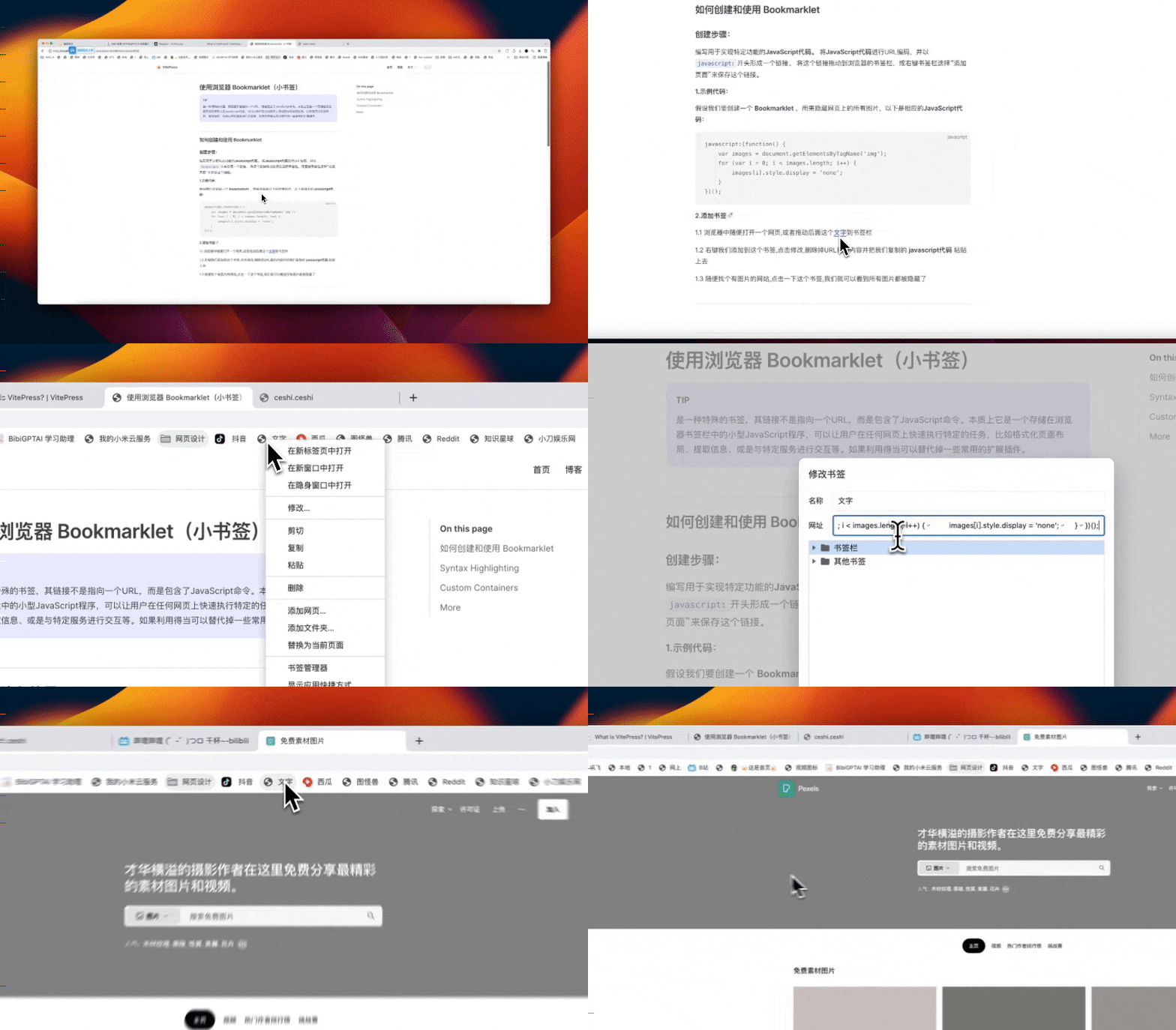
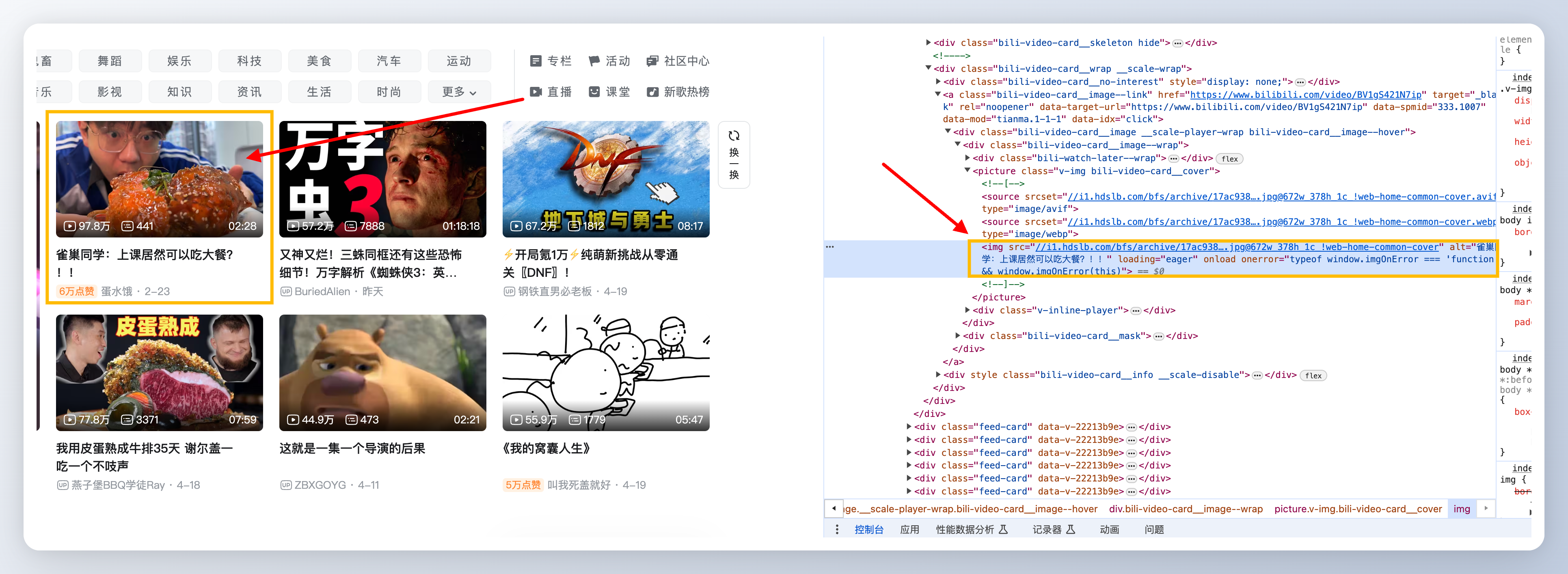
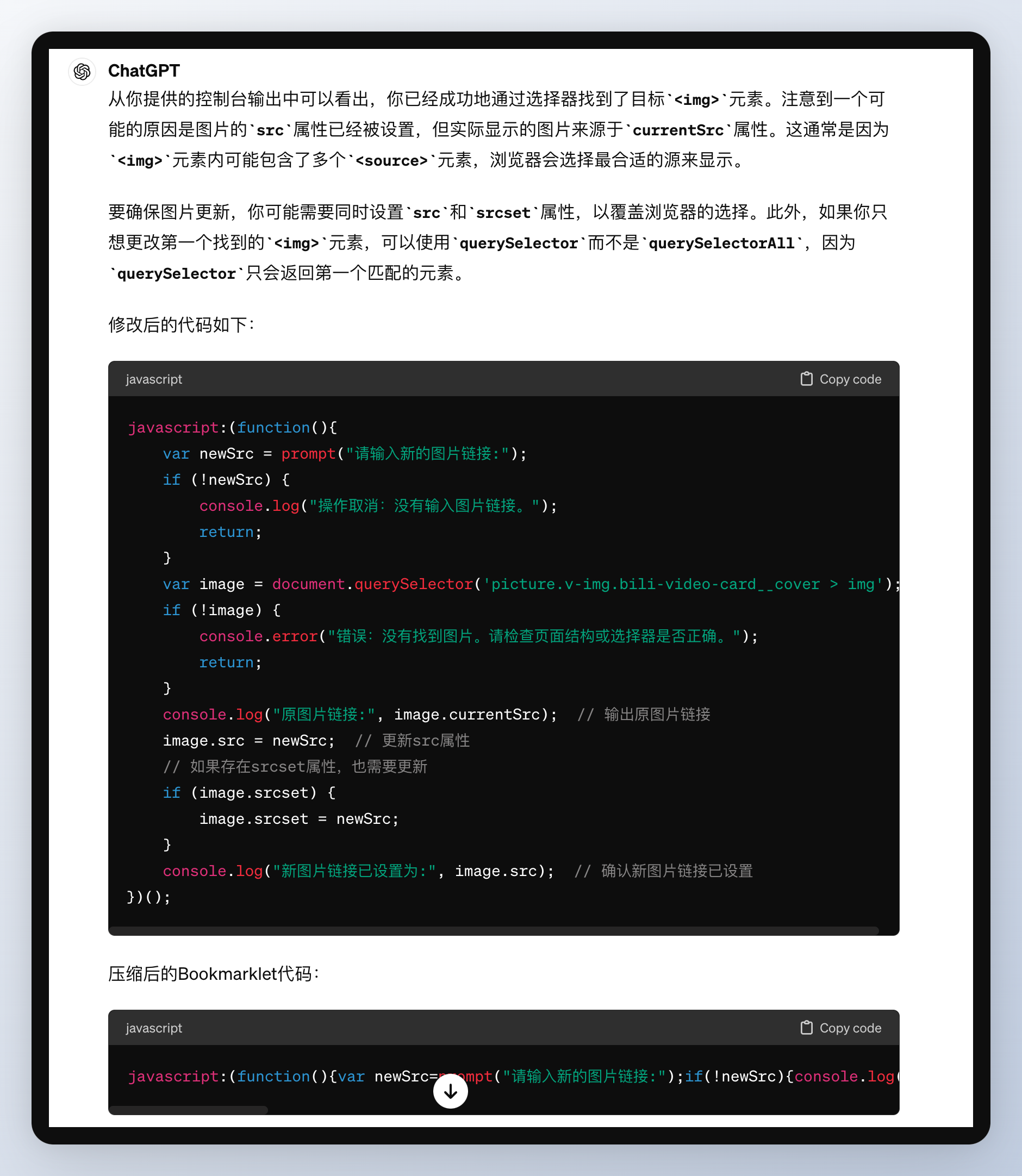
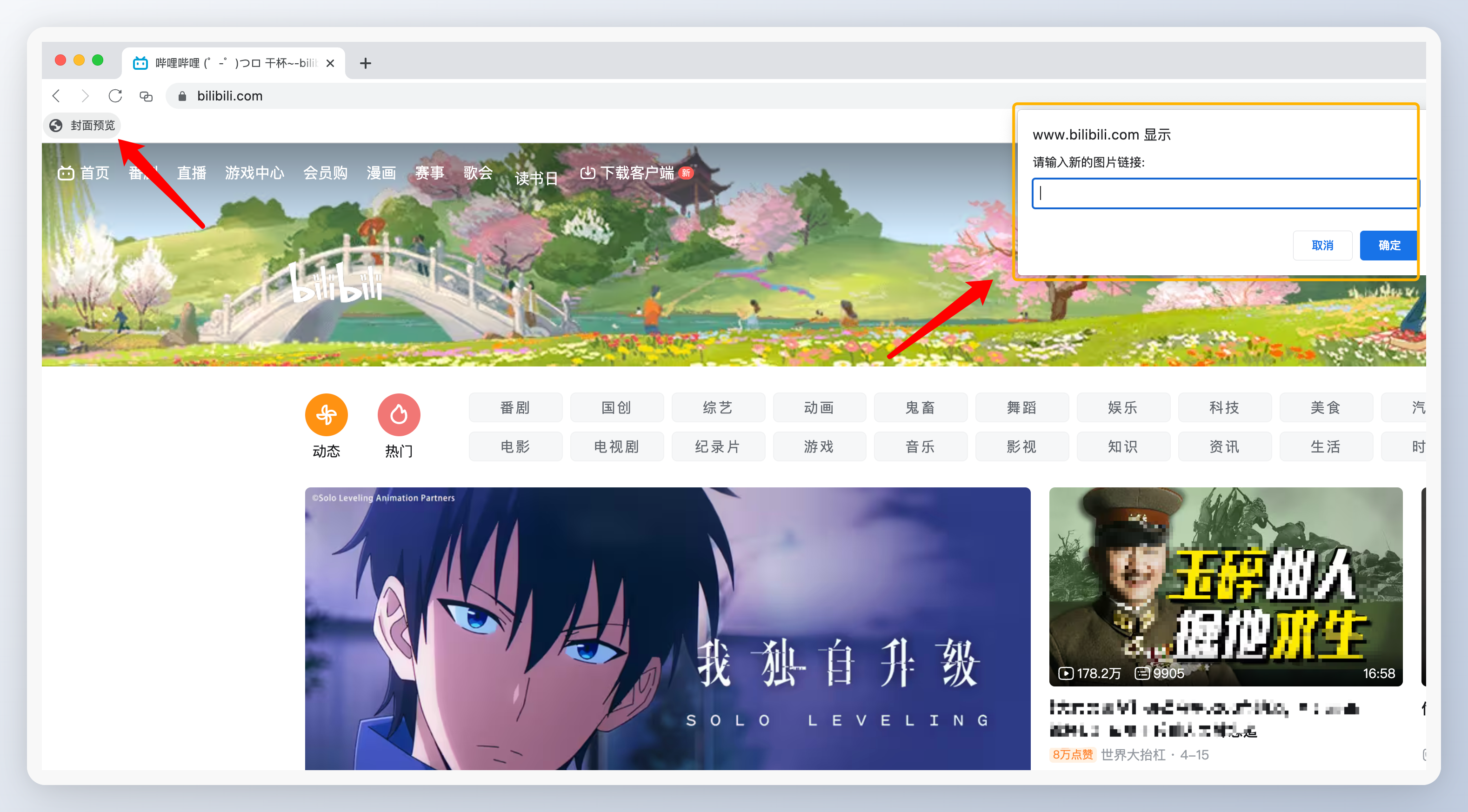
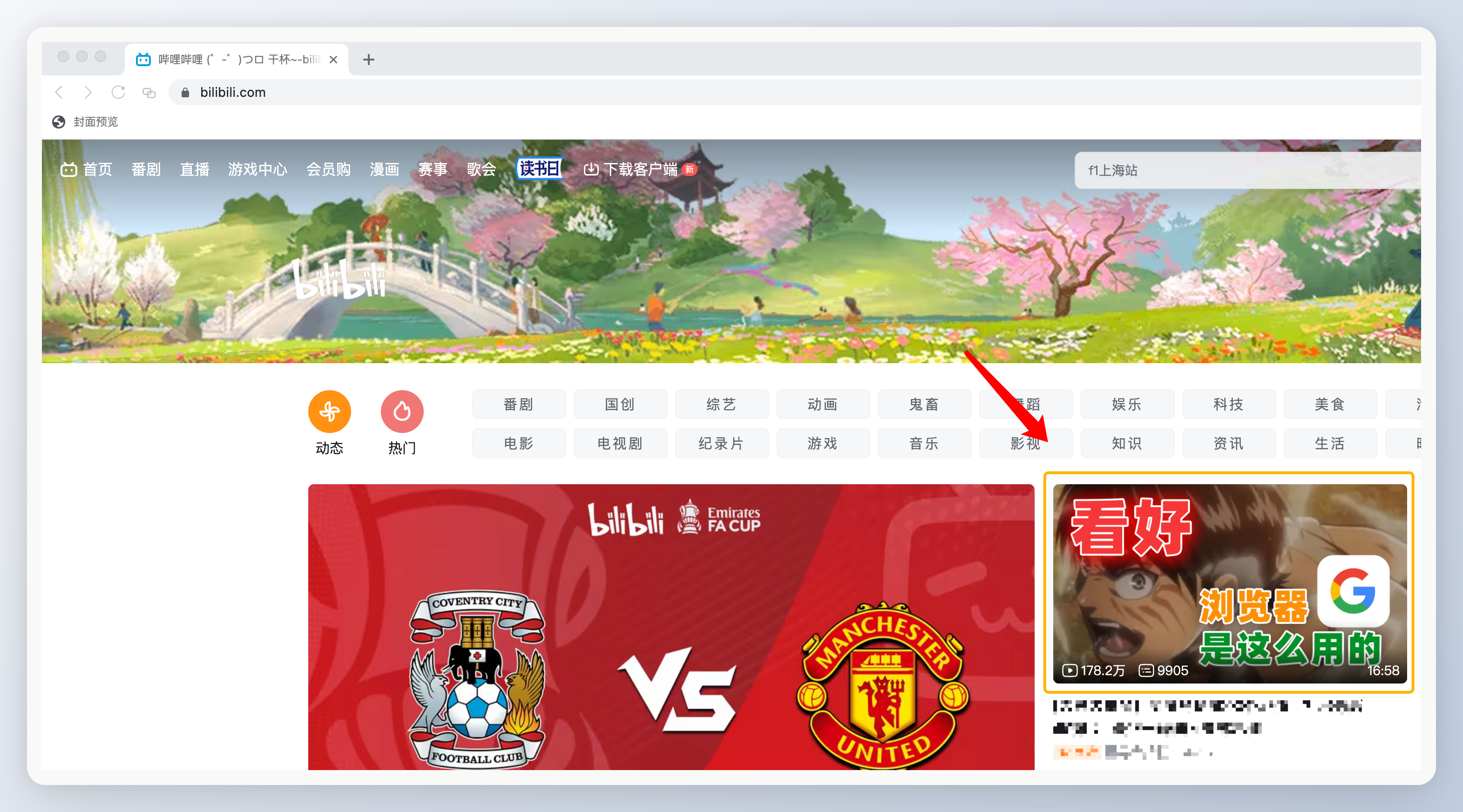
    <content type="html"><![CDATA[<h1 id="下载使用浏览器-Bookmarklet（小书签）"><a href="#下载使用浏览器-Bookmarklet（小书签）" class="headerlink" title="下载使用浏览器 Bookmarklet（小书签）"></a>下载使用浏览器 Bookmarklet（小书签）</h1><h2 id="下载bookmarklet-code-6666"><a href="#下载bookmarklet-code-6666" class="headerlink" title="下载bookmarklet code:6666"></a>下载bookmarklet code:6666</h2><div class="btns rounded grid5">            <a class="button no-text-decoration" href='https://pan.baidu.com/s/1olHsMYzcOtGCYiY6nUs6eQ?pwd=6666' title='下载源码'><i class='anzhiyufont anzhiyu-icon-bolt'></i>下载源码</a>          </div><blockquote><p>是一种特殊的书签，其链接不是指向一个URL，而是包含了JavaScript命令。本质上它是一个存储在浏览器书签栏中的小型JavaScript程序，可以让用户在任何网页上快速执行特定的任务，比如格式化页面布局、提取信息、或是与特定服务进行交互等。如果利用得当可以替代掉一些常用的扩展插件。</p></blockquote><h2 id="如何创建和使用-Bookmarklet"><a href="#如何创建和使用-Bookmarklet" class="headerlink" title="如何创建和使用 Bookmarklet"></a>如何创建和使用 Bookmarklet</h2><h3 id="创建步骤："><a href="#创建步骤：" class="headerlink" title="创建步骤："></a>创建步骤：</h3><p>编写用于实现特定功能的<strong>JavaScript代码。</strong><br>将<strong>JavaScript代码</strong>进行URL编码，并以<code>javascript:</code>开头形成一个链接。<br>将这个链接拖动到浏览器的书签栏，或右键书签栏选择“添加页面”来保存这个链接。</p><h4 id="1-示例代码："><a href="#1-示例代码：" class="headerlink" title="1.示例代码："></a>1.示例代码：</h4><p>假设我们要创建一个 <strong>Bookmarklet</strong> ，用来隐藏网页上的所有图片，以下是相应的<strong>JavaScript代码：</strong></p><figure class="highlight plaintext"><table><tr><td class="gutter"><pre><span class="line">1</span><br><span class="line">2</span><br><span class="line">3</span><br><span class="line">4</span><br><span class="line">5</span><br><span class="line">6</span><br></pre></td><td class="code"><pre><span class="line">javascript:(function() &#123;</span><br><span class="line">    var images = document.getElementsByTagName(&#x27;img&#x27;);</span><br><span class="line">    for (var i = 0; i &lt; images.length; i++) &#123;</span><br><span class="line">        images[i].style.display = &#x27;none&#x27;;</span><br><span class="line">    &#125;</span><br><span class="line">&#125;)();</span><br></pre></td></tr></table></figure><h4 id="2-添加书签🔖"><a href="#2-添加书签🔖" class="headerlink" title="2.添加书签🔖"></a>2.添加书签🔖</h4><ol><li>开启你的网络浏览器（如Chrome、Firefox等）。拖动后面这个<a href="https://ceshi.ceshi/">示例文字</a>到书签栏</li><li>右键我们添加到这个书签,点击修改,删除掉URL里的内容并把我们复制的 <strong>javascript代码</strong> 粘贴上去</li><li>随便找个有图片的网站,点击一下这个书签,我们就可以看到所有图片都被隐藏了</li></ol><p><img src="https://cdn.jsdelivr.net/gh/JonasTech0/Jonas-imgs-240211/2024-02-11-WebDesktop/img%E6%B6%88%E5%A4%B1.gif" alt="演示图片"></p><h2 id="定制专属的Bookmarklet🔖"><a href="#定制专属的Bookmarklet🔖" class="headerlink" title="定制专属的Bookmarklet🔖"></a>定制专属的Bookmarklet🔖</h2><blockquote><p>下面我将开始介绍如何使用 Bookmarklet 来实现一些常见的功能，我们将借助自己的大脑和生成式AI来做到这一点。同时在文章末尾我将给各位打包上百个书签,方便大家体验。</p></blockquote><h3 id="B站视频封面"><a href="#B站视频封面" class="headerlink" title="B站视频封面"></a>B站视频封面</h3><p>每次发布视频之前我都想知道它的封面最终展现是什么样子的，但我没有找到一个好的工具，这时候我们就可以让AI来帮我们生成一个Boookmarklet来实现封面预览。</p><ol><li>首先我们在控制台找到想要放置封面<strong>位置的网页代码</strong>,复制下来</li></ol><p><img src="https://img.laogou717.com/file/0dc92d26ed6cdb321485b.png"></p><ol start="2"><li>接下来我们把复制的代码发送给AI,然后描述一下我们的要求,然后生成一个Bookmarklet</li></ol><p><img src="https://img.laogou717.com/file/d9e492b0e4334d1f6f2ad.png"></p><ol start="3"><li>然后我们按照之前的步骤,点击一下这个书签,粘贴上我们的封面就可以在这里进行预览了</li></ol><p><img src="https://img.laogou717.com/file/fd9d9874e3685cb679e9c.png"><br><img src="https://img.laogou717.com/file/8e7b834dfe6bf60f3255f.png"></p><h3 id="待续…"><a href="#待续…" class="headerlink" title="待续…"></a>待续…</h3><h1 id="小书签引用"><a href="#小书签引用" class="headerlink" title="小书签引用"></a>小书签引用</h1><p><a href="https://www.runningcheese.com/bookmarklets">奶酪书签</a></p>]]></content>


    <summary type="html">&lt;h1 id=&quot;下载使用浏览器-Bookmarklet（小书签）&quot;&gt;&lt;a href=&quot;#下载使用浏览器-Bookmarklet（小书签）&quot; class=&quot;headerlink&quot; title=&quot;下载使用浏览器 Bookmarklet（小书签）&quot;&gt;&lt;/a&gt;下载使用浏览器</summary>


    <category term="AI纪元" scheme="http://www.laogou717.com/categories/AI%E7%BA%AA%E5%85%83/"/>
    
    
  </entry>
  
  <entry>
    <title>【小白的教程】无需服务器一键部署OneAPI? | OneAPI 部署使用指南。</title>
    <link href="http://www.laogou717.com/2024/04/14/AI%20era/OneAPI/"/>
    <id>http://www.laogou717.com/2024/04/14/AI%20era/OneAPI/</id>
    <published>2024-04-13T21:28:00.000Z</published>
    <updated>2024-04-13T21:52:50.779Z</updated>
    
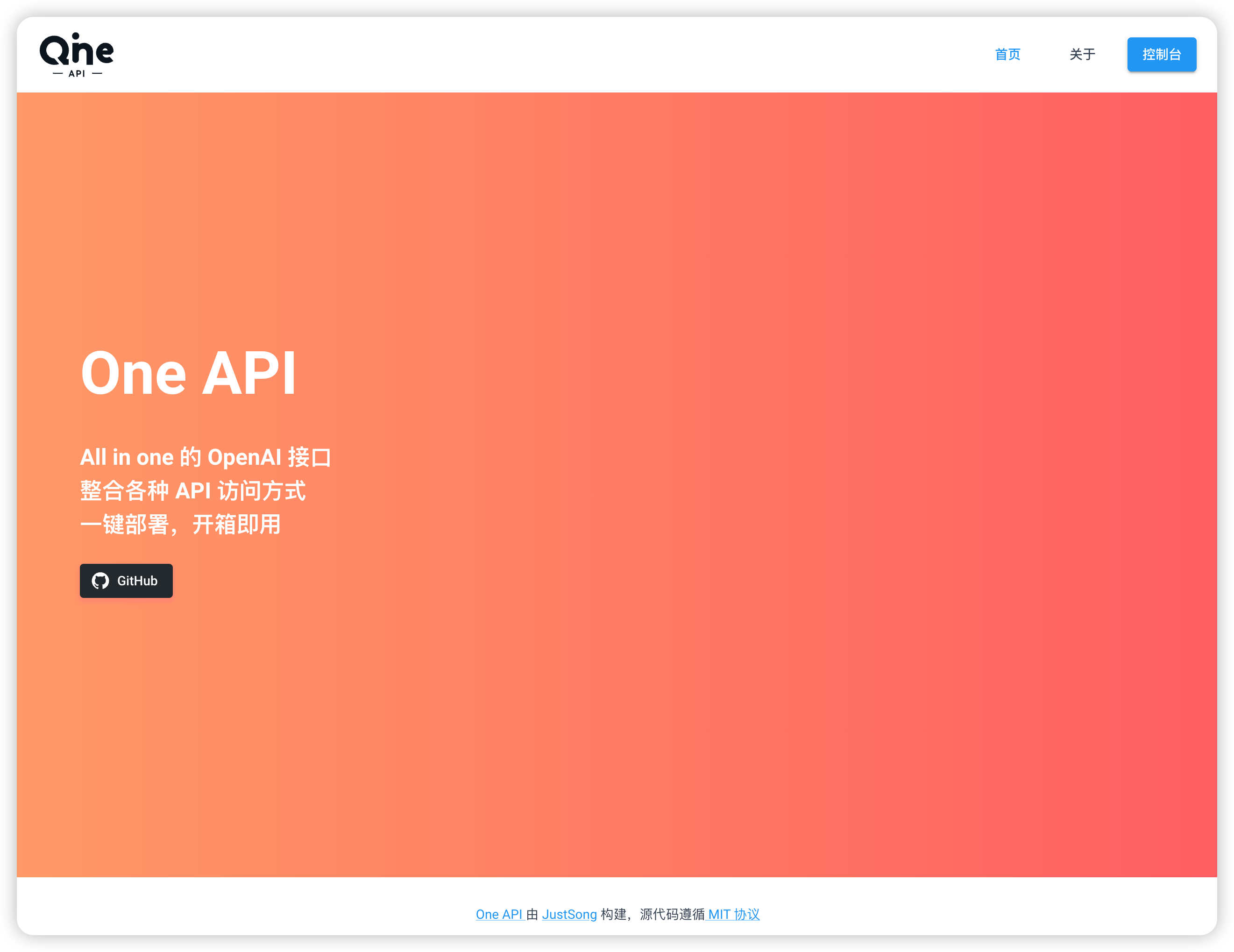
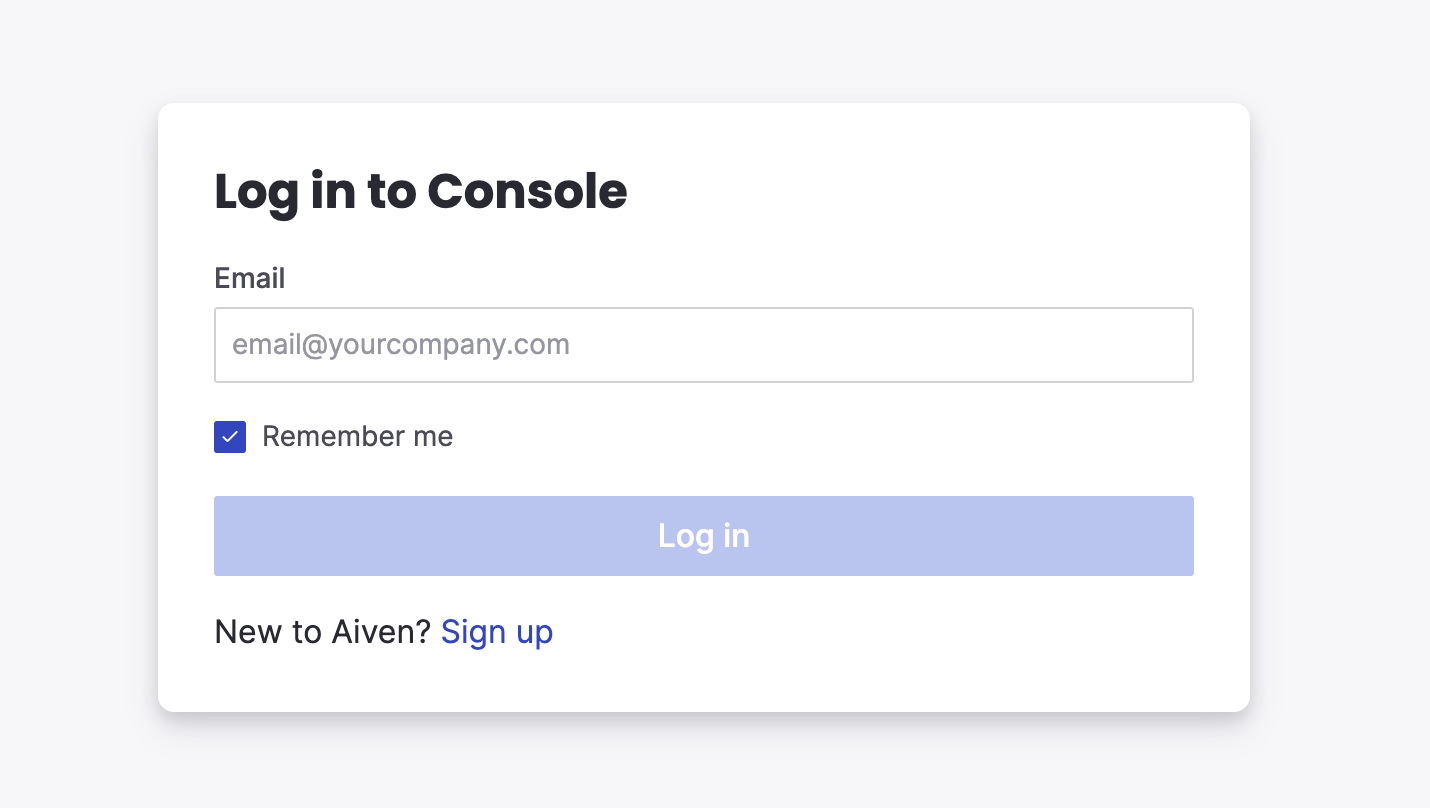
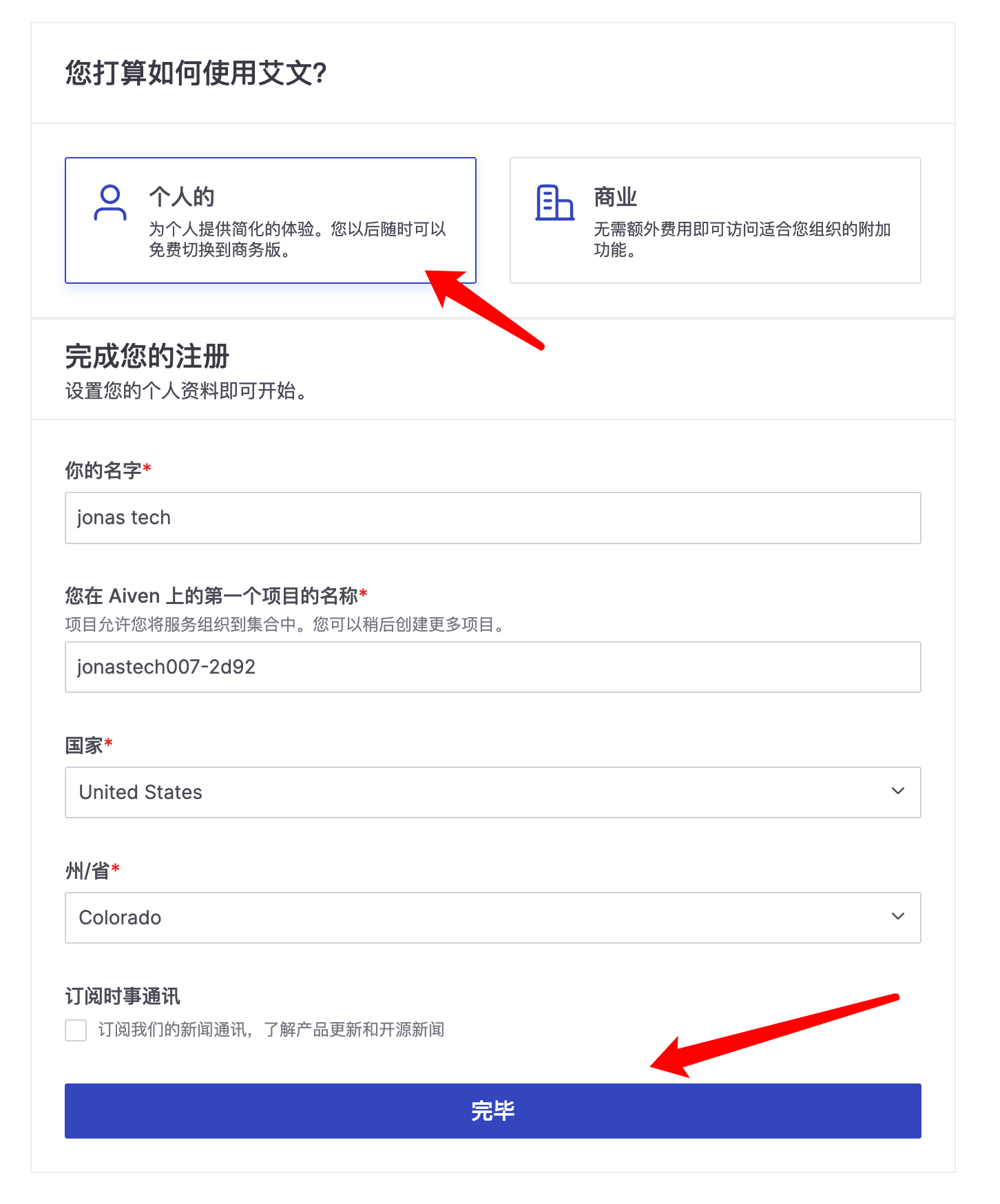
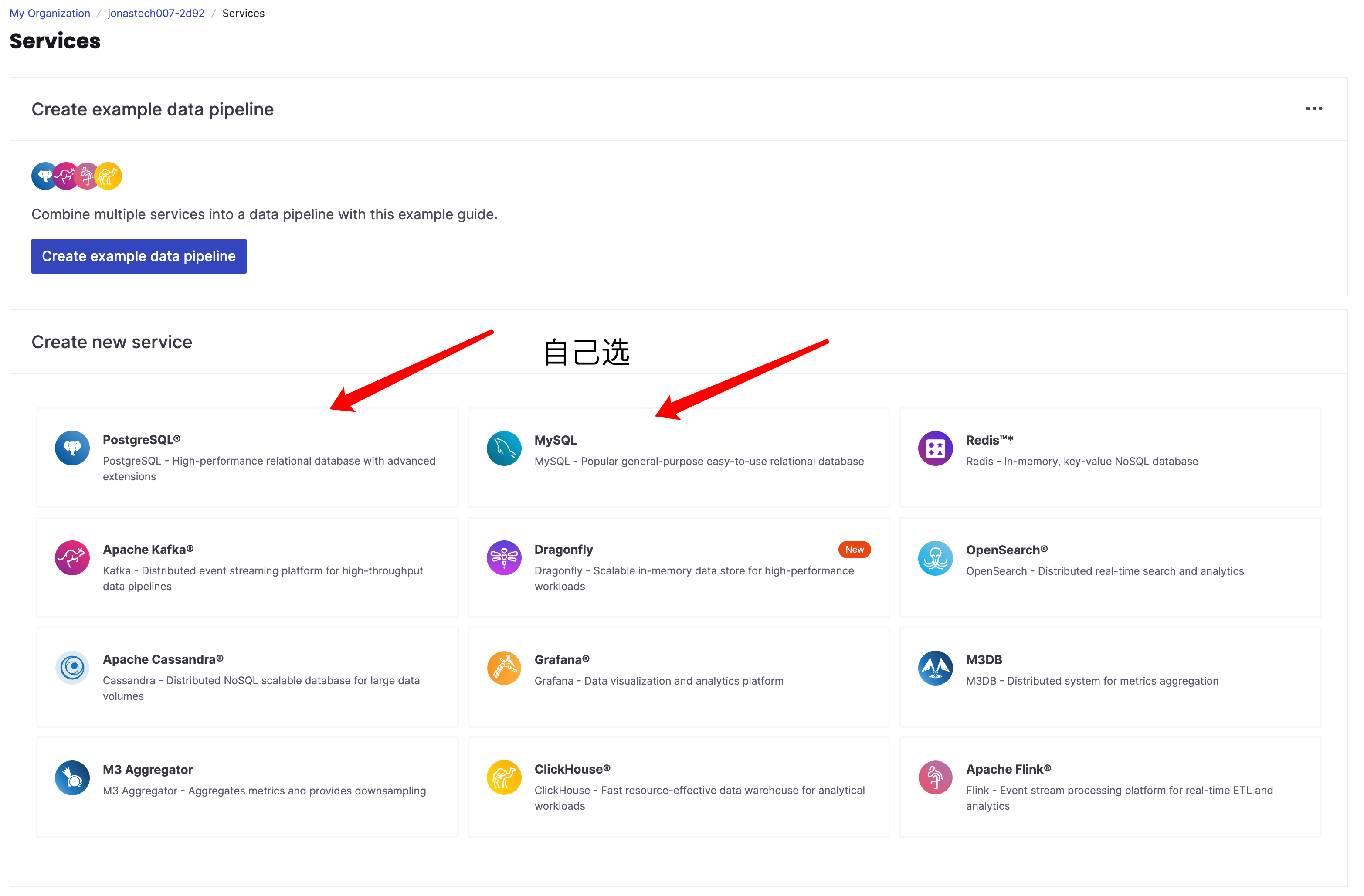
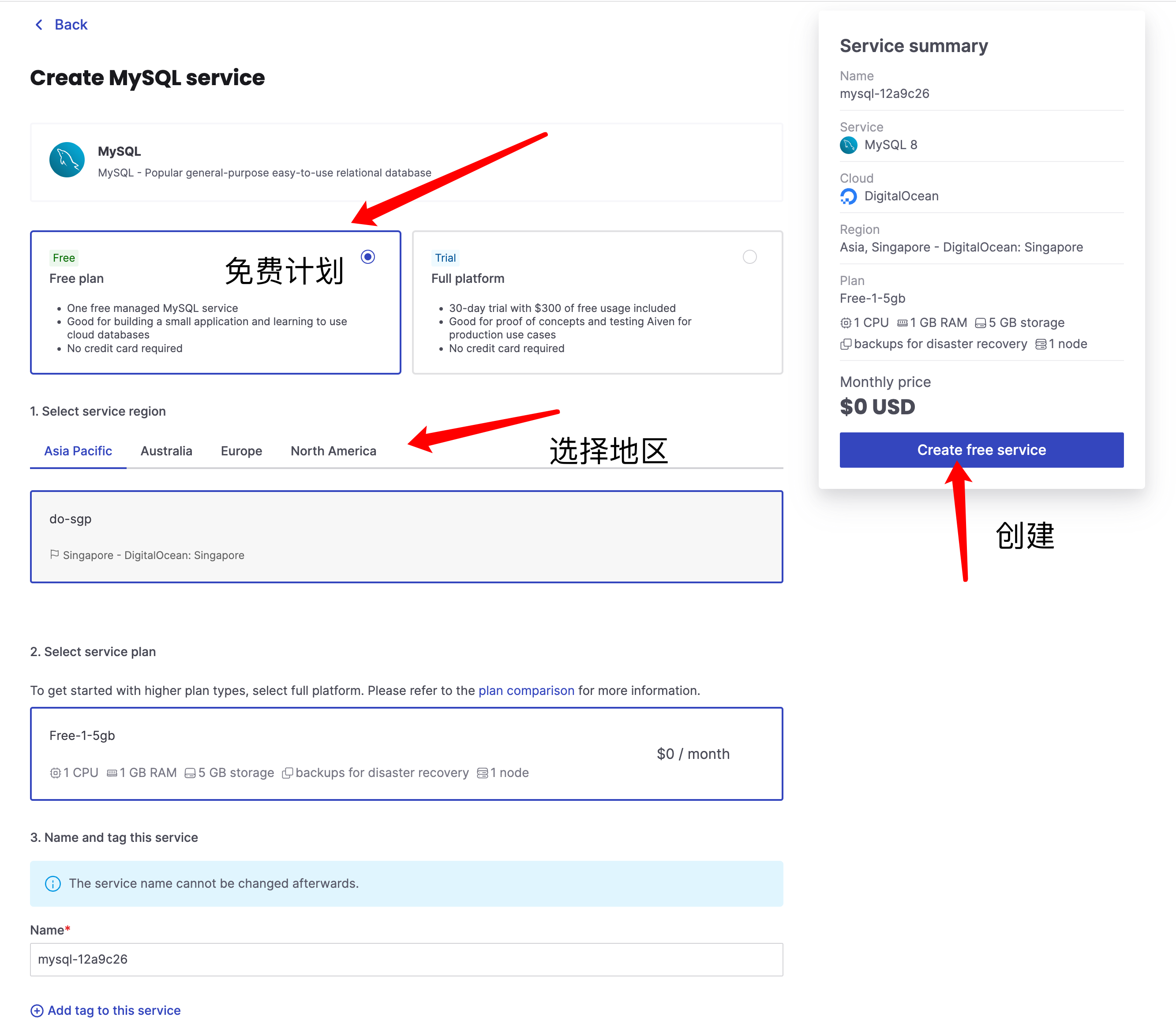
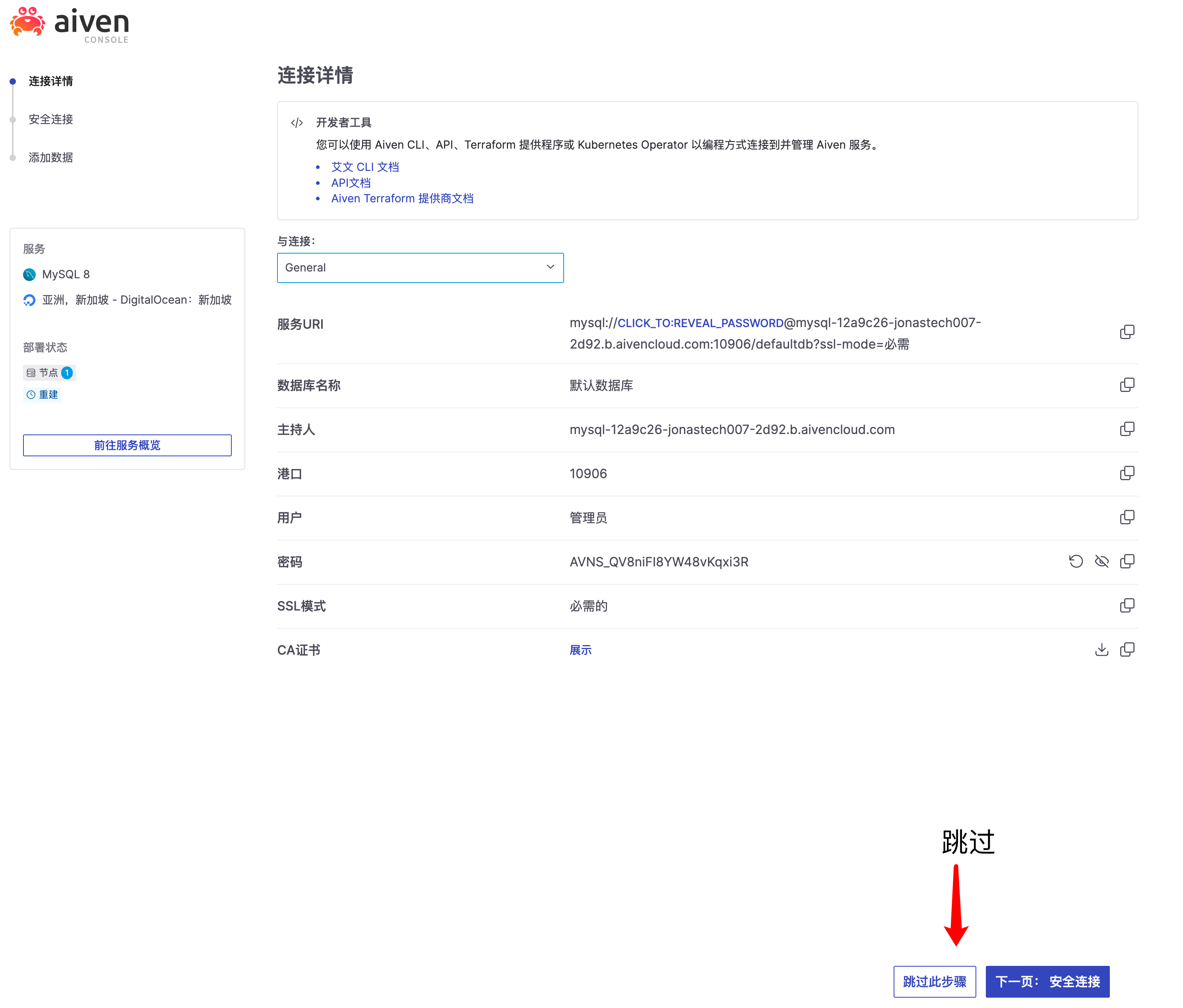
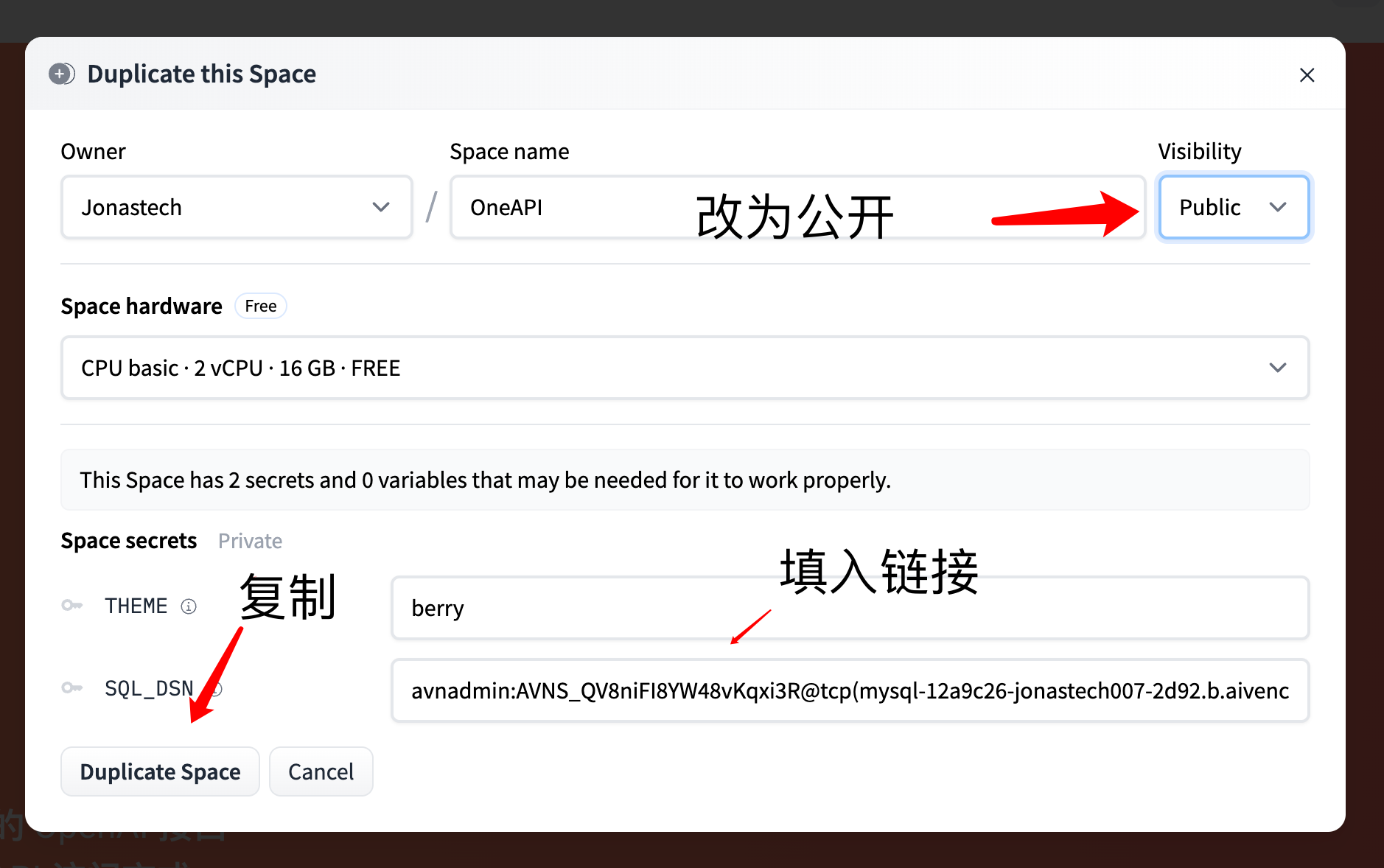
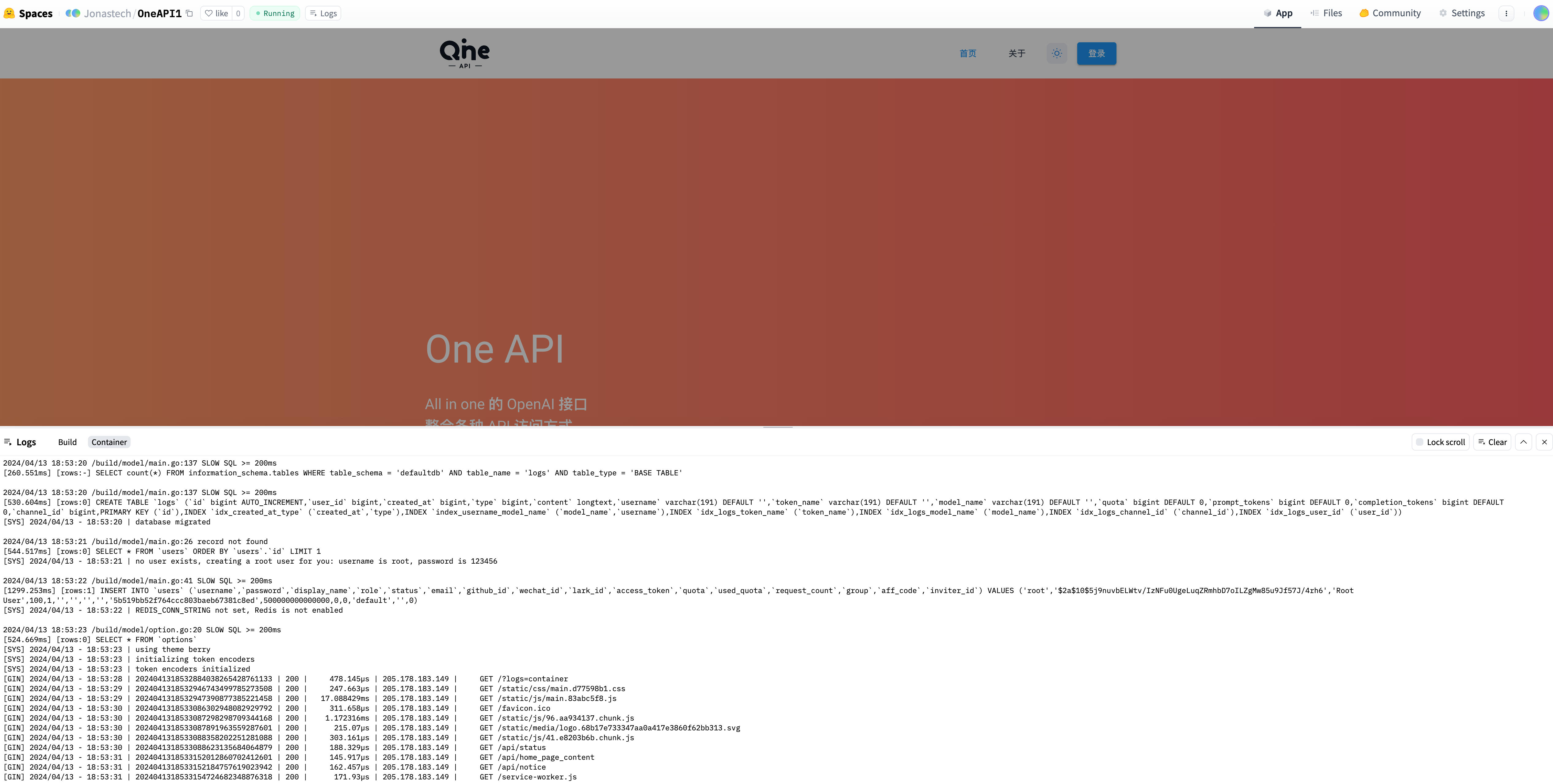
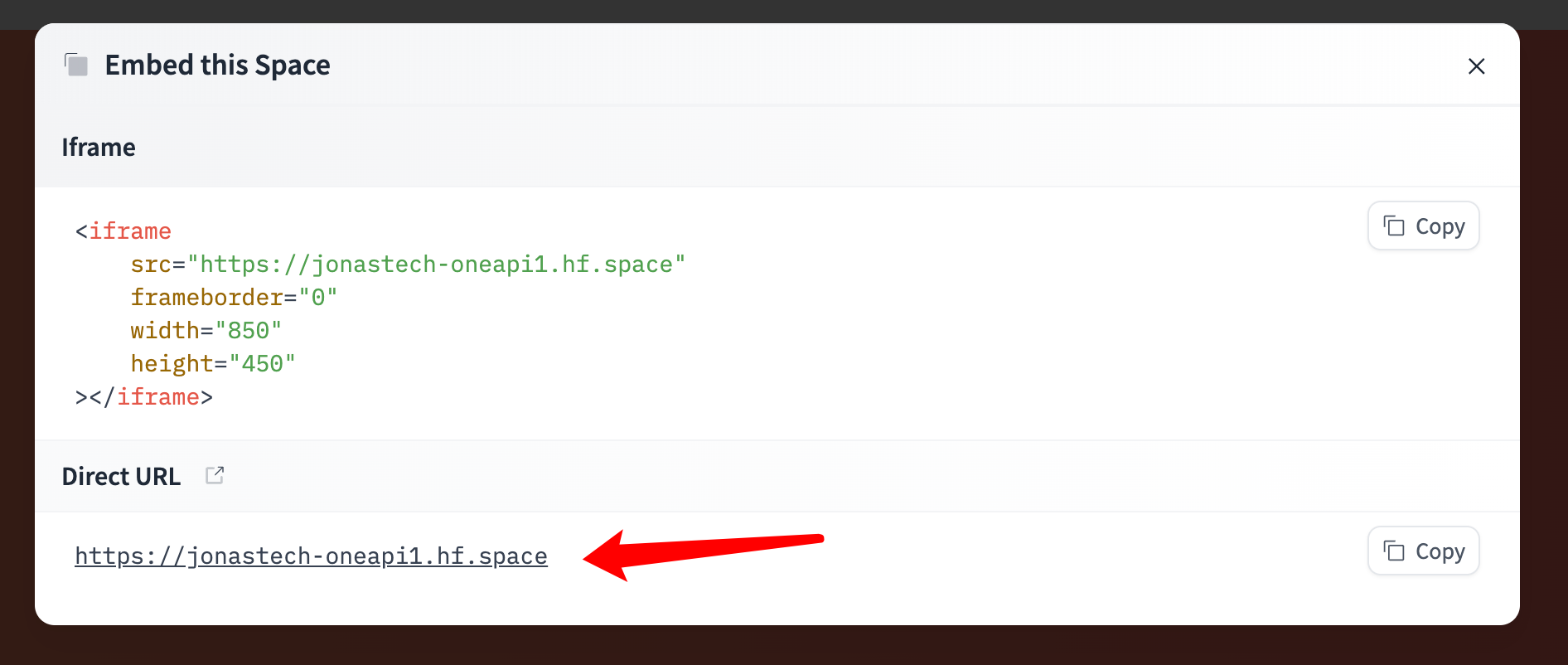
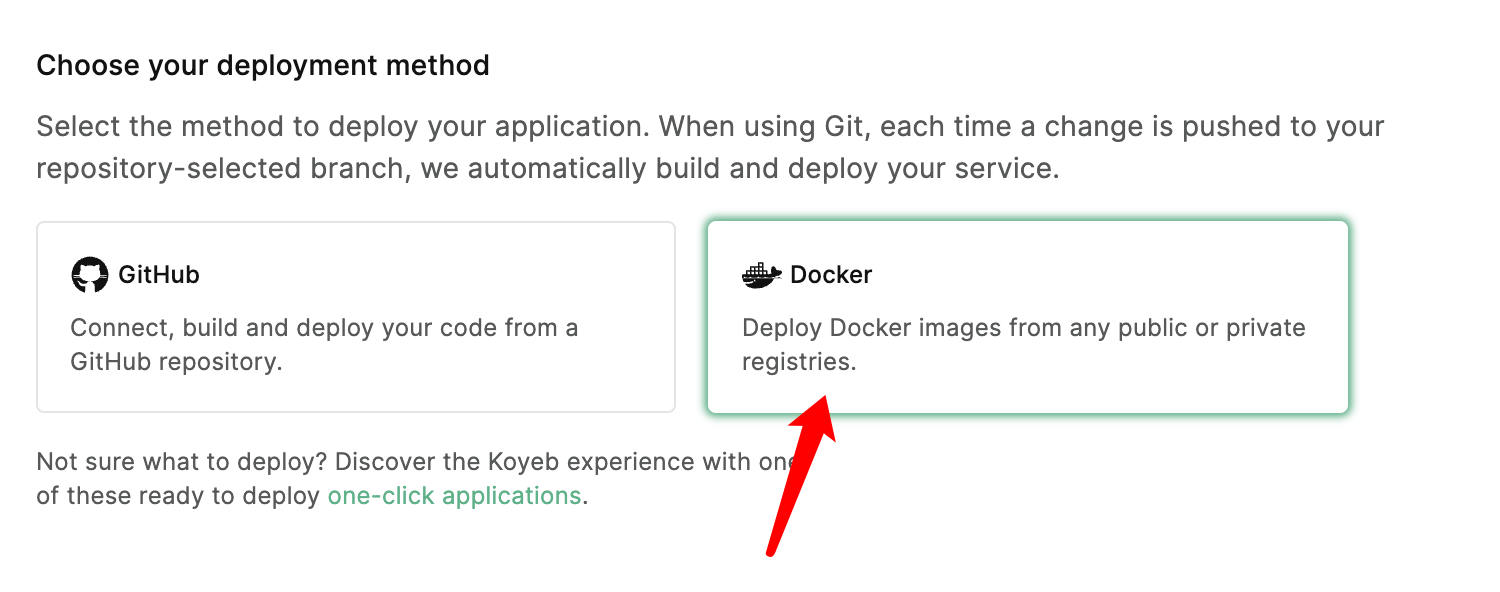
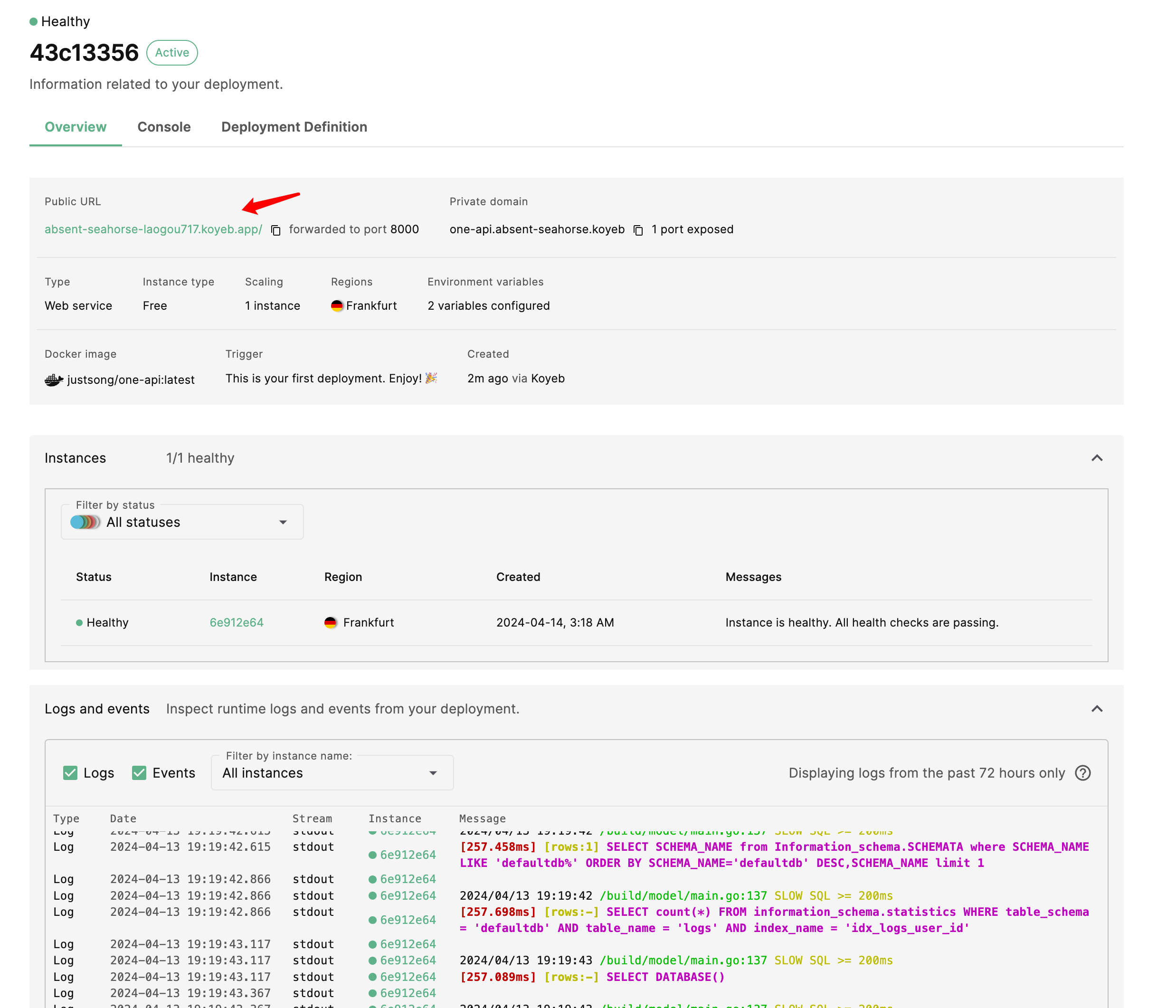
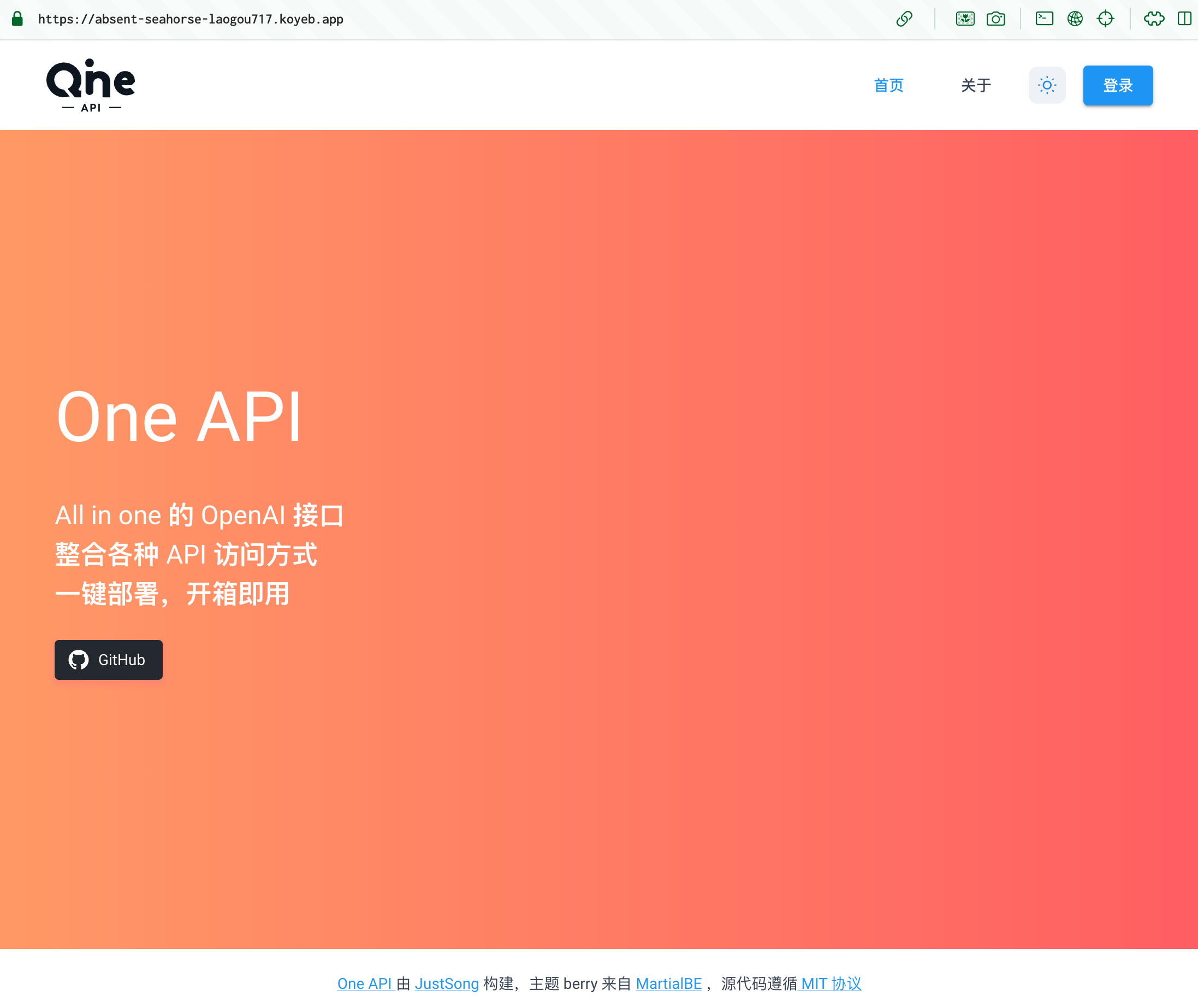
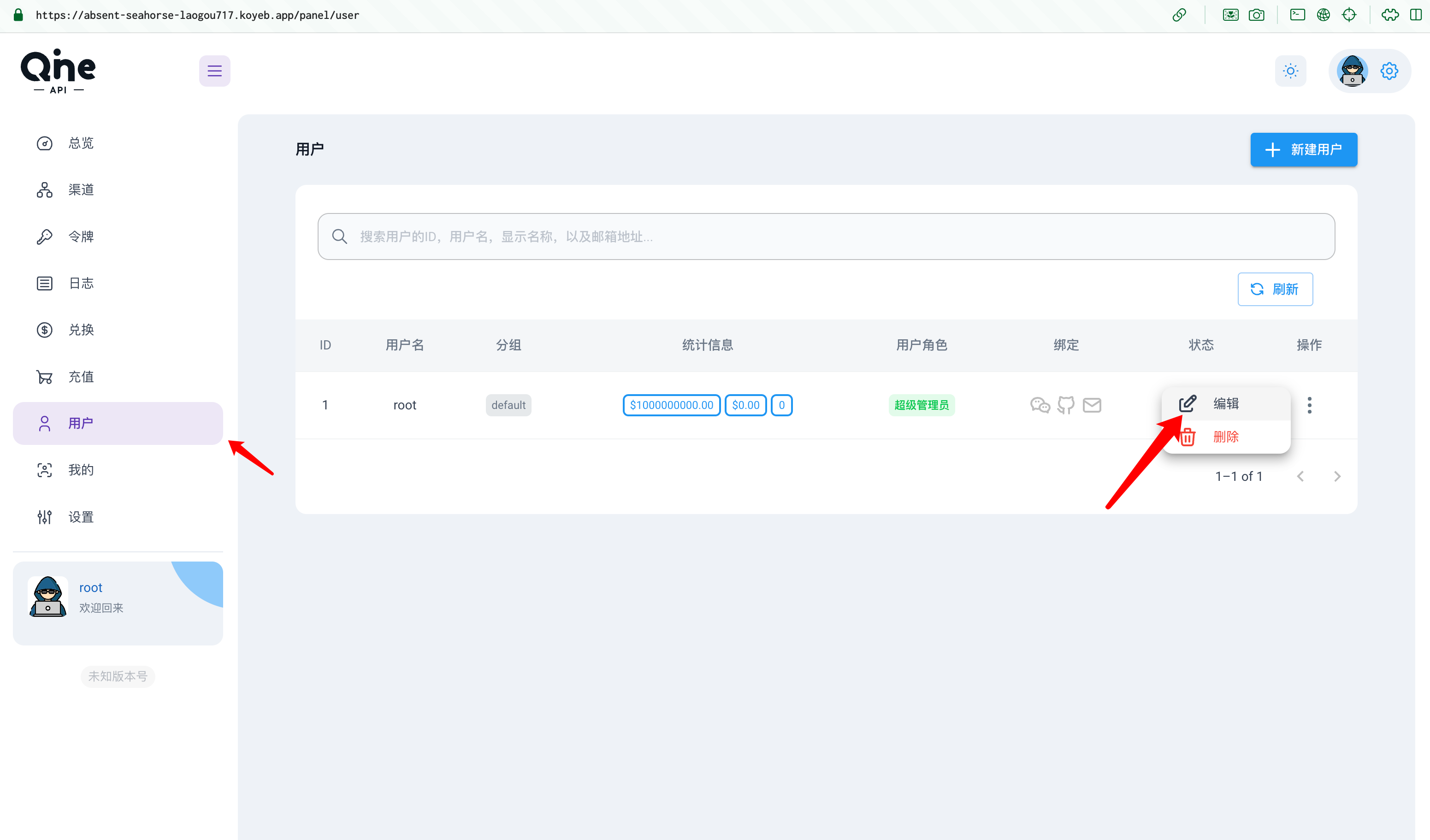
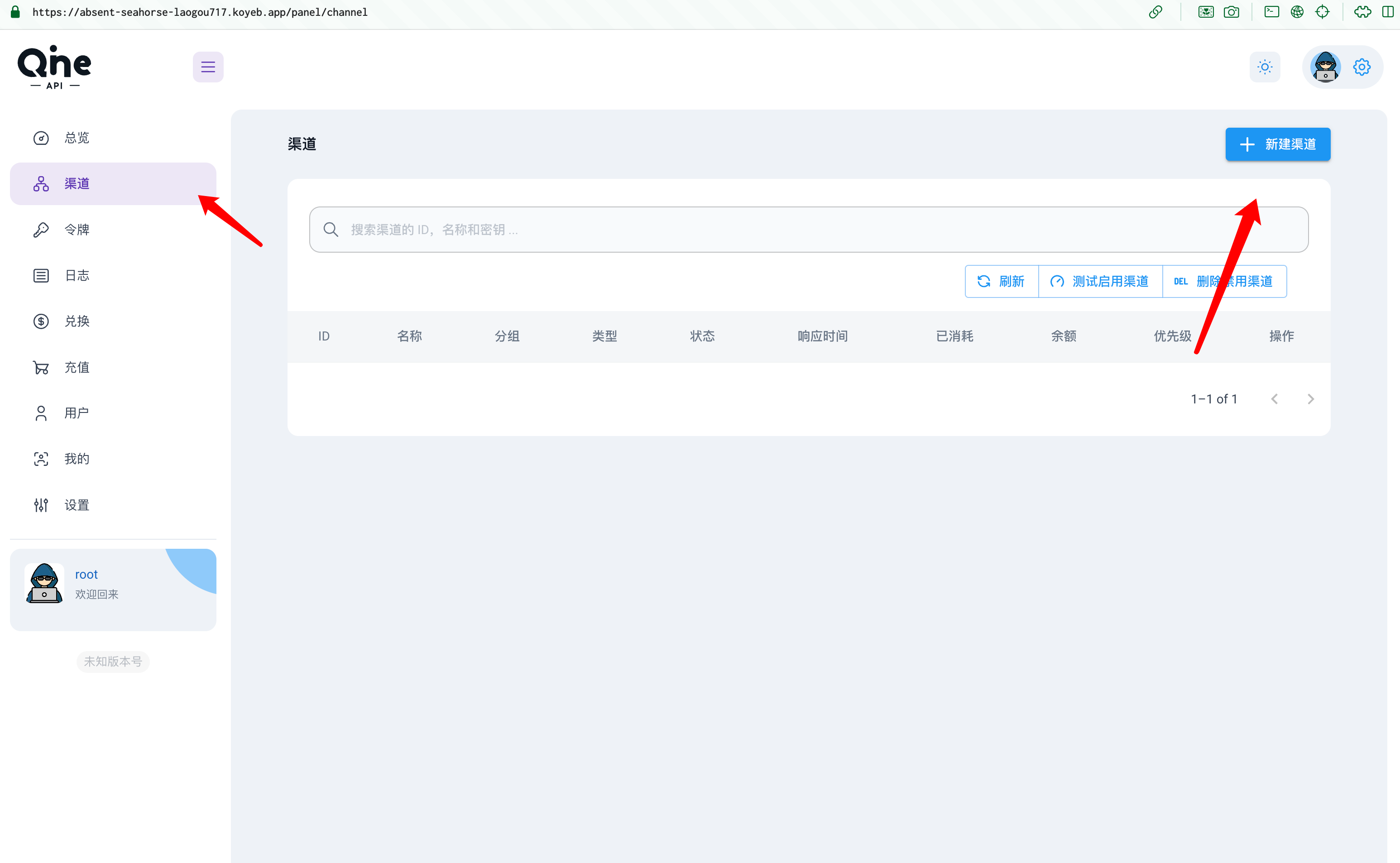
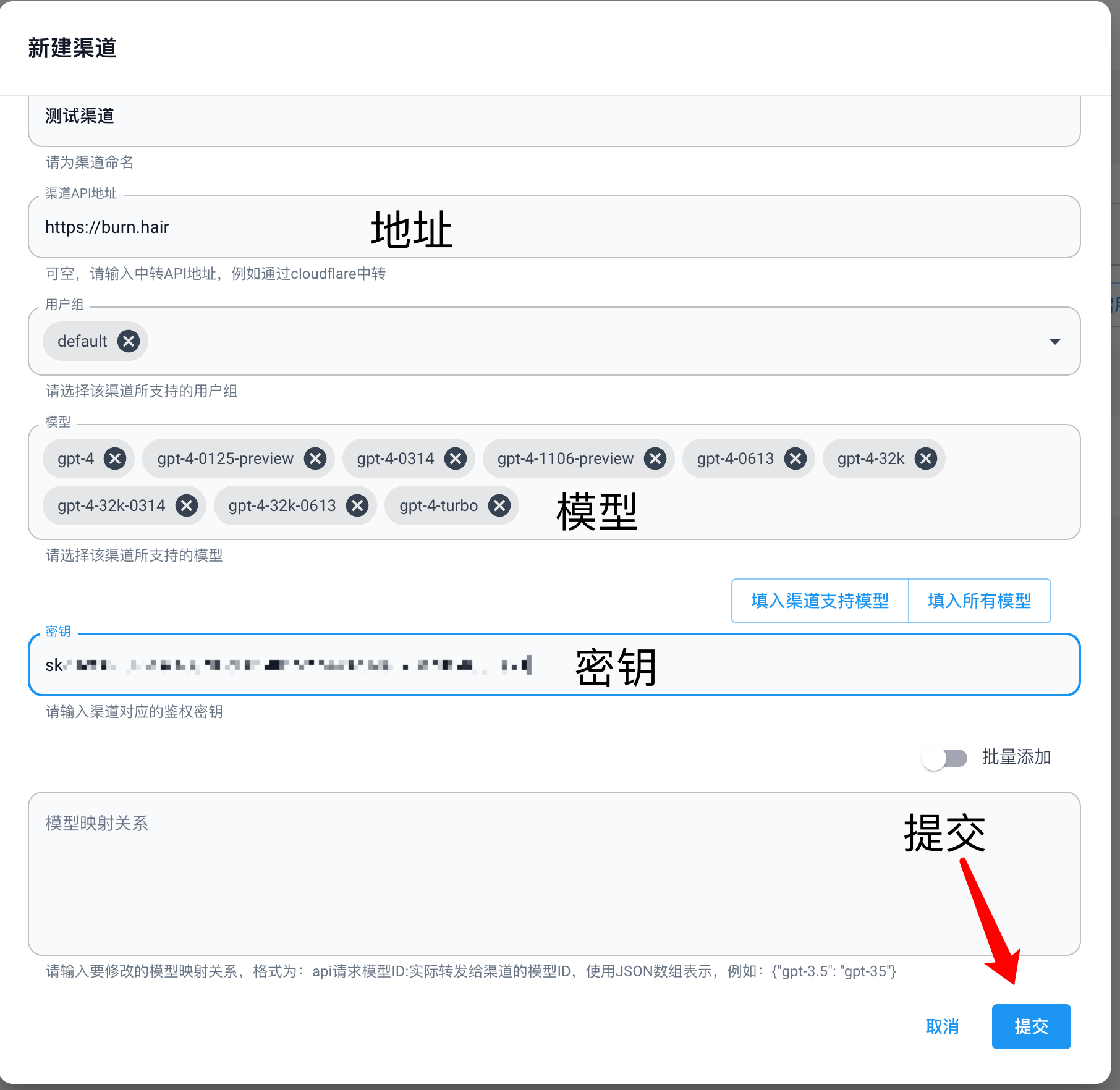
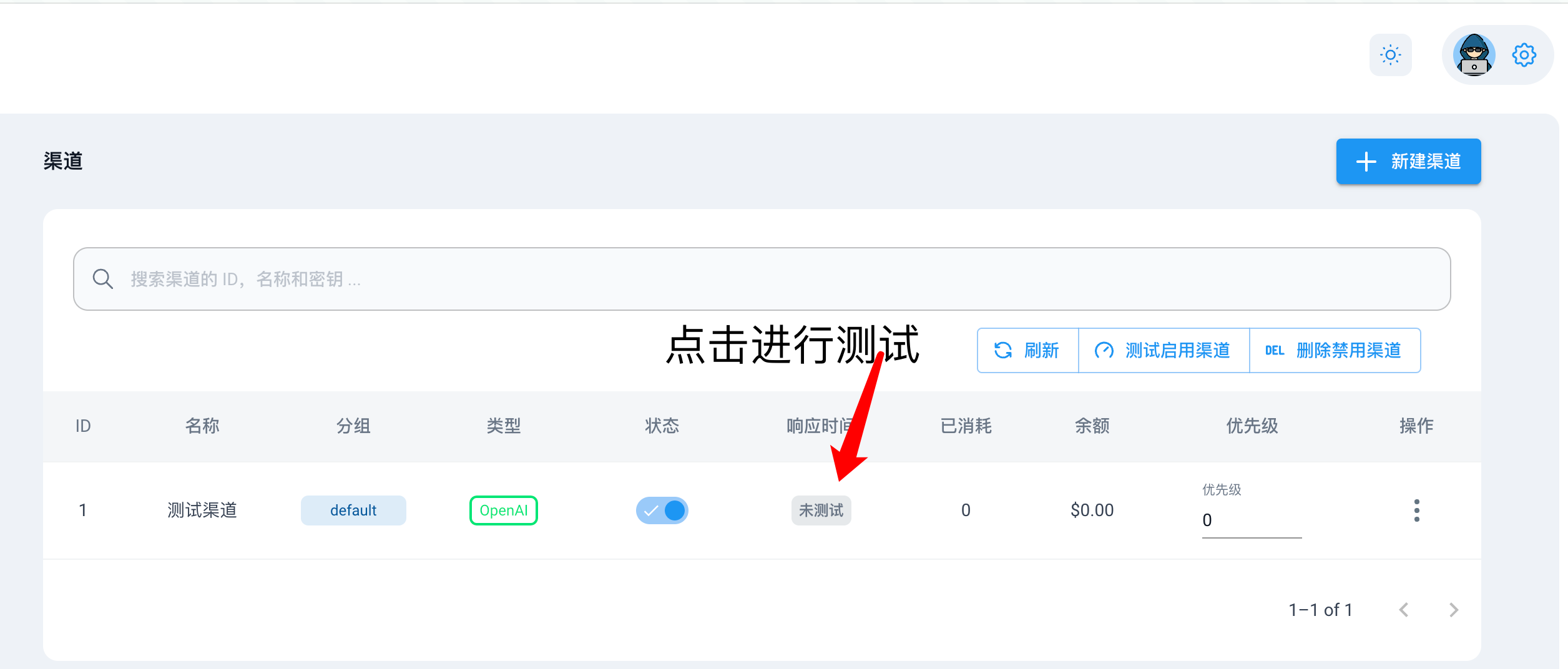
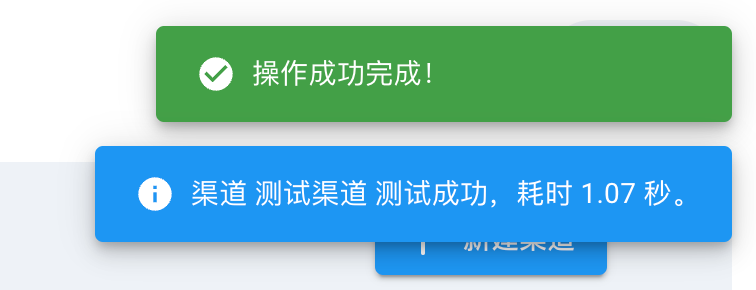
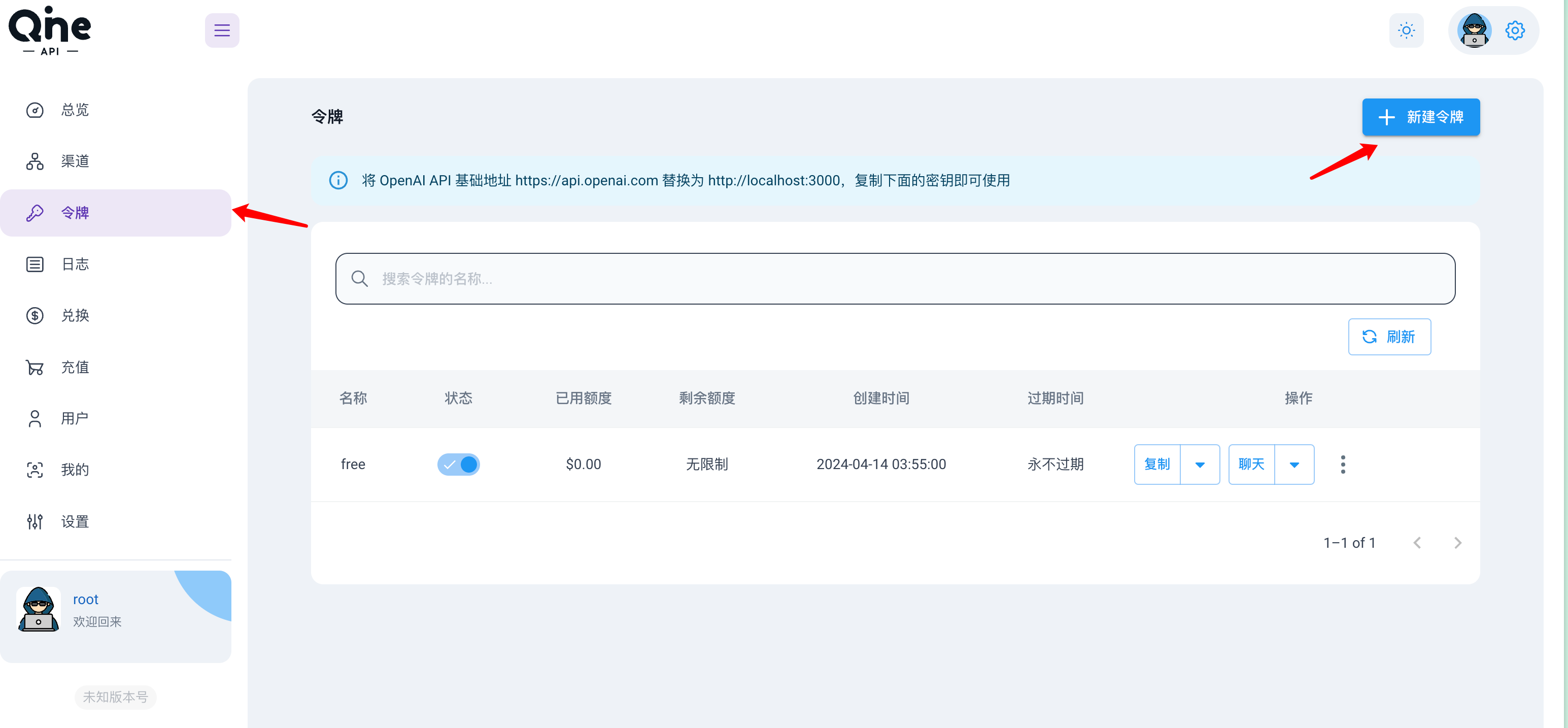
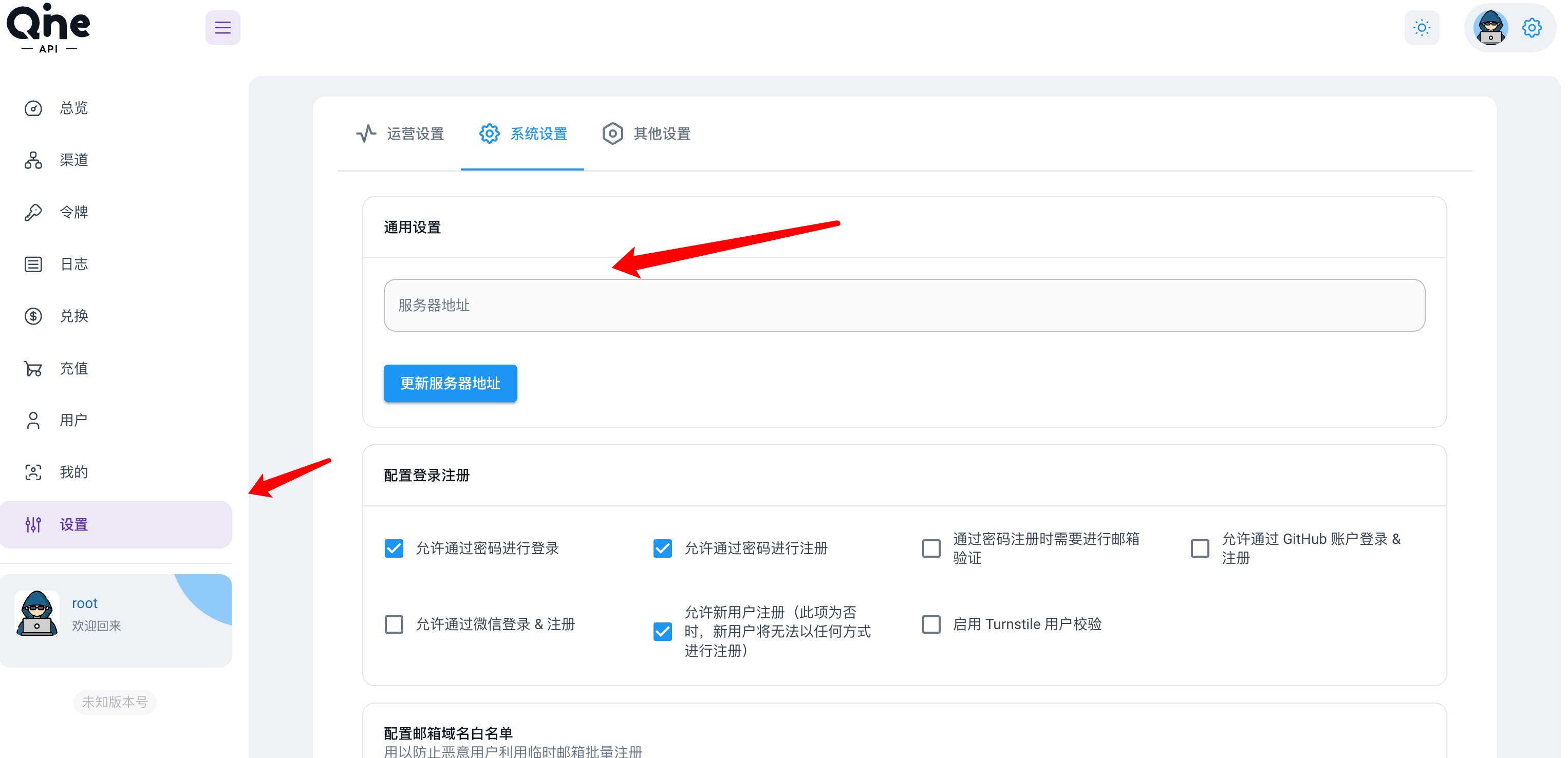
    <content type="html"><![CDATA[<p><img src="https://img.laogou717.com/file/d9014cdc0476e7ed40b00.jpg"></p><h2 id="前言"><a href="#前言" class="headerlink" title="前言"></a>前言</h2><blockquote><p>🤯前段时间手里囤了一些 API，用的不多，主要用于博客的 AI 摘要功能。我的榆木脑袋经常会忘记这些平台的账号密码，这让我决定使用 OneAPI 进行统一管理。尽管 OneAPI 的作者提供了详尽的教程，但一些用户（包括我自己）在部署时仍碰到了一些小问题。因此，在成功部署后，我决定为基础不好的小白写下这篇详细的部署指南，希望能帮助大家少走弯路。</p></blockquote><h2 id="项目介绍"><a href="#项目介绍" class="headerlink" title="项目介绍"></a>项目介绍</h2><p><strong><a href="https://github.com/songquanpeng/one-api">OneAPI 项目</a><strong>是一个开放的接口管理和分发系统，支持多种大型语言模型，例如 OpenAI 的 ChatGPT、Azure、Anthropic Claude、Google PaLM 2 &amp; Gemini 等。它旨在进行密钥管理和重新分配，可以通过单个可执行文件或</strong>Docker 部署</strong>，并提供一个简单统一的 API 来访问不同的大型语言模型。该系统开源，使用**<a href="https://github.com/songquanpeng/one-api?tab=MIT-1-ov-file#readme">MIT 许可证</a>**，提供了模型支持、令牌管理和用户组管理等功能。具体的部署和配置说明，用户应参考该项目的 GitHub 仓库和文档</p><h2 id="项目搭建"><a href="#项目搭建" class="headerlink" title="项目搭建"></a>项目搭建</h2><p>本项目提供了 Docker 镜像，使部署过程简化。我们可以更加轻松的进行部署。</p><p>默认情况下使用 SQLite 数据库，在未设置环境变量 <code>SQL_DSN</code>的情况下，数据库文件将存储在 Docker 容器指定的路径上。如果设置了 <code>SQL_DSN</code> 环境变量，应用则会连接到您指定的 MySQL 或 PostgreSQL 数据库。这样当我们重新部署或拉取镜像时我们之前的更改才不会丢失。</p><h3 id="准备"><a href="#准备" class="headerlink" title="准备"></a>准备</h3><ul><li><strong>支持 Docker 的免费容器平台</strong>，如 Render 或 Zeabur。</li><li><strong>MySQL 或 PostgreSQL 数据库</strong>（可选，推荐以保证数据持久性）。</li><li><strong>一个域名</strong>（可选）。</li></ul><h3 id="部署步骤"><a href="#部署步骤" class="headerlink" title="部署步骤"></a>部署步骤</h3><h4 id="选择你想要使用的托管平台"><a href="#选择你想要使用的托管平台" class="headerlink" title="选择你想要使用的托管平台"></a>选择你想要使用的托管平台</h4><ul><li><strong><a href="https://huggingface.co/">Hugging Face</a></strong>: 快速但不支持绑定域名，国内访问可能受限。</li><li><strong><a href="https://render.com/">Render</a></strong>: 支持绑定域名，注册可能需绑定信用卡。</li><li><strong><a href="https://www.koyeb.com/">Koyeb</a></strong>: 支持绑定域名，需升级计划。</li><li><strong><a href="https://zeabur.com/">Zeabur</a></strong>: 访问速度快，支持中文，部署 Docker 镜像需升级计划。</li></ul><h3 id="部署流程"><a href="#部署流程" class="headerlink" title="部署流程"></a>部署流程</h3><blockquote><p>huggingface 部署</p></blockquote><ol><li><strong>复制 Docker 镜像</strong><br>点击按钮<a href="https://huggingface.co/spaces/Jonastech/OneAPI?duplicate=true">一键复制镜像</a>,配置<code>THEME</code>（界面主题，如<code>default</code>或<code>berry</code>）和<code>SQL_DSN</code>（数据库连接）。我会在下面详细列出。<img src="https://img.laogou717.com/file/cb9e884fffd0e18d8dee0.png"></li></ol><blockquote><p>不同主题的效果如下，按照自己喜好挑选。</p></blockquote><p><strong>默认主题</strong><br><img src="https://img.laogou717.com/file/cd933a84a998857647363.jpg"><br><strong>berry 主题</strong><br><img src="https://img.laogou717.com/file/c3193bf3fa72d5a5ead9a.png"></p><ol start="2"><li><strong>数据库配置</strong></li></ol><ul><li><p>使用如 aiven 或~~ Planetscale ~~ 的免费数据库服务，或<strong>Render</strong> 和 <strong>Koyeb</strong> 自带的免费的数据库;为项目配置环境变量<code>SQL_DSN</code>:</p></li><li><p><strong>MySQL 示例</strong>: <code>SQL_DSN=root:123456@tcp(localhost:3306)/oneapi</code></p></li><li><p><strong>PostgreSQL 示例</strong>: <code>SQL_DSN=postgres://postgres:123456@localhost:5432/oneapi</code></p><p>2.1<strong>注册登陆</strong>我们进入 <strong><a href="https://console.aiven.io/login">aiven</a></strong> 平台，注册或登录账号。</p></li></ul><p><img src="https://img.laogou717.com/file/49d6feb00af6c23ef7ace.png" alt="1.登陆"><br>  2.2<strong>填入信息</strong>选择个人服务，填入基本信息。<br><img src="https://img.laogou717.com/file/a0e9df4d84ff358b5e08b.png" alt="2.填入信息"><br>  2.3<strong>选择数据库</strong>选择 MySQL 数据库或 PostgreSQL 数据库。<br><img src="https://img.laogou717.com/file/40f551153153f086582b5.png" alt="3.选择数据库"><br>  2.4<strong>数据库配置</strong>选中免费计划，选择服务地区，最后点击创建。<br><img src="https://img.laogou717.com/file/765caba492fbd91079faf.png" alt="4.数据库配置"><br>  2.5<strong>最终配置</strong>记下图中的信息，一路点跳过。不记住也没关系，全跳过后我们也能看到它们。<br><img src="https://img.laogou717.com/file/f68ed6bc4c072991ea6a7.png" alt="5.一路跳过"></p><p>3.<strong>填写变量</strong></p><p>根据图中的数据库信息我们得到了这个：</p><p><strong>服务 URI:</strong><br><code>mysql://CLICK_TO:REVEAL_PASSWORD@mysql-12a9c26-jonastech007-2d92.b.aivencloud.com:10906/defaultdb?ssl-mode=必需</code></p><p><strong>Host:</strong><br><code>mysql-12a9c26-jonastech007-2d92.b.aivencloud.com</code></p><p><strong>Port:</strong><br><code>10906</code></p><p><strong>用户：</strong><br><code>avnadmin</code></p><p><strong>密码：</strong><br><code>AVNS_QV8niFI8YW48vKqxi3R</code></p><p>我们的链接地址应该是这样写：<code>用户名:密码@tcp(Host:Port)/数据库名称</code></p><p>最终我们得到了<code>avnadmin:AVNS_QV8niFI8YW48vKqxi3R@tcp(mysql-12a9c26-jonastech007-2d92.b.aivencloud.com:10906)/defaultdb</code></p><p>把这个链接填入到变量中去，最后点击复制到空间 <strong>Duplicate Space</strong><img src="https://img.laogou717.com/file/017896700a86c7dfa2237.png" alt="6.填入变量复制到空间"><br><img src="https://img.laogou717.com/file/a40f0eb61a2a26b4af2a7.png" alt="7.部署完成"></p><p>4.<strong>访问</strong></p><p>  这时候我们就可以通过点击右上角的设置找到<strong>Embed this Space</strong>,通过下面的链接进行访问我们的服务。<br>    <img src="https://img.laogou717.com/file/866ecc605d2b0fa508118.png"><br>    <img src="https://img.laogou717.com/file/f7666d45cd2e1ebb65c24.png" alt="访问地址"></p><blockquote><p>Koyeb 部署</p></blockquote><p>1.点击进入<a href="https://www.koyeb.com/">Koyeb</a>官网，进行登陆注册后，点击创建网络服务选择 docker 镜像。<br><img src="https://img.laogou717.com/file/30f482e41889774cdcb7d.png"><br><img src="https://img.laogou717.com/file/b8b221f8662e46af670b9.png"><br>2.在输入框内容输入 <code>justsong/one-api:latest</code> ,如果你不知道这个从何的来的，可以查看开源项目中的<strong>compose.yml</strong>。</p><p><a href="https://github.com/songquanpeng/one-api/blob/main/docker-compose.yml">https://github.com/songquanpeng/one-api/blob/main/docker-compose.yml</a></p><p><code>$&#123;REGISTRY:-docker.io&#125;</code> 是一个环境变量表达式，表示如果环境变量<code>REGISTRY</code>没有设置，就使用默认的 <code>docker.io</code>（Docker Hub）。<br><code>justsong/one-api:latest</code> 指定了镜像的名称和标签，其中 <code>justsong</code> 是 Docker Hub 上的用户或组织名，<code>one-api</code>是镜像名，latest 表示使用这个镜像的最新版本。<br><img src="https://img.laogou717.com/file/4f527ba90b2470920a4bd.png"><br>3.设置必要变量和地区信息后点击部署按钮。<br><img src="https://img.laogou717.com/file/a97c06853c08fa7b43763.png"><br>4.⌛️等待部署完毕后，我们可以点击这个地址访问我们的 One API。<br><img src="https://img.laogou717.com/file/cdc945d6433b7dba1d2b5.png"><br><img src="https://img.laogou717.com/file/70b803f41e2d905b63f86.png"><br>5.管理员账号默认是</p><ul><li>用户名:root</li><li>密码:123456</li></ul><p>登录后应立即在<strong>用户</strong>中更改，从而保证账户的安全</p><p><img src="https://img.laogou717.com/file/4abec7279976dcac0a040.png" alt="OneAPI 账号"></p><h2 id="使用方法"><a href="#使用方法" class="headerlink" title="使用方法"></a>使用方法</h2><blockquote><p>考虑到能看我这篇文章的，大多是新手，我简单演示一下它的使用方法。以上篇博文中介绍的免费 API<a href="https://burn.hair/register?aff=9iZ5">头顶冒火</a>举例。</p></blockquote><p>对此没有印象的朋友可以自行了解，或观看<a href="https://blog.laogou717.com/2024/04/06/AI%20era/freeAPI/">这篇博文</a><br><img src="https://img.laogou717.com/file/c2d64dd53ee17a0ef18c5.png"></p><h3 id="OneAPI-配置"><a href="#OneAPI-配置" class="headerlink" title="OneAPI 配置"></a>OneAPI 配置</h3><p>1.登陆 OneAPI 的管理员账号后，找到<strong>渠道</strong>,点击<strong>新建渠道</strong><br><img src="https://img.laogou717.com/file/13109fb4d78e07b2f07c0.png"><br>2.渠道名称我们可以随便命名，渠道 API 地址就是转发地址，因为我以<a href="https://burn.hair/register?aff=9iZ5">头顶冒火</a>举例，所以我只需填入它的请求地址：<code>https://burn.hair</code>;然后选择 <strong>支持的模型</strong>;添加你的 API KEY，最后提交。<br><img src="https://img.laogou717.com/file/8e52fcd46e0a87965f469.png"><br><img src="https://img.laogou717.com/file/8f5dbc028f6427094933c.png"><br>3.最后我们点击 <strong>未测试</strong> ,测一下 API 的连通性。<br><img src="https://img.laogou717.com/file/b19558bade4e9e305b1d0.png" alt="Image"><br><img src="https://img.laogou717.com/file/a0ceef98715ed9b32758e.png" alt="Image"></p><p>4.完成测试之后，我们就可以在<strong>令牌</strong>处新建令牌进行分发使用。如果你想 你也可以在添加众多 API 之后分享出来你的网站，让大家来使用。<br>我们只需在后台维护各个API的渠道就行，至于我们 OneAPI 的请求地址，默认是我们的域名，你也可以在设置中进行更改。<br><img src="https://img.laogou717.com/file/0b667ceb5ed0792cd0613.png"><br><img src="https://img.laogou717.com/file/2e98a8673403977c40ba6.png"></p><h2 id="结语"><a href="#结语" class="headerlink" title="结语"></a>结语</h2><p>其实很多号商用的也是 <strong>OneAPI</strong> 或 <strong>NewAPI</strong>，其实没有那么难操作，只是你觉得麻烦不想去了解而已。现在 <strong>azure</strong> 注册依然是<strong>赠送 200 美金</strong>额度的，<strong>GitHub</strong> 上也有很多 FreeAPI 项目，<a href="https://linux.do/">linux.do</a>中就更多了。单是个人日常使用是完全用不完的。</p><p>得了，天儿也不早了，我吃个早饭准备上班拉磨了，又是通宵的一天🙂 。</p>]]></content>


    <summary type="html">&lt;p&gt;&lt;img src=&quot;https://img.laogou717.com/file/d9014cdc0476e7ed40b00.jpg&quot;&gt;&lt;/p&gt;
&lt;h2 id=&quot;前言&quot;&gt;&lt;a href=&quot;#前言&quot; class=&quot;headerlink&quot;</summary>


    <category term="AI纪元" scheme="http://www.laogou717.com/categories/AI%E7%BA%AA%E5%85%83/"/>
    
    
  </entry>
  
  <entry>
    <title>两个免费无限制使用ChatGPT模型API！</title>
    <link href="http://www.laogou717.com/2024/04/06/AI%20era/Freegpt35/"/>
    <id>http://www.laogou717.com/2024/04/06/AI%20era/Freegpt35/</id>
    <published>2024-04-06T14:55:00.000Z</published>
    <updated>2024-04-07T06:35:46.000Z</updated>
    
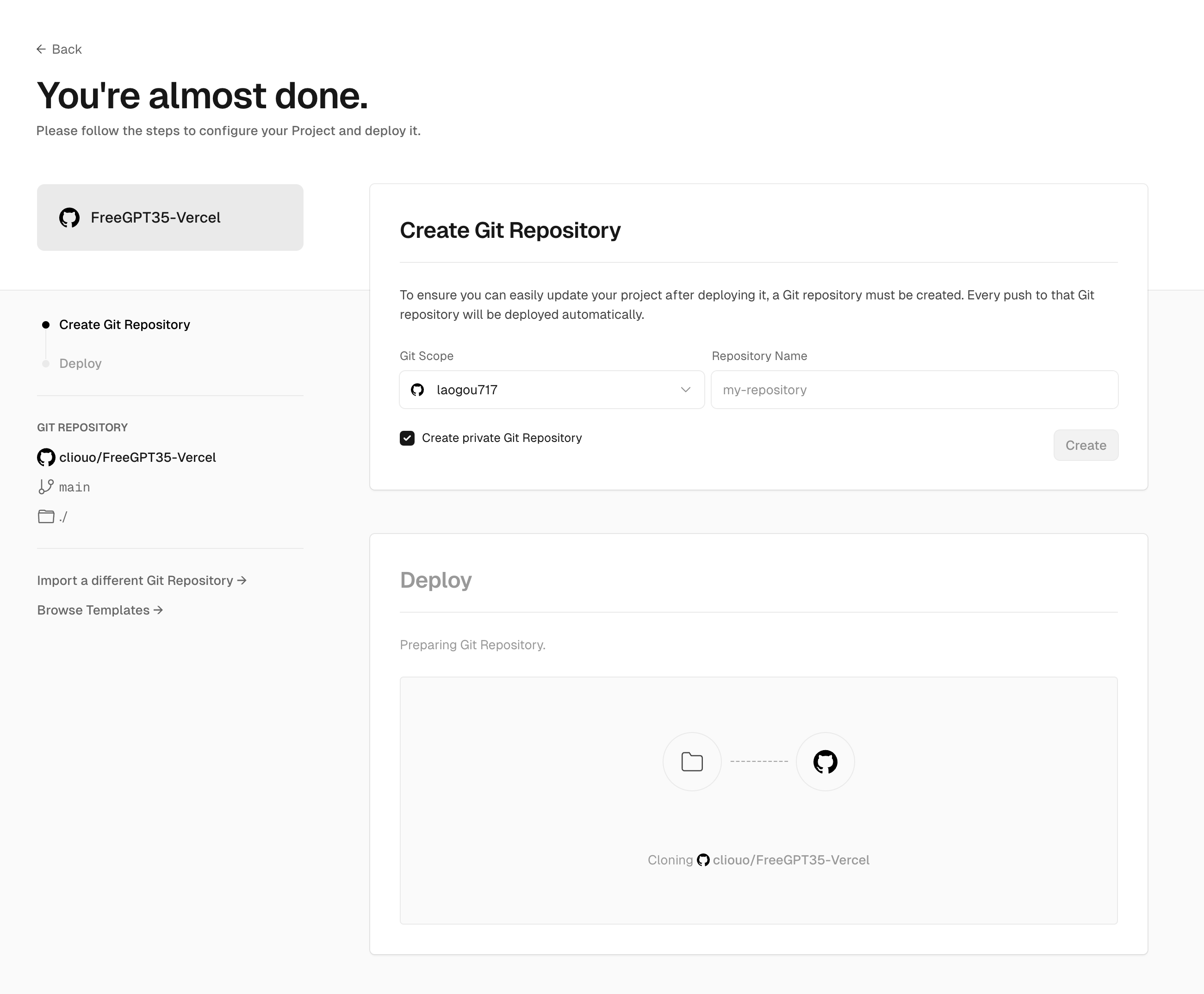
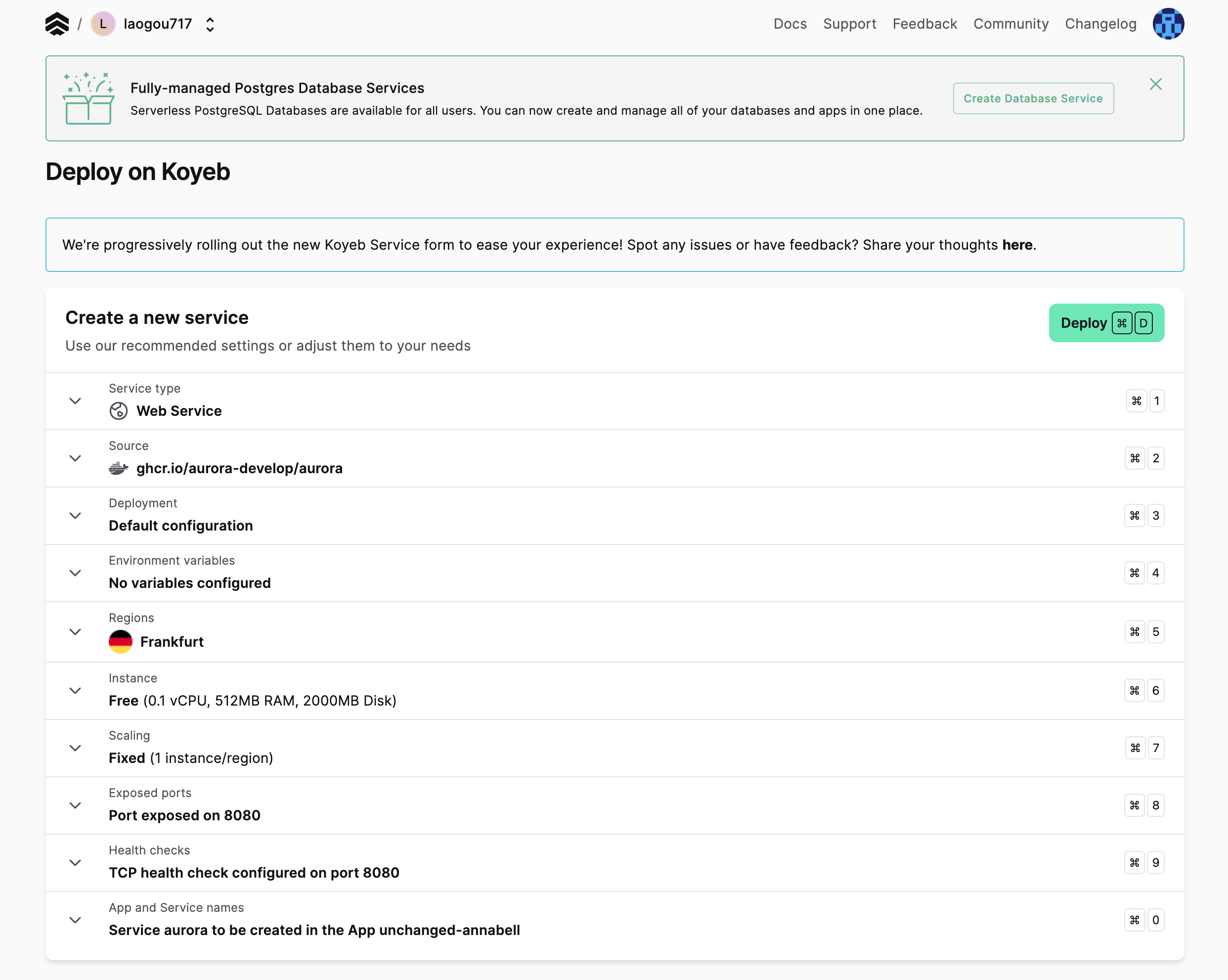
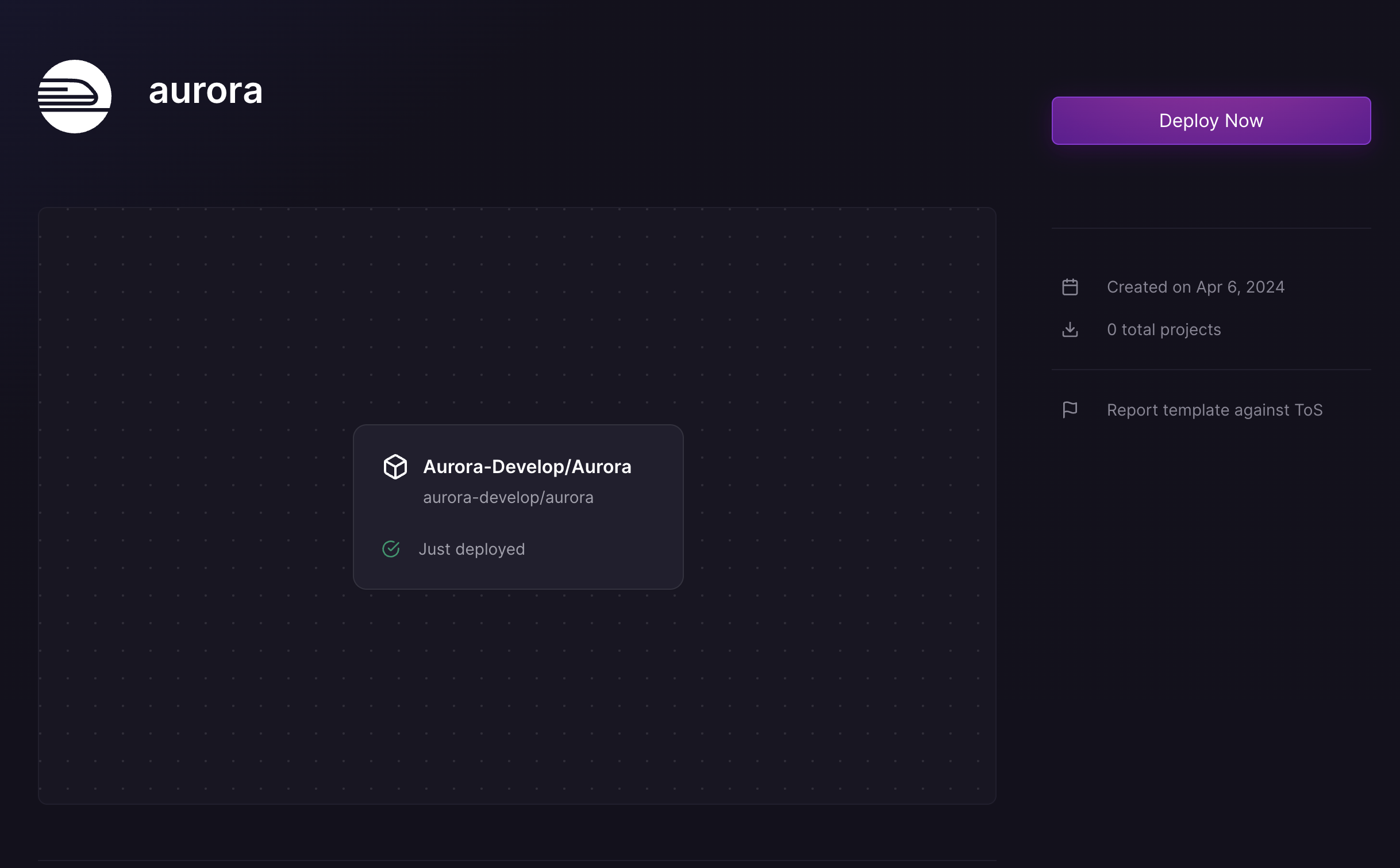
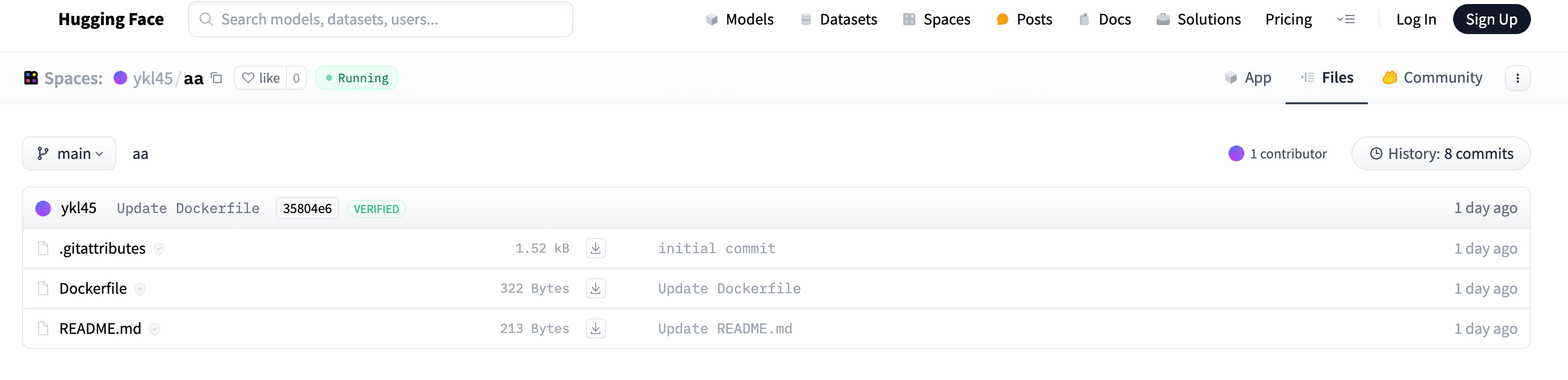
    <content type="html"><![CDATA[<h2 id="引言"><a href="#引言" class="headerlink" title="引言"></a>引言</h2><blockquote><p>OpenAI开放了免登录聊天的功能之后,<strong>FreeGPT35-Vercel</strong> 和 <strong>AURORA</strong> 两个开源项目应运而生。<br><strong>FreeGPT35-Vercel</strong> 项目利用 Vercel 平台，可以让您一键部署免费的 GPT-3.5 接口，无需登录或注册。<br><strong>AURORA</strong> 项目则提供了更加丰富的功能和设置，支持多种部署方式，满足不同用户的个性化需求。同时带有简单的前端面板。<img class="inline-img" src="https://img.laogou717.com/file/2666f3fae8ea44f8f9f7c.png" style="height:30px"/></p></blockquote><h2 id="FreeGPT35-Vercel-简介"><a href="#FreeGPT35-Vercel-简介" class="headerlink" title="FreeGPT35-Vercel 简介"></a>FreeGPT35-Vercel 简介</h2><p><strong>FreeGPT35-Vercel</strong>利用Vercel平台的强大功能，允许用户一键部署GPT-3.5接口，免去了繁琐的登录或注册流程。项目的高光特点包括：</p><ul><li><strong>简易部署</strong>：通过<a href="https://vercel.com/new/clone?repository-url=https://github.com/cliouo/FreeGPT35-Vercel">一键部署到Vercel平台</a>，您可以轻松启动自己的GPT-3.5服务。</li><li><strong>自定义访问</strong>：用户可以设置自己的域名，方便地访问部署的接口。</li><li><strong>环境变量配置</strong>：通过设置<code>AUTH_TOKEN</code>环境变量，您将获得一个独特的API密钥，保障了访问的安全性。</li></ul><p><img src="https://img.laogou717.com/file/135aabe589869d625f0fa.png"></p><h2 id="AURORA-简介"><a href="#AURORA-简介" class="headerlink" title="AURORA 简介"></a>AURORA 简介</h2><p>与FreeGPT35-Vercel项目相比，<strong>AURORA</strong>提供了更多的功能和部署选项，满足了不同用户的个性化需求。其特点包括：</p><ul><li><strong>多元化部署</strong>：支持包括编译部署、Docker部署在内的多种方式，为用户提供了广泛的选择空间。</li><li><strong>丰富的部署平台</strong>：除了传统的Docker和Render，AURORA还支持Koyeb、Railway等新兴的云平台，给用户提供了更多的灵活性。</li><li><strong>前端面板支持</strong>：AURORA带有简洁明了的前端面板，使用户能够更加便捷地管理和使用服务。</li></ul><blockquote><p>由于<strong>DockerRender部署过于繁琐</strong>,同时被官网所限制,因此我们可以选择时用<strong>Koyeb</strong>、<strong>Railway</strong>、<strong>huggingface</strong>等部署方式。</p></blockquote><h3 id="Vercel、Zeabur部署"><a href="#Vercel、Zeabur部署" class="headerlink" title="Vercel、Zeabur部署"></a>Vercel、Zeabur部署</h3><p>由于vercel不支持流式，如果在vercel部署请在STREAM_MODE中填False，不支持任何默认流式的客户端，支持沉浸式翻译。</p><p><a href="https://vercel.com/new/clone?repository-url=https://github.com/aurora-develop/aurora&env=STREAM_MODE&project-name=aurora&repository-name=aurora"><img src="https://vercel.com/button" alt="Deploy with Vercel"></a><br><a href="https://zeabur.com/templates/JF3EFW"><img src="https://zeabur.com/button.svg" alt="Deploy on Zeabur"></a></p><h3 id="Koyeb部署"><a href="#Koyeb部署" class="headerlink" title="Koyeb部署"></a>Koyeb部署</h3><p>地区选美国<br><a href="https://app.koyeb.com/deploy?type=docker&name=aurora&ports=8080;http;/&image=ghcr.io/aurora-develop/aurora"><img src="https://www.koyeb.com/static/images/deploy/button.svg" alt="Deploy to Koyeb"></a><br><img src="https://img.laogou717.com/file/c187611f850351814d932.png"></p><h3 id="RaiLway部署"><a href="#RaiLway部署" class="headerlink" title="RaiLway部署"></a>RaiLway部署</h3><p><a href="https://railway.app/template/jcl2Es?referralCode=XXqY_5"><img src="https://railway.app/button.svg" alt="Deploy on Railway"></a><br><img src="https://img.laogou717.com/file/dd9a3b3838d49cbd7a5cc.png" alt="Railway"></p><h3 id="huggingface部署"><a href="#huggingface部署" class="headerlink" title="huggingface部署"></a>huggingface部署</h3><p>以下镜像来自群友:早起的虫被鸟吃<br><a href="https://huggingface.co/spaces/ykl45/aa">一键克隆镜像</a><br><img src="https://img.laogou717.com/file/6065b9135a26a7ef427da.png" alt="huggingface"></p><h3 id="访问Web端"><a href="#访问Web端" class="headerlink" title="访问Web端"></a>访问Web端</h3><p>访问 http:&#x2F;&#x2F;你的服务器ip:8080&#x2F;web 即可 在web设置页面的填写服务器的http:&#x2F;&#x2F;你的服务器ip:8080</p><p><strong>注：仅ip属地支持免登录使用ChatGpt可以使用(也可以自定义Baseurl来绕过限制)</strong></p><h3 id="AURORA环境变量"><a href="#AURORA环境变量" class="headerlink" title="AURORA环境变量"></a>AURORA环境变量</h3><table><thead><tr><th>环境变量名</th><th>描述</th></tr></thead><tbody><tr><td>BASE_URL</td><td>设置代理网关的URL，所有请求将通过这个网关转发。例如，<code>https://auroraxf.glitch.me/api</code>表示所有的API请求都将通过这个地址进行转发。</td></tr><tr><td>Authorization</td><td>用于用户认证的key。在发送请求时，这个key将用于验证用户的身份，确保请求的合法性。</td></tr><tr><td>TLS_CERT</td><td>指向TLS证书的路径。这个证书用于HTTPS通信，保证数据传输的安全。</td></tr><tr><td>TLS_KEY</td><td>指向TLS密钥的路径。这个密钥与TLS证书配合使用，用于加密通信，保护数据传输过程中的隐私和完整性。</td></tr><tr><td>PROXY_URL</td><td>设置代理池的URL。通过使用代理池，可以改变请求的来源IP地址，用于绕过IP限制或增强隐私保护。</td></tr></tbody></table><h2 id="其他前端UI"><a href="#其他前端UI" class="headerlink" title="其他前端UI"></a>其他前端UI</h2><ul><li><a href="https://github.com/lobehub/lobe-chat">Lobe-Chat</a></li></ul><p><img src="https://img.laogou717.com/file/178405f4cacdf8a484481.png" alt="Lobe-Chat"><br><img src="https://img.laogou717.com/file/b76c228eb67c780c8e7b9.png" alt="Lobe-Chat"></p><h2 id="参考链接"><a href="#参考链接" class="headerlink" title="参考链接"></a>参考链接</h2><ul><li><strong>FreeGPT35-Vercel 项目地址:</strong> <a href="https://github.com/cliouo/FreeGPT35-Vercel">https://github.com/cliouo/FreeGPT35-Vercel</a></li><li><strong>AURORA 项目地址:</strong> <a href="https://github.com/aurora-develop/aurora">https://github.com/aurora-develop/aurora</a></li></ul><blockquote><p>如果对您有所帮助,希望各位不要吝啬手里的点赞🎉</p></blockquote>]]></content>


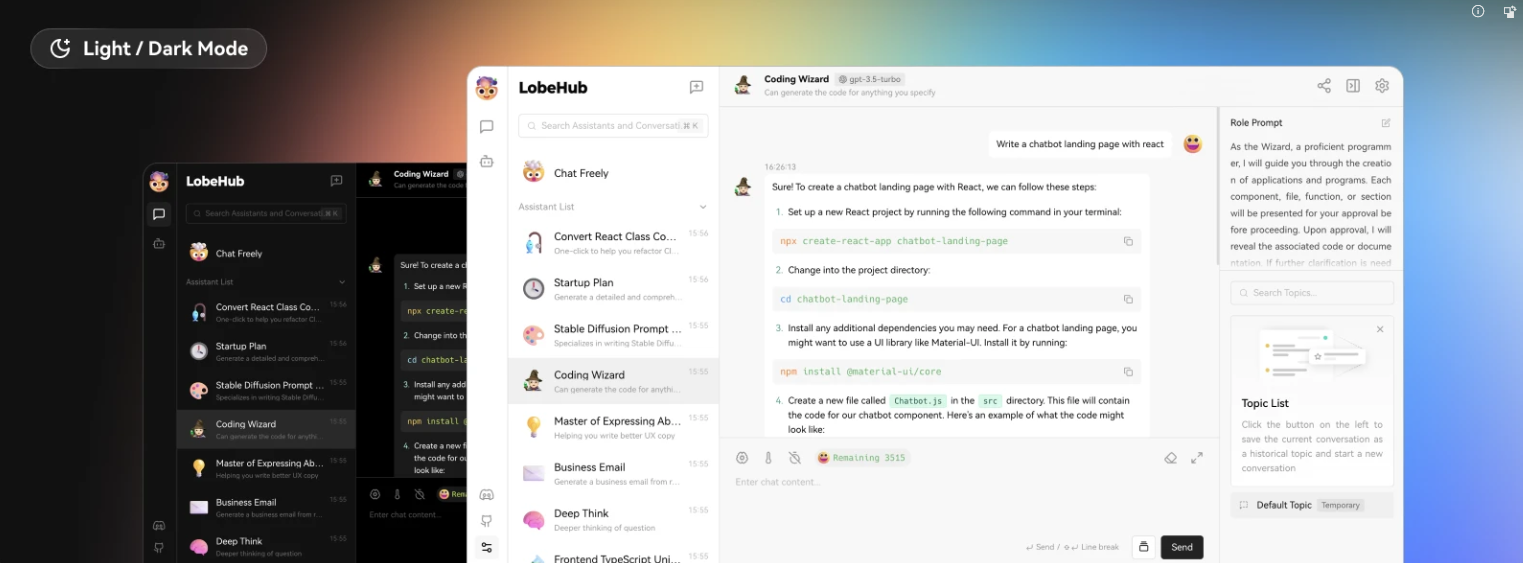
    <summary type="html">&lt;h2 id=&quot;引言&quot;&gt;&lt;a href=&quot;#引言&quot; class=&quot;headerlink&quot; title=&quot;引言&quot;&gt;&lt;/a&gt;引言&lt;/h2&gt;&lt;blockquote&gt;
&lt;p&gt;OpenAI开放了免登录聊天的功能之后,&lt;strong&gt;FreeGPT35-Vercel&lt;/strong&gt; 和</summary>


    <category term="AI纪元" scheme="http://www.laogou717.com/categories/AI%E7%BA%AA%E5%85%83/"/>
    
    
  </entry>
  
  <entry>
    <title>🔥每天签到领取免费GPT4、Claude3免费API！</title>
    <link href="http://www.laogou717.com/2024/04/06/AI%20era/freeAPI/"/>
    <id>http://www.laogou717.com/2024/04/06/AI%20era/freeAPI/</id>
    <published>2024-04-05T16:55:00.000Z</published>
    <updated>2024-04-11T08:46:36.000Z</updated>
    
    <content type="html"><![CDATA[<h2 id="引言"><a href="#引言" class="headerlink" title="引言"></a>引言</h2><blockquote><p>OpenAI 接口转发站<br> <strong>正规渠道，稳定使用</strong>，所有模型均支持高并发<br> 支持 OpenAI <strong>大部分模型</strong><br> 如遇问题可以在 <a href="https://github.com/BurnHair/issues">GitHub</a> 上提issue</p></blockquote><hr><h2 id="使用指南"><a href="#使用指南" class="headerlink" title="使用指南"></a>使用指南</h2><h3 id="进入网站"><a href="#进入网站" class="headerlink" title="进入网站"></a>进入网站</h3><div class="site-card-group"><a class="site-card" href="https://burn.hair/register?aff=9iZ5" data-title=GPT4、Claude3免费API><div class="wrapper cover"><img class="cover fadeIn" src="https://img.laogou717.com/file/d72147cc06ba5fa8b1014.png"/></div><div class="info"><img class="flink-avatar" src="https://img.laogou717.com/file/4027f20df6d43627977a0.png"/><span class="site-title">头顶冒火</span></div></a></div><h3 id="GitHub-登录与令牌创建"><a href="#GitHub-登录与令牌创建" class="headerlink" title="GitHub 登录与令牌创建"></a>GitHub 登录与令牌创建</h3><p>为了使用本服务，您需要通过以下步骤获取和使用 GitHub 登录及创建令牌：</p><ol><li><strong>GitHub 登录：</strong> 确保您已拥有一个 GitHub 账号；如果没有，您可以轻松地在 <a href="https://github.com/">GitHub 官网</a> 注册一个。</li><li><strong>创建令牌：</strong> 登录后，在设置区域寻找到“令牌”或“API Tokens”的部分，并选择“添加新的令牌”来创建一个新的 API 令牌。<br><img src="https://img.laogou717.com/file/f7680e87426e17deb2d56.png"></li><li><strong>复制令牌：</strong> 令牌创建后，请确保复制您的令牌（Token），以便在 API 请求中使用。<br><img src="https://img.laogou717.com/file/2b28f77c30777b5d24363.png"></li></ol><h3 id="API-调用示例"><a href="#API-调用示例" class="headerlink" title="API 调用示例"></a>API 调用示例</h3><p>要通过 API 与服务进行交云，您需要准备适当的请求，这包括设置请求头和请求体：</p><ul><li><strong>接口 URL:</strong> <code>https://burn.hair/v1/chat/completions</code></li><li><strong>请求头:</strong> 应包括 <code>Authorization: Bearer sk-您的令牌</code>，以便系统验证您的请求。</li><li><strong>请求体示例:</strong></li></ul><figure class="highlight json"><table><tr><td class="gutter"><pre><span class="line">1</span><br><span class="line">2</span><br><span class="line">3</span><br><span class="line">4</span><br><span class="line">5</span><br><span class="line">6</span><br><span class="line">7</span><br><span class="line">8</span><br><span class="line">9</span><br><span class="line">10</span><br></pre></td><td class="code"><pre><span class="line"><span class="punctuation">&#123;</span></span><br><span class="line">  <span class="attr">&quot;model&quot;</span><span class="punctuation">:</span> <span class="string">&quot;gpt-3.5-turbo&quot;</span><span class="punctuation">,</span></span><br><span class="line">  <span class="attr">&quot;messages&quot;</span><span class="punctuation">:</span> <span class="punctuation">[</span></span><br><span class="line">    <span class="punctuation">&#123;</span></span><br><span class="line">      <span class="attr">&quot;role&quot;</span><span class="punctuation">:</span> <span class="string">&quot;user&quot;</span><span class="punctuation">,</span></span><br><span class="line">      <span class="attr">&quot;content&quot;</span><span class="punctuation">:</span> <span class="string">&quot;重复我说的话：我是我，你是你。&quot;</span></span><br><span class="line">    <span class="punctuation">&#125;</span></span><br><span class="line">  <span class="punctuation">]</span><span class="punctuation">,</span></span><br><span class="line">  <span class="attr">&quot;temperature&quot;</span><span class="punctuation">:</span> <span class="number">0.7</span></span><br><span class="line"><span class="punctuation">&#125;</span></span><br></pre></td></tr></table></figure><p>请根据需要替换模型名称或调整请求体的其他参数。</p><h3 id="Claude-模型支持"><a href="#Claude-模型支持" class="headerlink" title="Claude 模型支持"></a>Claude 模型支持</h3><p>本服务同时支持 Claude 模型，您可以按照如下格式进行调用：</p><figure class="highlight json"><table><tr><td class="gutter"><pre><span class="line">1</span><br><span class="line">2</span><br><span class="line">3</span><br><span class="line">4</span><br><span class="line">5</span><br><span class="line">6</span><br><span class="line">7</span><br></pre></td><td class="code"><pre><span class="line"><span class="punctuation">&#123;</span></span><br><span class="line">  <span class="attr">&quot;model&quot;</span><span class="punctuation">:</span> <span class="string">&quot;claude-3-opus-20240229&quot;</span><span class="punctuation">,</span></span><br><span class="line">  <span class="attr">&quot;max_tokens&quot;</span><span class="punctuation">:</span> <span class="number">1024</span><span class="punctuation">,</span></span><br><span class="line">  <span class="attr">&quot;messages&quot;</span><span class="punctuation">:</span> <span class="punctuation">[</span></span><br><span class="line">    <span class="punctuation">&#123;</span><span class="attr">&quot;role&quot;</span><span class="punctuation">:</span> <span class="string">&quot;user&quot;</span><span class="punctuation">,</span> <span class="attr">&quot;content&quot;</span><span class="punctuation">:</span> <span class="string">&quot;Hello, world&quot;</span><span class="punctuation">&#125;</span></span><br><span class="line">  <span class="punctuation">]</span></span><br><span class="line"><span class="punctuation">&#125;</span></span><br></pre></td></tr></table></figure><h3 id="签到及充值"><a href="#签到及充值" class="headerlink" title="签到及充值"></a>签到及充值</h3><ul><li><strong>签到:</strong> 您可以通过网站或机器人进行签到，机器人签到可能会获得额外奖励。</li><li><strong>充值:</strong> 访问指定的充值页面进行兑换码购买，并通过支持的支付方式完成交易。购买后，使用获得的兑换码在充值页面进行激活。<br><img src="https://img.laogou717.com/file/4091ea7303706de9c74b2.png"></li></ul><h3 id="Midjourney-支持"><a href="#Midjourney-支持" class="headerlink" title="Midjourney 支持"></a>Midjourney 支持</h3><ul><li>目前，本服务尚不支持 Midjourney 模型。</li></ul><h3 id="模型变化解释"><a href="#模型变化解释" class="headerlink" title="模型变化解释"></a>模型变化解释</h3><ul><li>如果您发现日志中模型名称频繁变动，这可能是因为您使用的是 NextChat 功能，它会根据需要自动选择最合适的模型进行响应。</li></ul><hr><h1 id="文章参考"><a href="#文章参考" class="headerlink" title="文章参考"></a>文章参考</h1><ul><li><a href="https://burn.hair/">https://burn.hair</a></li></ul>]]></content>


    <summary type="html">&lt;h2 id=&quot;引言&quot;&gt;&lt;a href=&quot;#引言&quot; class=&quot;headerlink&quot; title=&quot;引言&quot;&gt;&lt;/a&gt;引言&lt;/h2&gt;&lt;blockquote&gt;
&lt;p&gt;OpenAI 接口转发站&lt;br&gt;</summary>


    <category term="AI纪元" scheme="http://www.laogou717.com/categories/AI%E7%BA%AA%E5%85%83/"/>
    
    
  </entry>
  
  <entry>
    <title>超低价升级开通GPT4、Claude、MJ等服务!</title>
    <link href="http://www.laogou717.com/2024/03/17/AI%20era/GPTPLUS/GPT4/"/>
    <id>http://www.laogou717.com/2024/03/17/AI%20era/GPTPLUS/GPT4/</id>
    <published>2024-03-16T16:55:00.000Z</published>
    <updated>2024-09-01T01:51:49.566Z</updated>
    
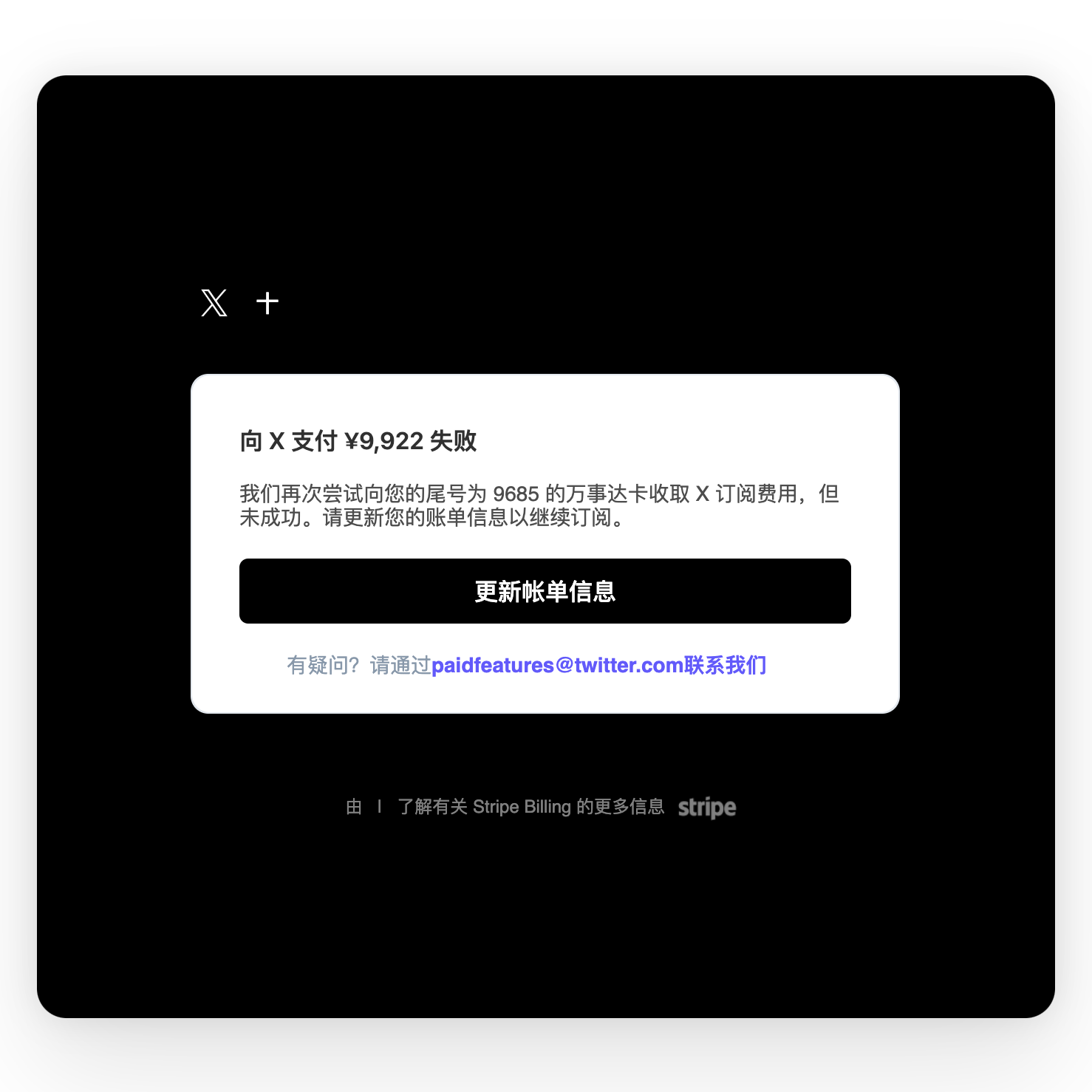
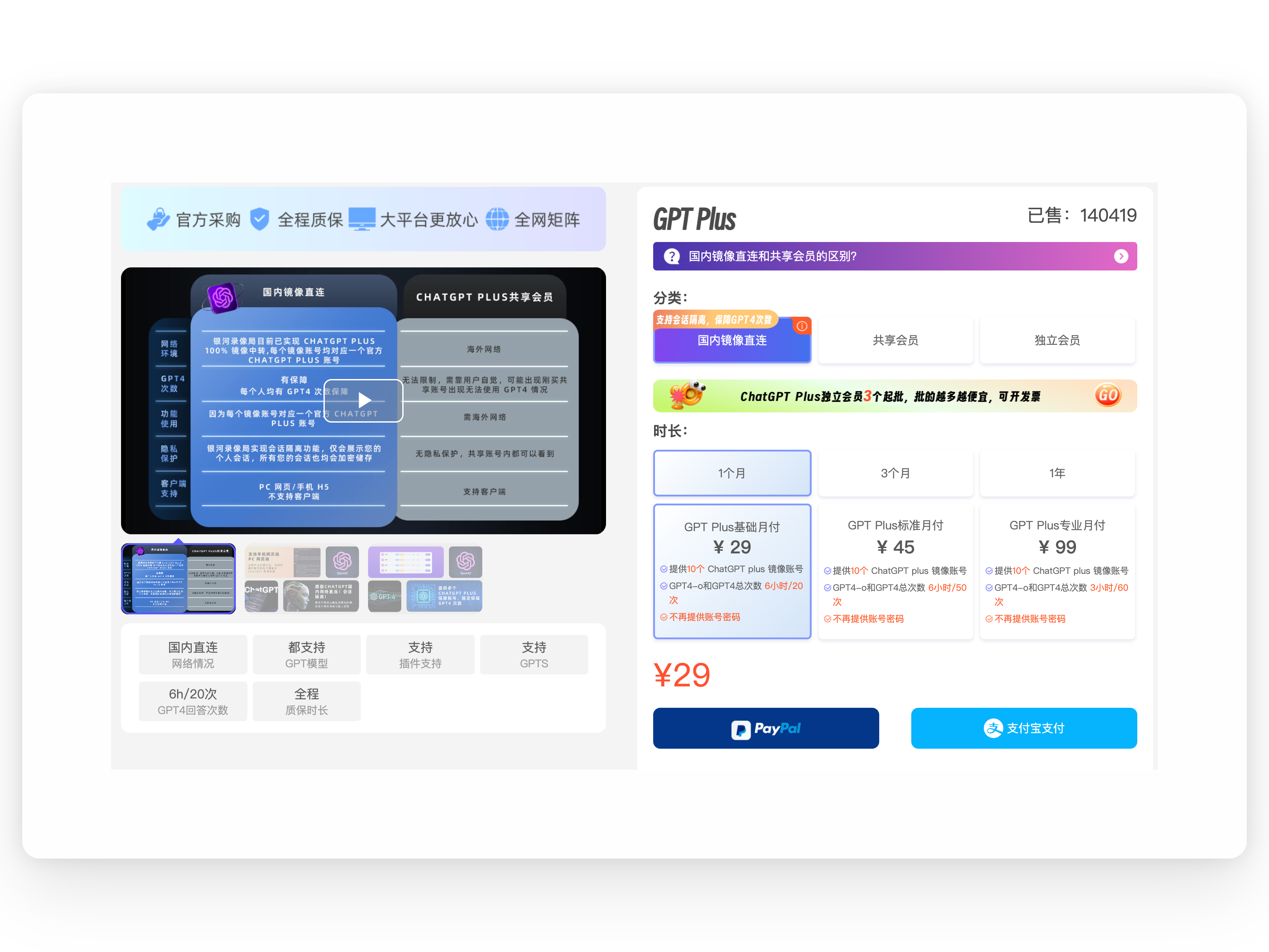
    <content type="html"><![CDATA[<h2 id="前言"><a href="#前言" class="headerlink" title="前言"></a>前言</h2><blockquote><p>在本月初，我在 <strong>TG</strong> 群看到有人说 fomepay 跑路了，我以为只是小问题，就试着登录发现没啥问题，又购买了一下推特的 <strong>Premium</strong> 计划发现已经被拒绝了。</p></blockquote><p><img src="https://img.laogou717.com/file/03f6f923ea11af25fa698.png" alt="支付失败"><br>然后我就尝试去询问客服情况，很显然他们已经不见踪迹了。</p><p><img src="https://img.laogou717.com/file/5f168236d6b9432677cc6.png"></p><p>不怕麻烦的朋友可以在 B 站搜索 用<strong>礼品卡支付 ChatGPT</strong>,怕麻烦可以考虑下面的替代，链接中带有我的邀请码，不想要可以直接在地址中删除访问。</p><h2 id="备用方案"><a href="#备用方案" class="headerlink" title="备用方案"></a>备用方案</h2><h3 id="wildcard-平台"><a href="#wildcard-平台" class="headerlink" title="wildcard 平台"></a>wildcard 平台</h3><blockquote><p><a href="https://bewildcard.com/i/LAOGOU">https://bewildcard.com/i/LAOGOU</a></p></blockquote><p><img src="https://img.laogou717.com/file/d1a84f6e6e89b078a3176.png" alt="wildcard"></p><h3 id="银河录像局"><a href="#银河录像局" class="headerlink" title="银河录像局"></a>银河录像局</h3><blockquote><p>即刻体验 <strong>PLUS 低至 29.9</strong> 非常适合使用频率、预算不高的朋友<br>GPT、Plus、ps ai、Mj 等全网最靠谱 AI 帐号购买：<strong><a href="https://nf.video/RnmdW">https://nf.video/RnmdW</a></strong><br>优惠码:laogou</p></blockquote><p><img src="https://img.laogou717.com/file/16cdac3bdc1171dfe5266.png" alt="银河录像局"></p>]]></content>


    <summary type="html">&lt;h2 id=&quot;前言&quot;&gt;&lt;a href=&quot;#前言&quot; class=&quot;headerlink&quot; title=&quot;前言&quot;&gt;&lt;/a&gt;前言&lt;/h2&gt;&lt;blockquote&gt;
&lt;p&gt;在本月初，我在 &lt;strong&gt;TG&lt;/strong&gt; 群看到有人说 fomepay</summary>


    <category term="AI纪元" scheme="http://www.laogou717.com/categories/AI%E7%BA%AA%E5%85%83/"/>
    
    
    <category term="GPT4" scheme="http://www.laogou717.com/tags/GPT4/"/>
    
    <category term="ChatGPT" scheme="http://www.laogou717.com/tags/ChatGPT/"/>
    
    <category term="升级ChatGPT" scheme="http://www.laogou717.com/tags/%E5%8D%87%E7%BA%A7ChatGPT/"/>
    
    <category term="AI" scheme="http://www.laogou717.com/tags/AI/"/>
    
  </entry>
  
  <entry>
    <title>国内访问不了Vercel上绑定的域名?试试这个吧!</title>
    <link href="http://www.laogou717.com/2024/03/01/AI%20era/deploy/Vercel/"/>
    <id>http://www.laogou717.com/2024/03/01/AI%20era/deploy/Vercel/</id>
    <published>2024-02-29T23:09:04.189Z</published>
    <updated>2024-08-23T13:08:49.050Z</updated>
    
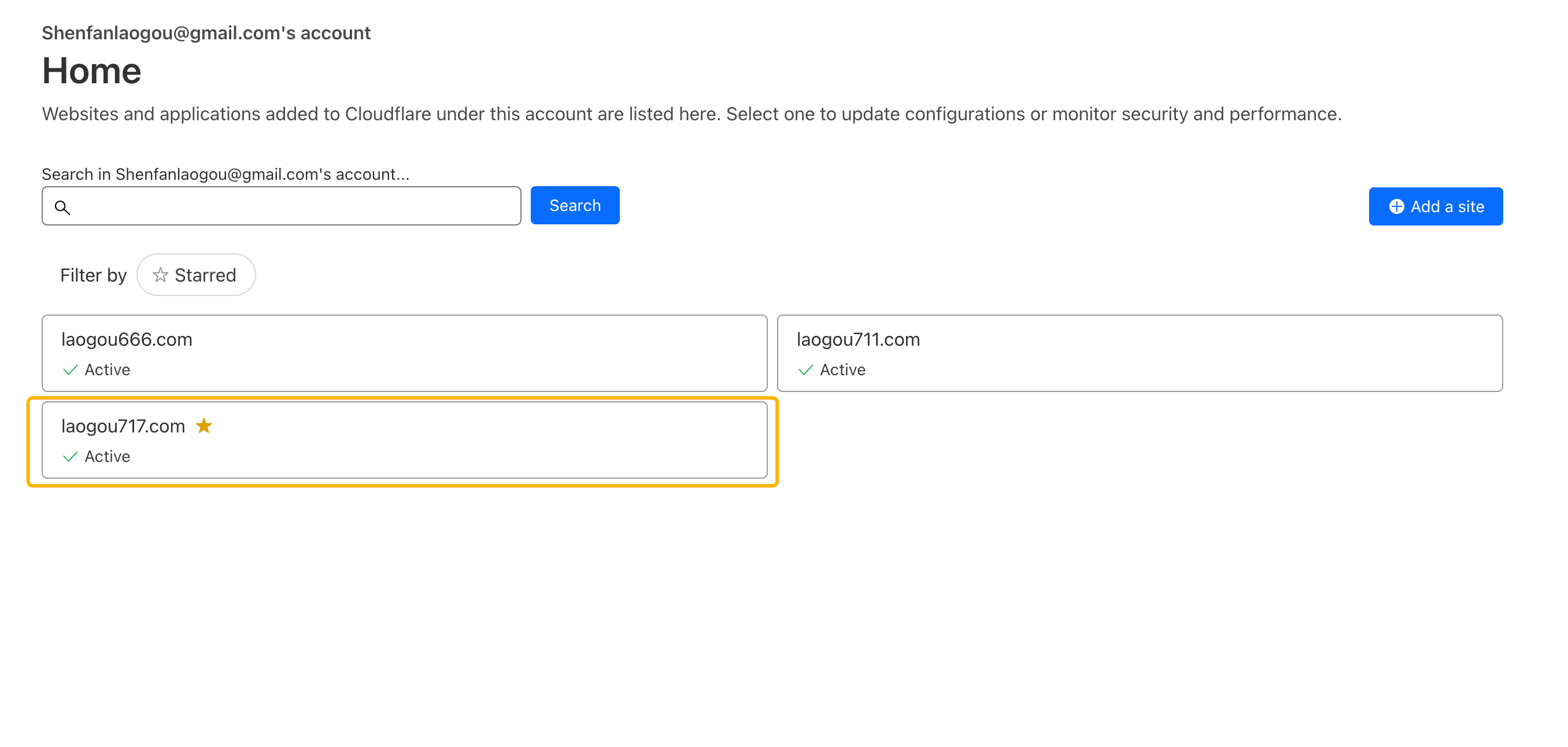
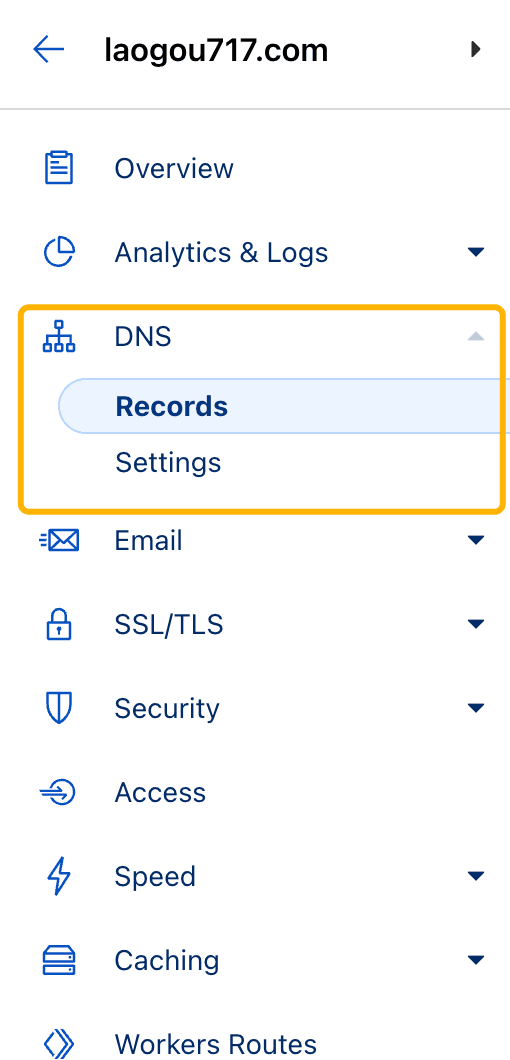
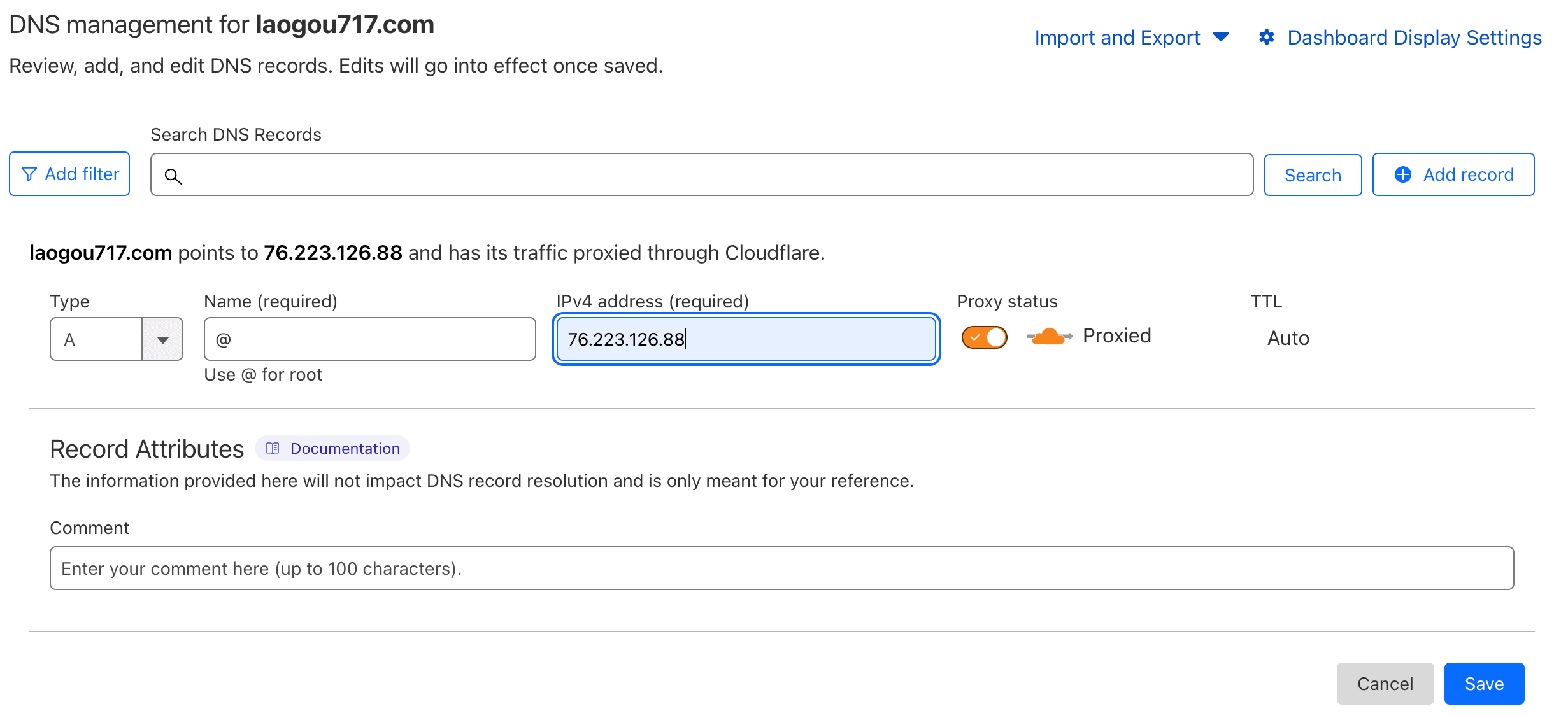
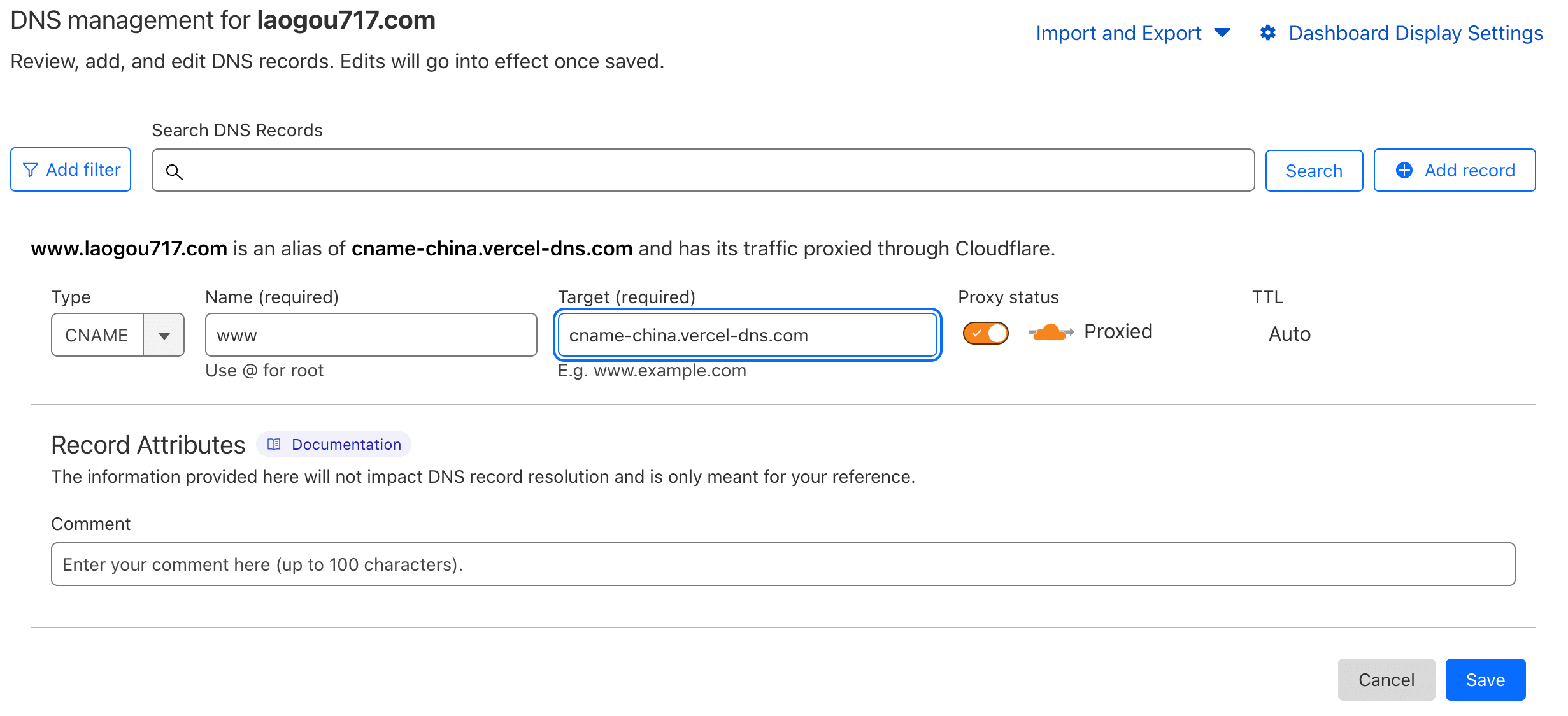
    <content type="html"><![CDATA[<p><img src="https://raw.githubusercontent.com/laogou717/IMG/main/LAOGOU/997771ac87cfc28505595c6f00f539f7ce8feced-1200x675.jpg" alt="国内访问不了Vercel上绑定的域名?试试这个吧!"></p><figure class="highlight plaintext"><table><tr><td class="gutter"><pre><span class="line">1</span><br><span class="line">2</span><br></pre></td><td class="code"><pre><span class="line">域名的可访问性对于保障信息流通至关重要。Vercel 面临的一个问题是，</span><br><span class="line">由于中国大陆的特定网络政策，使得 vercel.com 和 vercel.app 域在中国大陆地区无法访问。</span><br></pre></td></tr></table></figure><h2 id="处理方案"><a href="#处理方案" class="headerlink" title="处理方案"></a>处理方案</h2><h3 id="调整-A-记录"><a href="#调整-A-记录" class="headerlink" title="调整 A 记录"></a>调整 A 记录</h3><ul><li>请将您的 A 记录的 IP 地址从<code>76.76.21.21</code> 更改为顶级域DNS<figure class="highlight plaintext"><table><tr><td class="gutter"><pre><span class="line">1</span><br></pre></td><td class="code"><pre><span class="line">76.223.126.88</span><br></pre></td></tr></table></figure></li><li>这一更改是通过另一条网络路径来重定向流量，从而绕过现有的访问障碍。</li></ul><h3 id="更新-CNAME-记录"><a href="#更新-CNAME-记录" class="headerlink" title="更新 CNAME 记录"></a>更新 CNAME 记录</h3><ul><li><p>尽管Vercel在最新公告中宣告影响 CNAME 记录的问题已经得到解决，但还是仍然建议将 CNAME 记录从 <code>cname.vercel-dns.com</code>更改为二级域DNS</p><figure class="highlight plaintext"><table><tr><td class="gutter"><pre><span class="line">1</span><br></pre></td><td class="code"><pre><span class="line">cname-china.vercel-dns.com</span><br></pre></td></tr></table></figure></li><li><p>这一更改不仅确保了持续的访问能力，而且提供了额外的冗余性，增强了您的域名抵御未来可能出现中断的能力。</p></li></ul><h3 id="在域名注册商处添加记录"><a href="#在域名注册商处添加记录" class="headerlink" title="在域名注册商处添加记录"></a>在域名注册商处添加记录</h3><ul><li>登录您的域名注册商管理控制台。以cloudflare举例</li></ul><p><img src="https://lgblog.vercel.app/_next/image?url=https://cdn.sanity.io/images/cl1ktc5x/production/5cfe1fb3de8082b83245fb9258c91ef4042d5235-2712x1292.png&w=3840&q=75" alt="cf主页"></p><p>主页选中激活的域</p><ul><li>找到更新 DNS 记录的部分。</li></ul><p><img src="https://lgblog.vercel.app/_next/image?url=https://cdn.sanity.io/images/cl1ktc5x/production/0f83042881beed3694eec3283da0b97240e38b17-510x1060.png&w=1080&q=75" alt="dns"></p><p>左侧找到DNS服务</p><ul><li>修改 A 记录，指向 <code>76.223.126.88</code></li></ul><p><img src="https://lgblog.vercel.app/_next/image?url=https://cdn.sanity.io/images/cl1ktc5x/production/406eabf252419c67dcbbffbc85e3ea7744b2c920-2462x1128.png&w=3840&q=75" alt="A记录"></p><p>A记录</p><ul><li>将 CNAME 记录修改为 <code>cname-china.vercel-dns.com</code></li></ul><p><img src="https://lgblog.vercel.app/_next/image?url=https://cdn.sanity.io/images/cl1ktc5x/production/f9a9d2b7f63806c4f6f780f9696b4380157e0dfc-2462x1124.png&w=3840&q=75" alt="二级域"></p><p>二级域</p><ul><li>通过上述步骤，即使在中国大陆这样的特殊网络环境下，您的网站也能保持正常的访问和运行。建议您尽早完成这些更改，以确保服务不受影响😄。</li></ul>]]></content>


    <summary type="html">&lt;p&gt;&lt;img src=&quot;https://raw.githubusercontent.com/laogou717/IMG/main/LAOGOU/997771ac87cfc28505595c6f00f539f7ce8feced-1200x675.jpg&quot;</summary>


    <category term="搭建网站" scheme="http://www.laogou717.com/categories/%E6%90%AD%E5%BB%BA%E7%BD%91%E7%AB%99/"/>
    
    
  </entry>
  
  <entry>
    <title>Hermchats：不会封号、最好的GPT4.0、Claude3、Midjourney聚合平台。</title>
    <link href="http://www.laogou717.com/2024/02/28/AI%20era/hermchats/"/>
    <id>http://www.laogou717.com/2024/02/28/AI%20era/hermchats/</id>
    <published>2024-02-28T07:30:00.000Z</published>
    <updated>2024-05-13T21:51:56.703Z</updated>
    
    <content type="html"><![CDATA[<h2 id="点击登录注册"><a href="#点击登录注册" class="headerlink" title="点击登录注册"></a>点击登录注册</h2><div class="site-card-group"><a class="site-card" href="https://www.hermchats.com?code=91C04665" data-title=点击访问Juchats><div class="wrapper cover"><img class="cover fadeIn" src="https://img.laogou717.com/file/b1bf3413ec2bb6f3c3a40.jpg"/></div><div class="info"><img class="flink-avatar" src="https://www.hermchats.com/favicon.ico"/><span class="site-title">Juchats</span></div></a></div><h2 id="兑换码"><a href="#兑换码" class="headerlink" title="兑换码"></a>兑换码</h2><blockquote><p>😊<br>兑换码已于视频发布当天被全部使用.<br>✅ 兑换码00：<psw>点击显示兑换码</psw><br>✅ 兑换码01：<psw>TULY7G</psw><br>✅ 兑换码02：<psw>G9FF9N</psw><br>✅ 兑换码03：<psw>5SC1TK</psw><br>✅ 兑换码04：<psw>5B76SB</psw><br>✅ 兑换码05：<psw>4QN3H3</psw><br>✅ 兑换码06：<psw>M484X4</psw><br>✅ 兑换码07：<psw>0CC056</psw><br>✅ 兑换码08：<psw>9JACM6</psw><br>✅ 兑换码09：<psw>B0BFYK</psw><br>✅ 兑换码10：<psw>7NJ6U8</psw><br>✅ 兑换码11：<psw>CUFCBO</psw><br>✅ 兑换码12：<psw>ED260W</psw><br>✅ 兑换码13：<psw>3VTKLJ</psw><br>✅ 兑换码14：<psw>VDXUH5</psw><br>✅ 兑换码15：<psw>JG2OOL</psw><br>✅ 兑换码16：<psw>K6JHEQ</psw><br>✅ 兑换码17：<psw>HPVR5S</psw><br>✅ 兑换码18：<psw>P2QWAF</psw><br>✅ 兑换码19：<psw>GBN45O</psw><br>✅ 兑换码20：<psw>2O12OI</psw></p></blockquote><h2 id="更多彩蛋码及玩法"><a href="#更多彩蛋码及玩法" class="headerlink" title="更多彩蛋码及玩法"></a>更多彩蛋码及玩法</h2><blockquote><p>抢不到的话可以在作者的X上查看更多兑换码</p></blockquote><p>新老用户可以在X上评论区获取彩蛋码，未获取到的新用户，周期内每天 18:00 系统将会自动随机<strong>派发 7 天的 Daily 体验机会！</strong></p><ul><li>周期：2024.04.30 - 05.04</li><li>周期：2024.05.08（助力开工辅助）</li><li>数量：每天 <strong>600</strong> 枚<blockquote class="twitter-tweet"><p lang="zh" dir="ltr">Juchats 1.5 Ready 没错，我们来了，昨天凌晨偷偷的发布了一个版本，发现大家都疯狂的怼着 Claude Opus 来用，哈哈哈！我们迎来了第一批订阅用户以及一波问题，就像大家对模型代号的不理解，这个的确是我从产品角度没给到专业的解释，下面我会把抽奖活动、彩蛋码活动以及新产品的新玩法演示！… <a href="https://t.co/UpAJAG0JmT">https://t.co/UpAJAG0JmT</a> <a href="https://t.co/1dDvrSMse5">pic.twitter.com/1dDvrSMse5</a></p>&mdash; 𝗖𝘆𝗱𝗶𝗮𝗿 (@Cydiar404) <a href="https://twitter.com/Cydiar404/status/1785158269721604331?ref_src=twsrc%5Etfw">April 30, 2024</a></blockquote> <script async src="https://platform.twitter.com/widgets.js" charset="utf-8"></script></li></ul>]]></content>


    <summary type="html">&lt;h2 id=&quot;点击登录注册&quot;&gt;&lt;a href=&quot;#点击登录注册&quot; class=&quot;headerlink&quot; title=&quot;点击登录注册&quot;&gt;&lt;/a&gt;点击登录注册&lt;/h2&gt;&lt;div class=&quot;site-card-group&quot;&gt;&lt;a class=&quot;site-card&quot;</summary>


    <category term="AI纪元" scheme="http://www.laogou717.com/categories/AI%E7%BA%AA%E5%85%83/"/>
    
    
  </entry>
  
  <entry>
    <title>一行代码本地运行 AI 模型</title>
    <link href="http://www.laogou717.com/2024/02/27/AI%20era/deploy/One-Code/"/>
    <id>http://www.laogou717.com/2024/02/27/AI%20era/deploy/One-Code/</id>
    <published>2024-02-27T00:45:48.976Z</published>
    <updated>2024-02-27T00:47:02.527Z</updated>
    
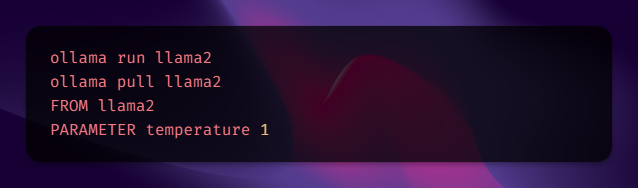
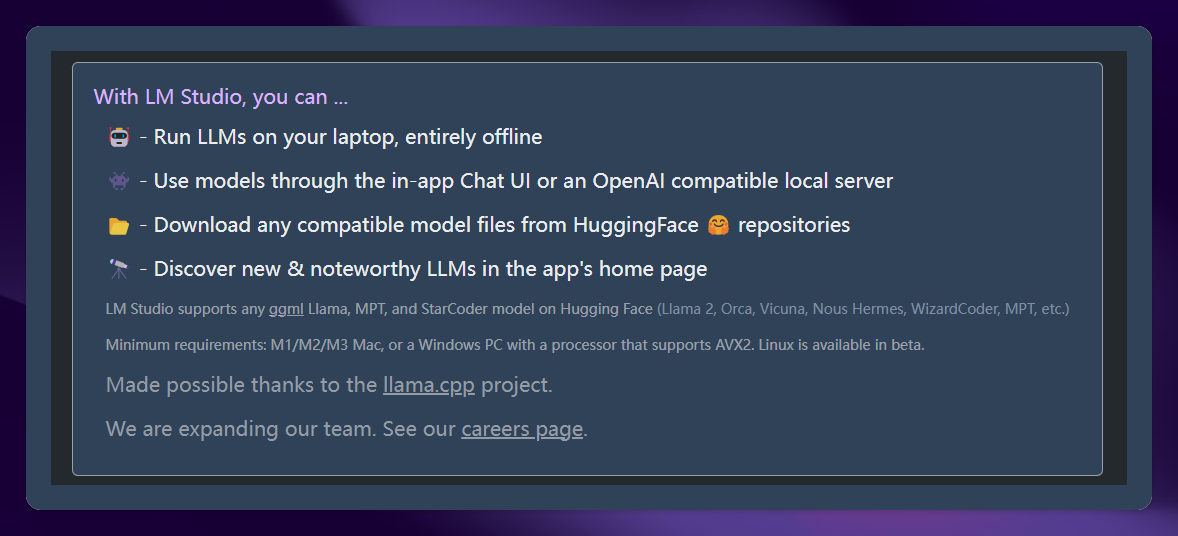
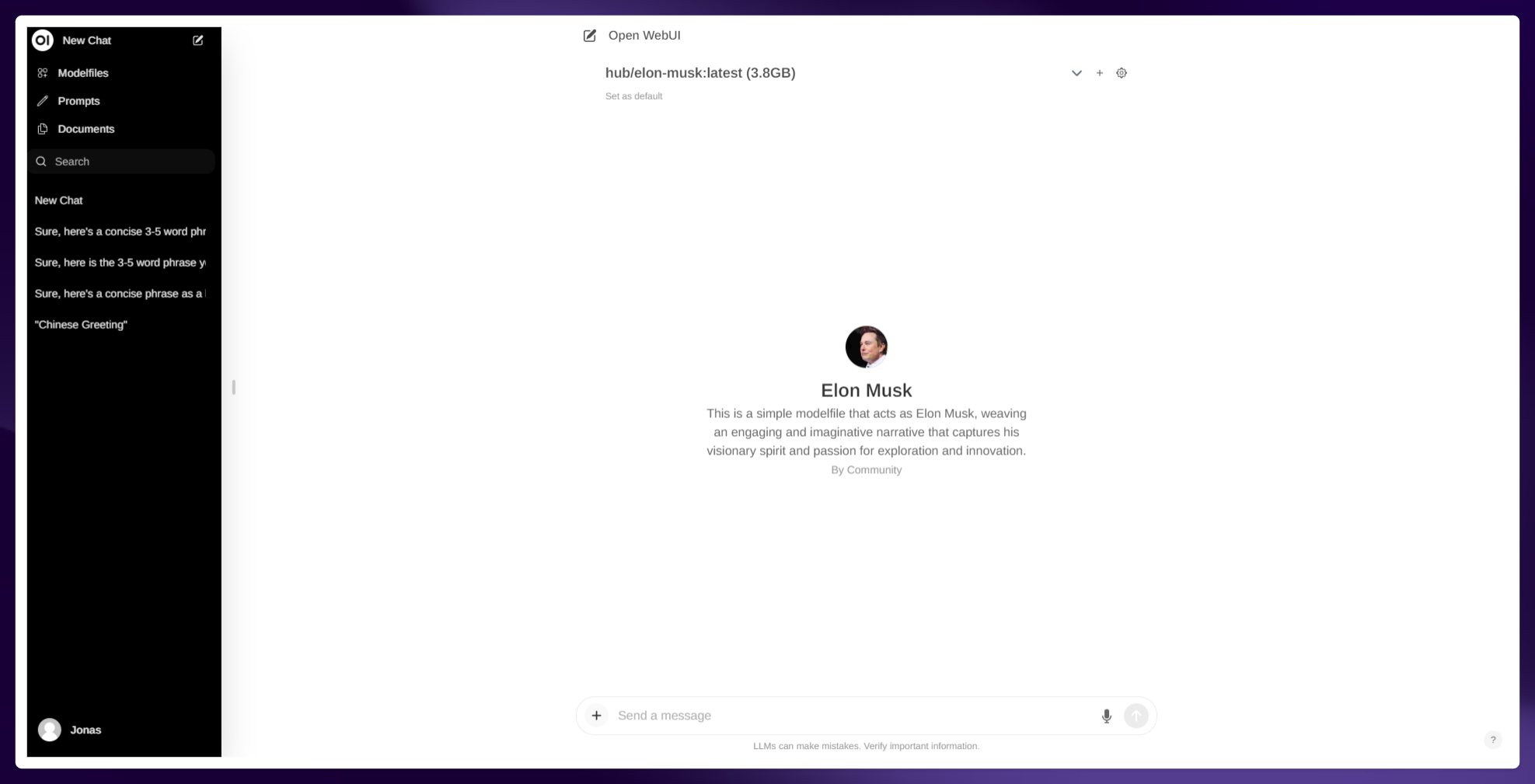
    <content type="html"><![CDATA[<p><img src="https://cdn.jsdelivr.net/gh/laogou717/IMG@main/LAOGOU/%E6%9C%AA%E6%A0%87%E9%A2%98-1.png" alt="一行代码本地运行 AI 模型"></p><h2 id="Ollama"><a href="#Ollama" class="headerlink" title="Ollama"></a>Ollama</h2><p><img src="https://cdn.jsdelivr.net/gh/laogou717/IMG@main/LAOGOU/20240227163844.png"></p><blockquote><p>一行代码下载运行模型</p></blockquote><ul><li><a href="https://ollama.com/">https://ollama.com</a></li></ul><h3 id="Ollama-运行代码"><a href="#Ollama-运行代码" class="headerlink" title="Ollama 运行代码"></a>Ollama 运行代码</h3><ol><li><strong>运行并与 Llama 2 交互：</strong></li></ol><figure class="highlight plaintext"><table><tr><td class="gutter"><pre><span class="line">1</span><br></pre></td><td class="code"><pre><span class="line">ollama run llama2</span><br></pre></td></tr></table></figure><ol start="2"><li><strong>模型库：</strong></li></ol><p>Ollama 支持一系列模型，可以在 [invalid URL removed] 下载。</p><ol start="3"><li><strong>自定义模型：</strong></li></ol><ul><li><p><strong>从 GGUF 导入：</strong></p><ol><li>创建名为 <code>Modelfile</code> 的文件，其中包含 <code>FROM</code> 指令，指定要导入的模型的本地文件路径。</li><li>创建模型： <figure class="highlight plaintext"><table><tr><td class="gutter"><pre><span class="line">1</span><br></pre></td><td class="code"><pre><span class="line">ollama create example -f Modelfile</span><br></pre></td></tr></table></figure></li><li>运行模型： <figure class="highlight plaintext"><table><tr><td class="gutter"><pre><span class="line">1</span><br></pre></td><td class="code"><pre><span class="line">ollama run example</span><br></pre></td></tr></table></figure></li></ol></li><li><p><strong>从 PyTorch 或 Safetensors 导入：</strong></p><p>  请参阅导入模型的 指南：URL ollama import model ON Hugging Face ollama.ai 了解更多信息。</p></li></ul><ol start="4"><li><strong>自定义提示：</strong></li></ol><figure class="highlight plaintext"><table><tr><td class="gutter"><pre><span class="line">1</span><br><span class="line">2</span><br><span class="line">3</span><br><span class="line">4</span><br><span class="line">5</span><br><span class="line">6</span><br><span class="line">7</span><br><span class="line">8</span><br><span class="line">9</span><br><span class="line">10</span><br><span class="line">11</span><br><span class="line">12</span><br><span class="line">13</span><br><span class="line">14</span><br><span class="line">15</span><br><span class="line">16</span><br><span class="line">17</span><br><span class="line">18</span><br></pre></td><td class="code"><pre><span class="line">ollama pull llama2</span><br><span class="line"></span><br><span class="line"># 创建 Modelfile</span><br><span class="line">FROM llama2</span><br><span class="line"></span><br><span class="line"># 设置温度 (越高越具创意，越低越连贯)</span><br><span class="line">PARAMETER temperature 1</span><br><span class="line"></span><br><span class="line"># 设置系统消息</span><br><span class="line">SYSTEM &quot;&quot;&quot;</span><br><span class="line">你是超级马里奥兄弟中的马里奥。仅以助手身份回答，就像马里奥一样。</span><br><span class="line">&quot;&quot;&quot;</span><br><span class="line"></span><br><span class="line"># 创建并运行模型</span><br><span class="line">ollama create mario -f ./Modelfile</span><br><span class="line">ollama run mario</span><br><span class="line">&gt;&gt;&gt; hi</span><br><span class="line">你好！我是你的朋友马里奥。</span><br></pre></td></tr></table></figure><h2 id="LMStudio"><a href="#LMStudio" class="headerlink" title="LMStudio"></a>LMStudio</h2><p><img src="https://cdn.jsdelivr.net/gh/laogou717/IMG@main/LAOGOU/20240227163401.png"></p><blockquote><p>无需代码下载运行模型，自带聊天页面</p></blockquote><ul><li><a href="https://lmstudio.ai/">https://lmstudio.ai</a></li></ul><h2 id="Open-WebUI"><a href="#Open-WebUI" class="headerlink" title="Open WebUI"></a>Open WebUI</h2><p><img src="https://cdn.jsdelivr.net/gh/laogou717/IMG@main/LAOGOU/20240227164346.png"></p><blockquote><p>前端页面</p></blockquote><p><a href="https://github.com/open-webui/open-webui">https://github.com/open-webui/open-webui</a></p><h3 id="docker-拉取并链接本地-Ollama"><a href="#docker-拉取并链接本地-Ollama" class="headerlink" title="docker 拉取并链接本地 Ollama"></a>docker 拉取并链接本地 Ollama</h3><p> **使用 Docker 快速启动 **</p><p>使用 Docker 安装 Open WebUI 时，请务必在 Docker 命令中包含 <code>-v open-webui:/app/backend/data</code> 参数。这一步至关重要，因为它可以确保正确挂载数据库并防止数据丢失。</p><p><strong>如果 Ollama 在您的计算机上，请使用以下命令：</strong></p><figure class="highlight bash"><table><tr><td class="gutter"><pre><span class="line">1</span><br></pre></td><td class="code"><pre><span class="line">docker run -d -p 3000:8080 --add-host=host.docker.internal:host-gateway -v open-webui:/app/backend/data --name open-webui --restart always ghcr.io/open-webui/open-webui:main</span><br></pre></td></tr></table></figure><p><strong>如果 Ollama 在另一台服务器上，请使用以下命令：</strong></p><p>要连接到另一台服务器上的 Ollama，请将 <code>OLLAMA_API_BASE_URL</code> 更改为服务器的 URL：</p><figure class="highlight bash"><table><tr><td class="gutter"><pre><span class="line">1</span><br></pre></td><td class="code"><pre><span class="line">docker run -d -p 3000:8080 -e OLLAMA_API_BASE_URL=https://example.com/api -v open-webui:/app/backend/data --name open-webui --restart always ghcr.io/open-webui/open-webui:main</span><br></pre></td></tr></table></figure><p><strong>安装完成后，您可以通过 <code>http://localhost:3000</code> 访问 Open WebUI。尽情使用吧！</strong></p>]]></content>


    <summary type="html">&lt;p&gt;&lt;img src=&quot;https://cdn.jsdelivr.net/gh/laogou717/IMG@main/LAOGOU/%E6%9C%AA%E6%A0%87%E9%A2%98-1.png&quot; alt=&quot;一行代码本地运行 AI 模型&quot;&gt;&lt;/p&gt;
&lt;h2</summary>


    <category term="AI纪元" scheme="http://www.laogou717.com/categories/AI%E7%BA%AA%E5%85%83/"/>
    
    
  </entry>
  
  <entry>
    <title>国内最佳Newbing镜像!最新更新秒过人机验证!</title>
    <link href="http://www.laogou717.com/2024/02/06/AI%20era/bing/newbing/"/>
    <id>http://www.laogou717.com/2024/02/06/AI%20era/bing/newbing/</id>
    <published>2024-02-06T10:55:44.000Z</published>
    <updated>2024-04-03T08:01:30.000Z</updated>
    
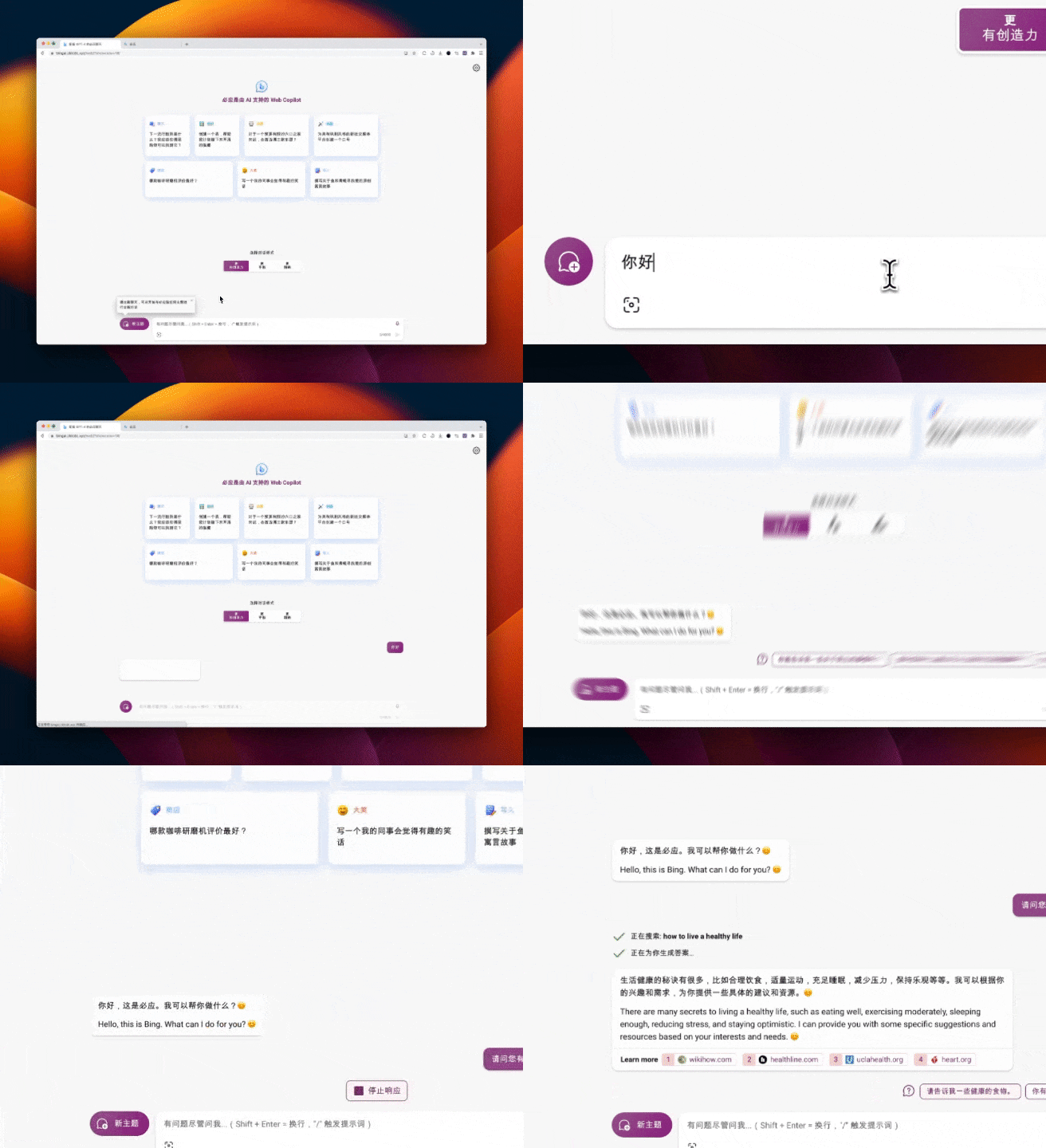
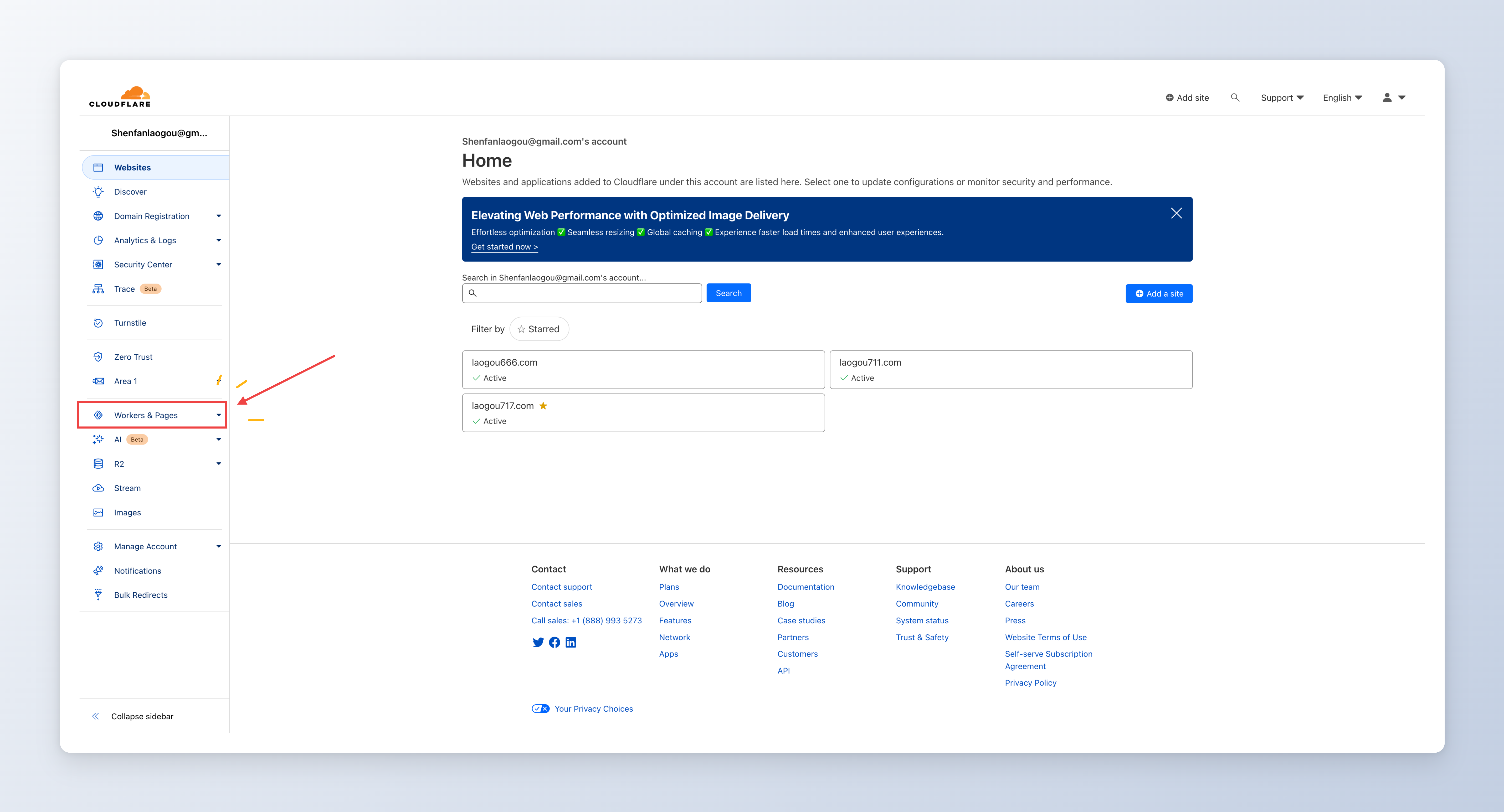
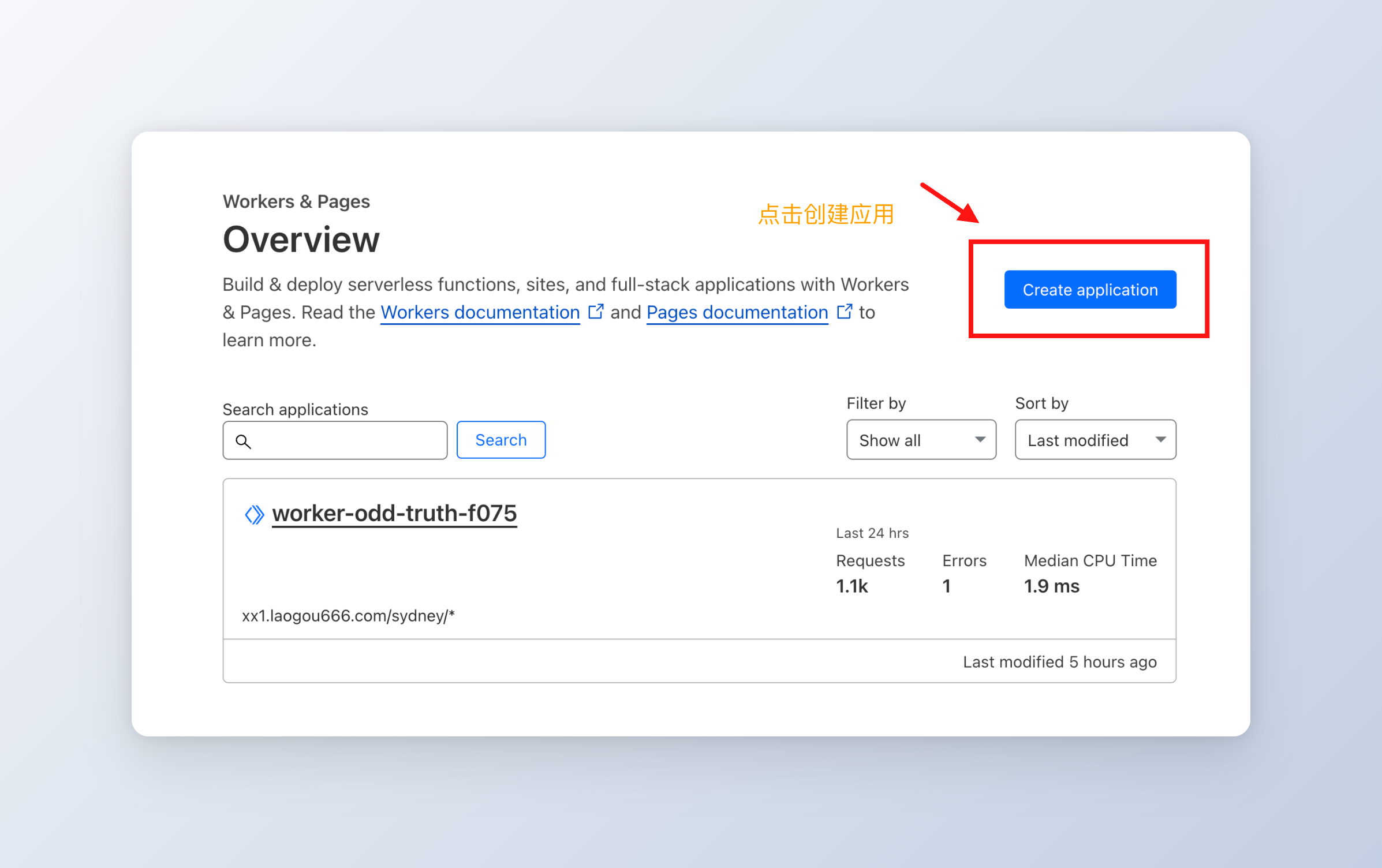
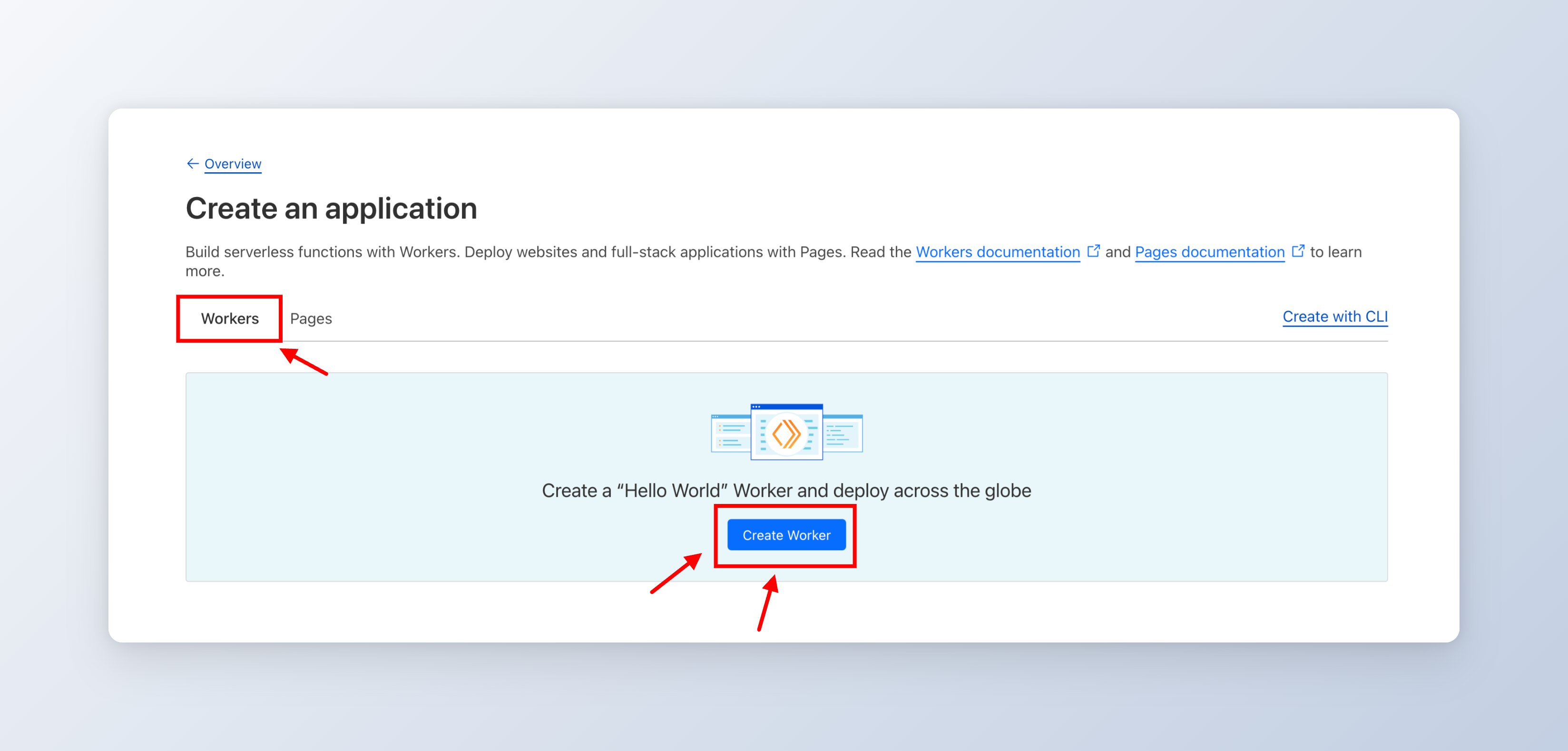
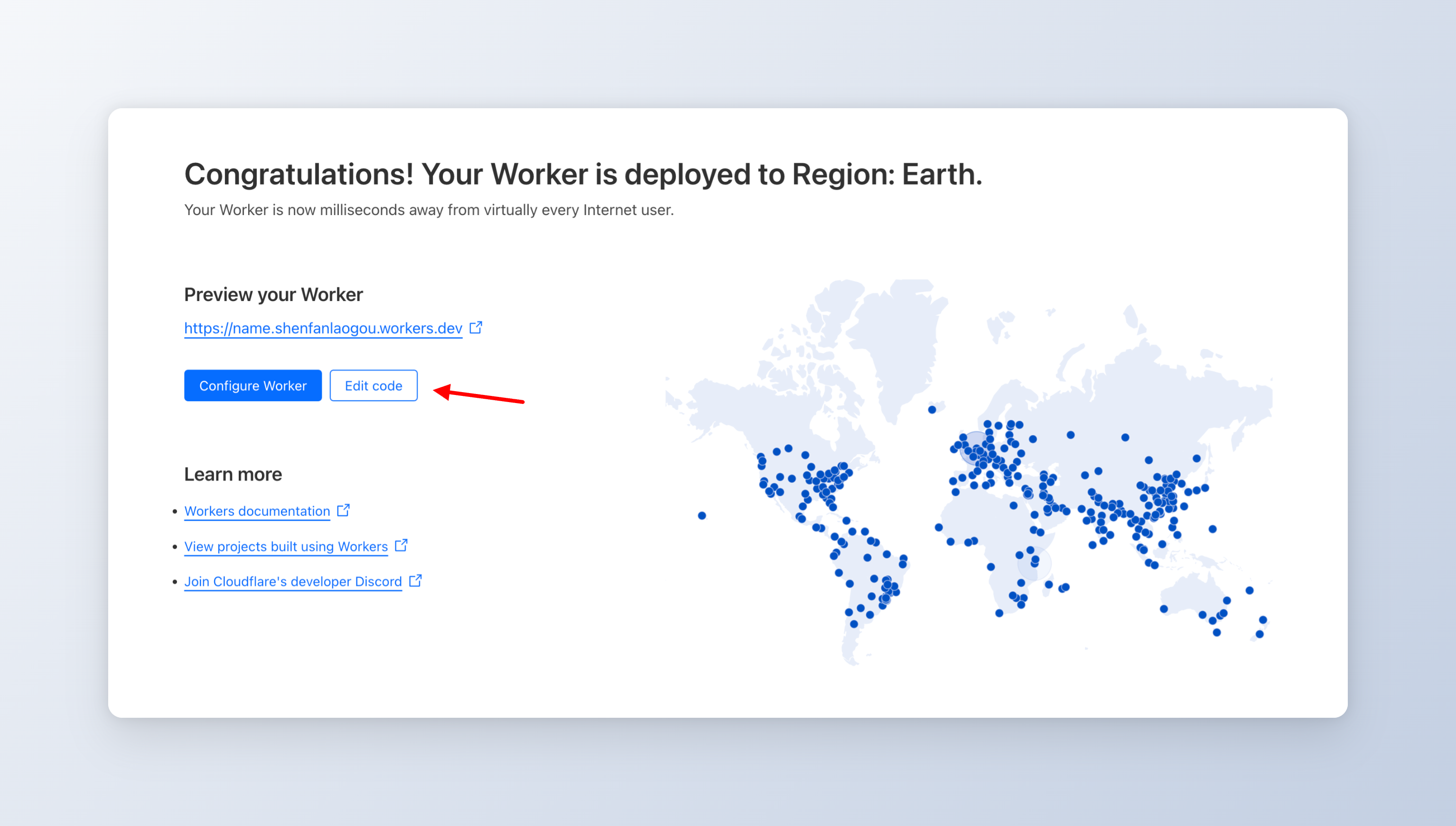
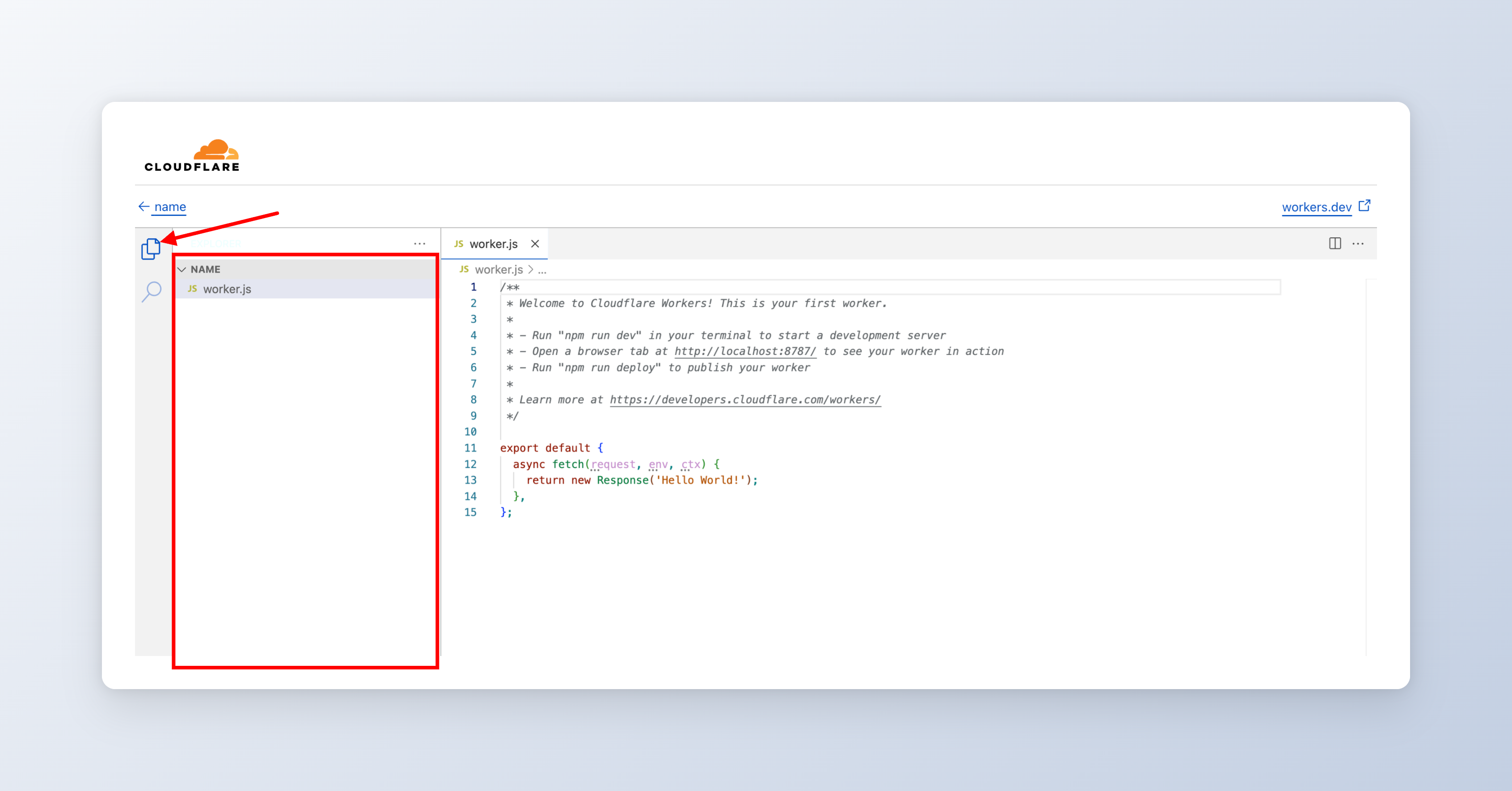
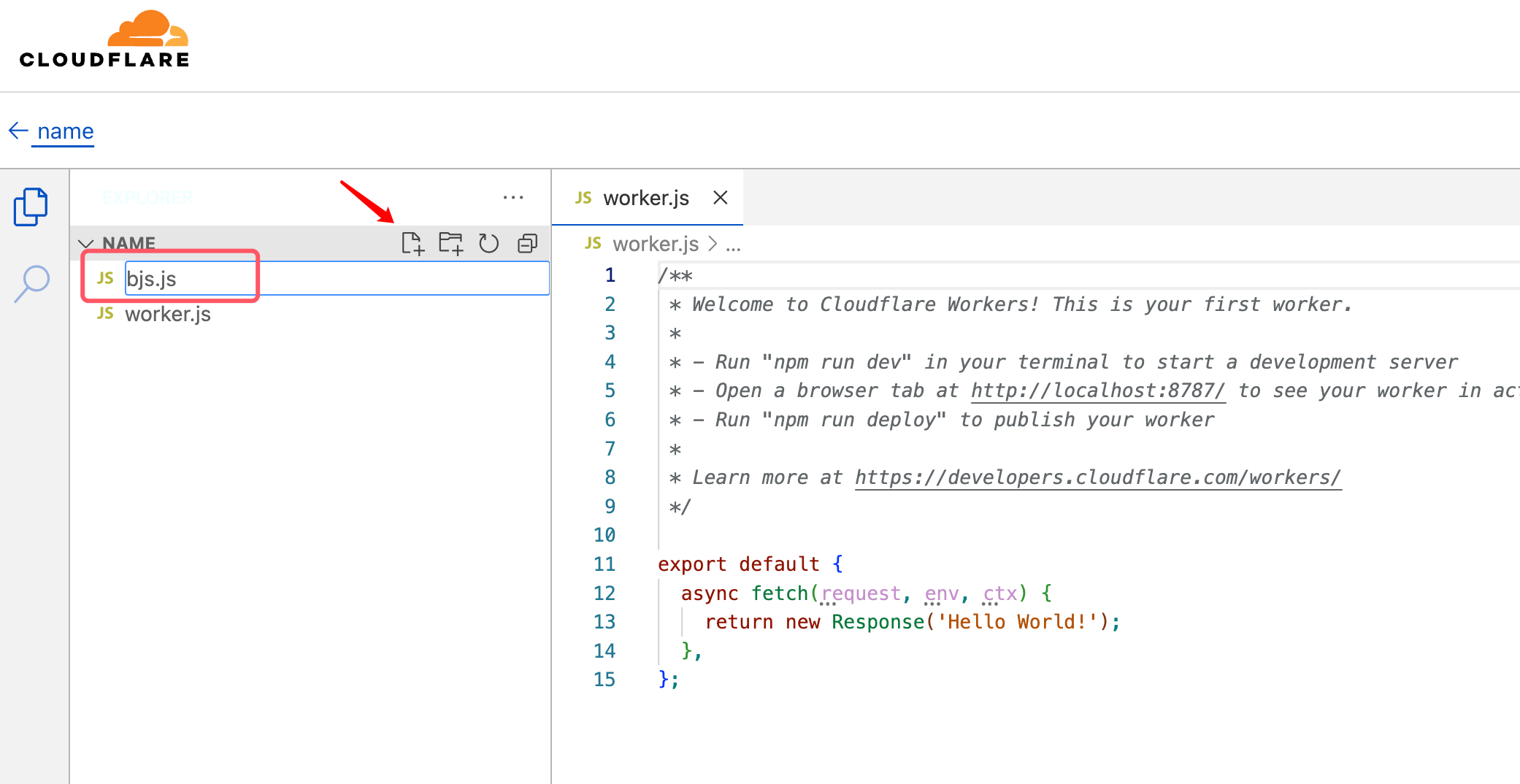
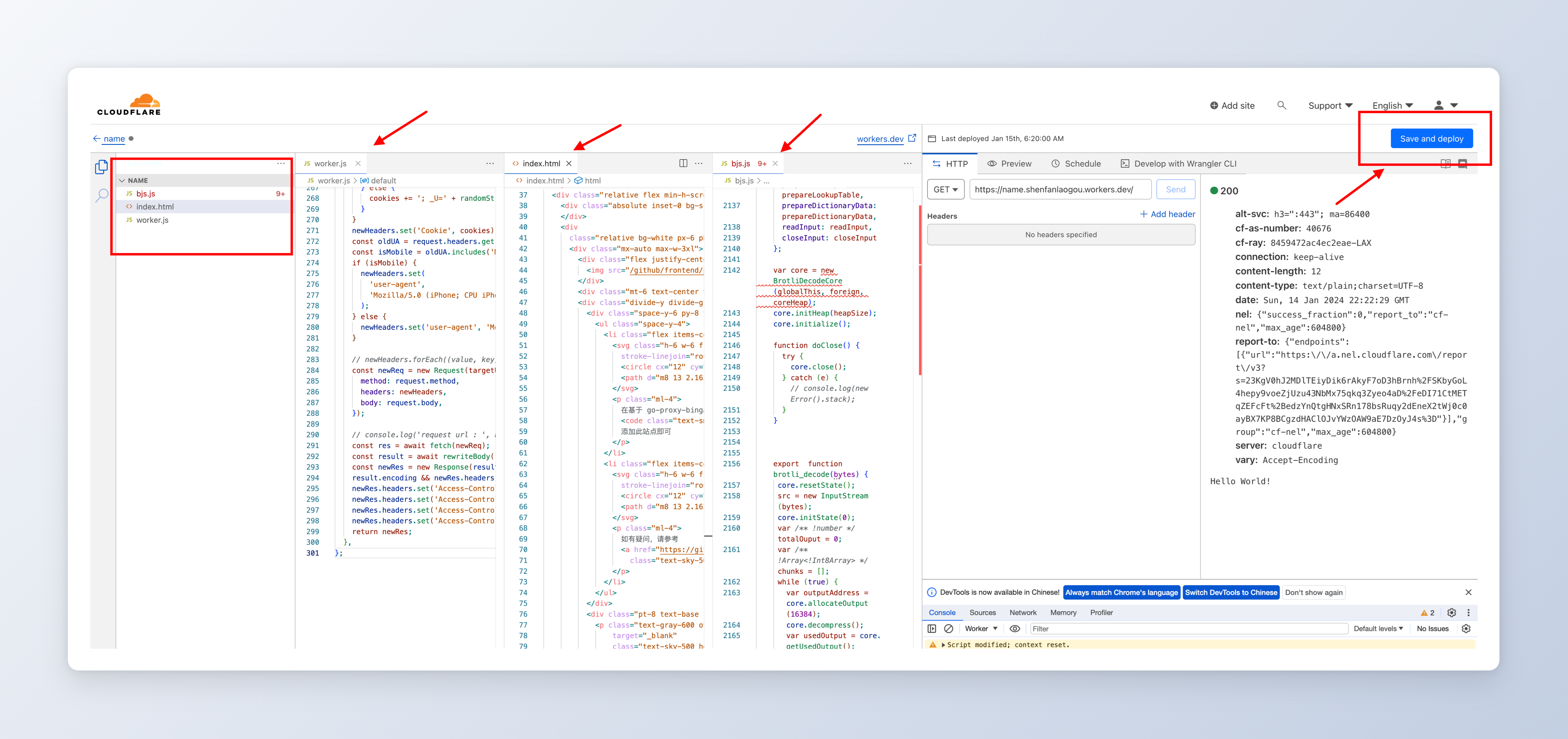
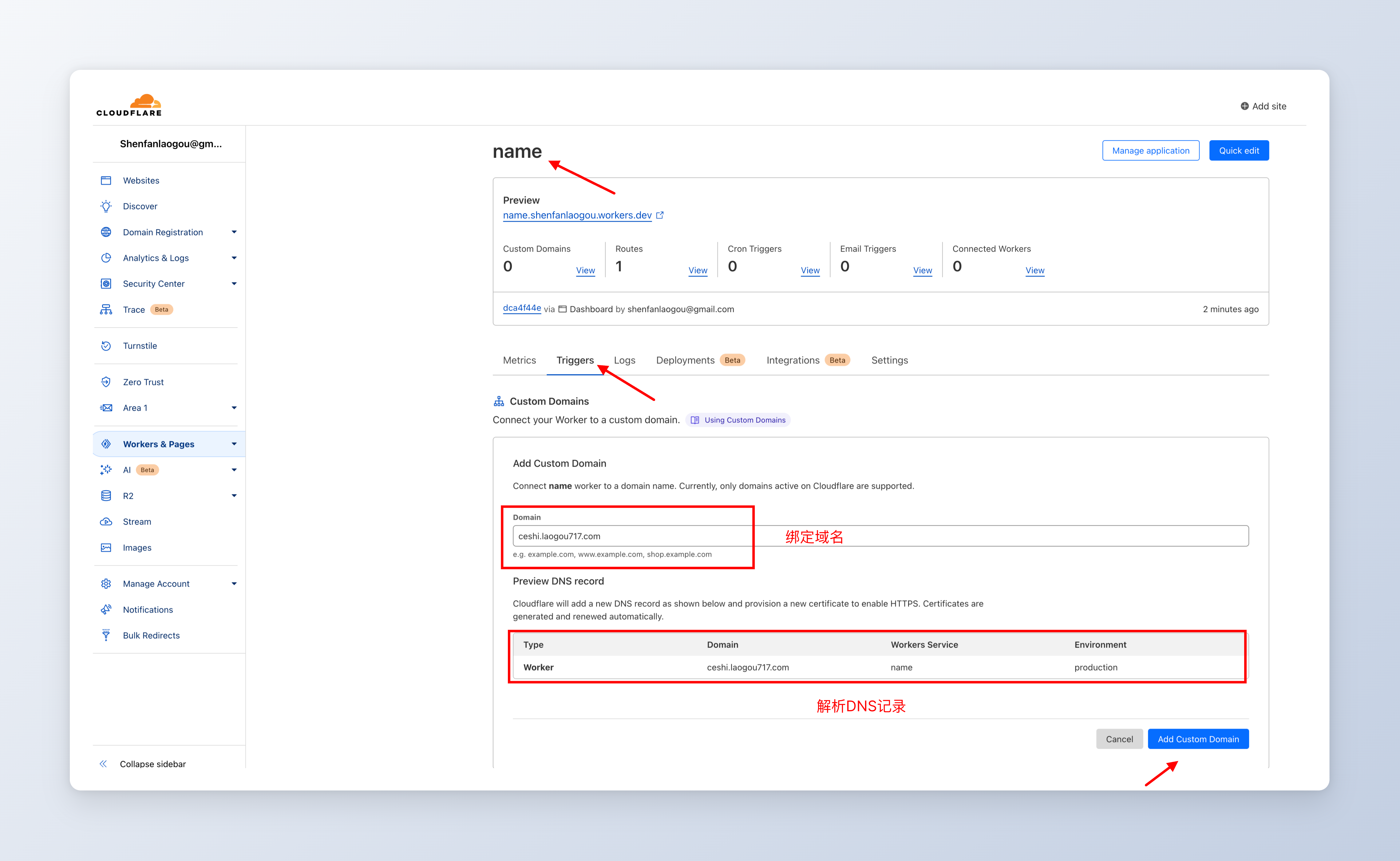
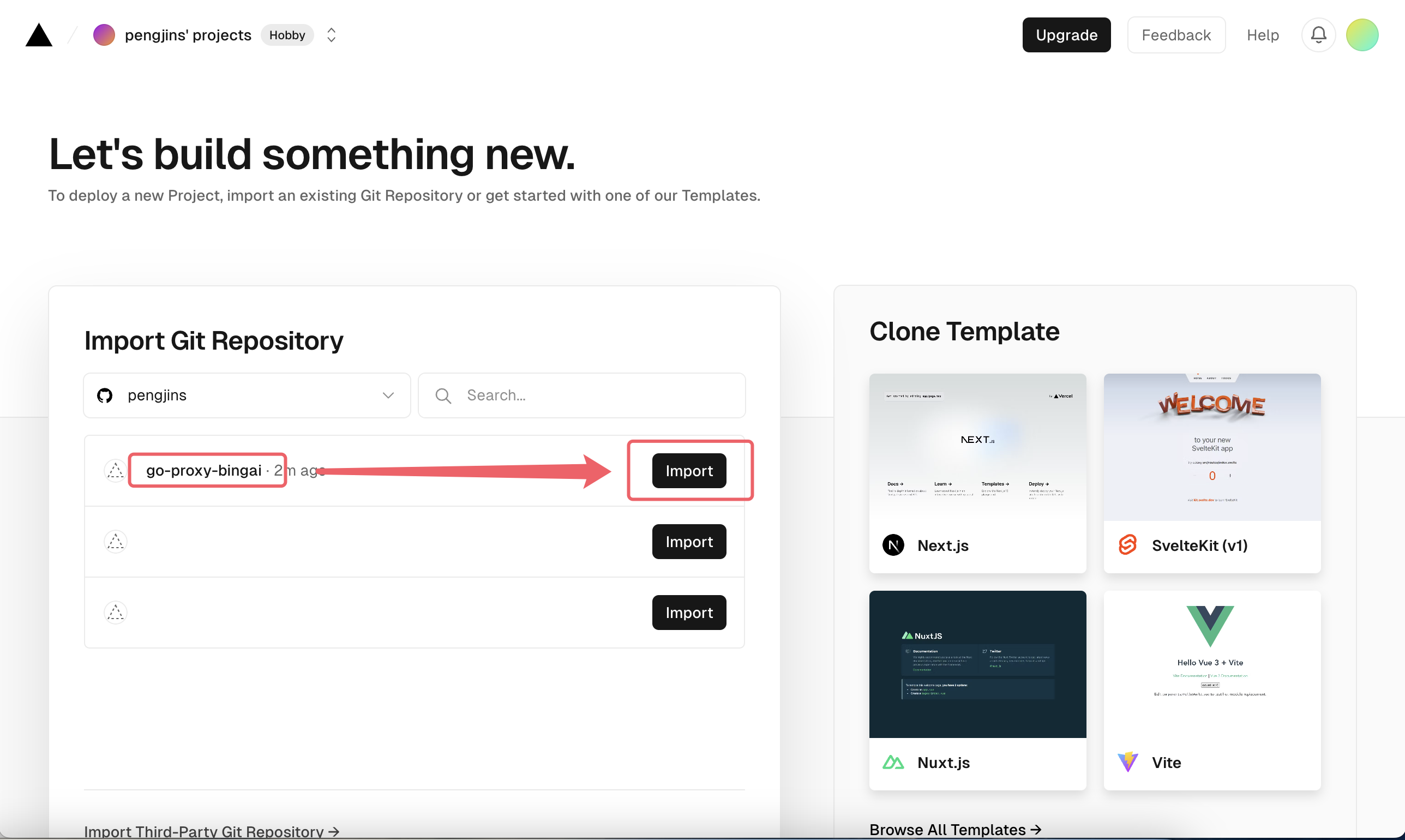
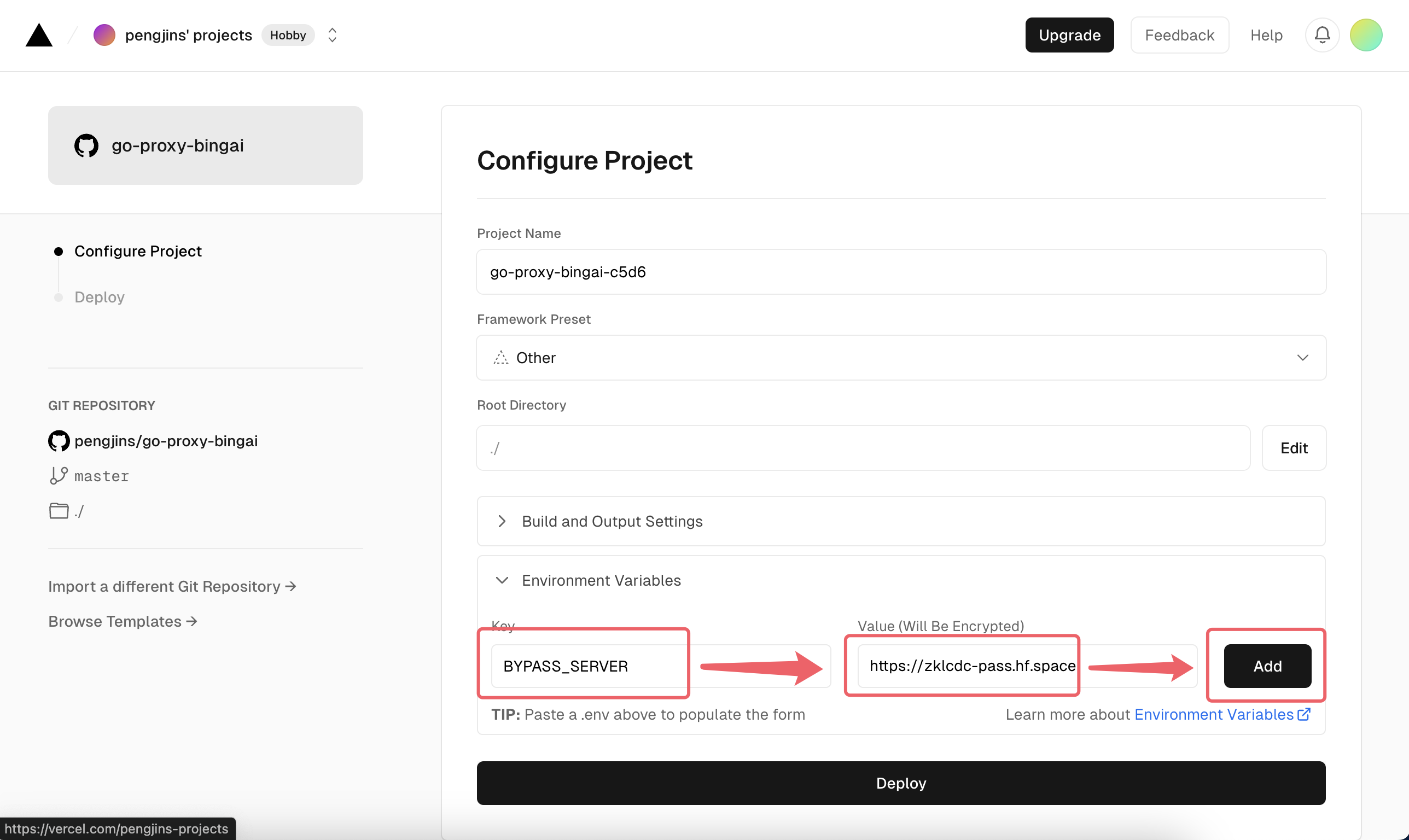
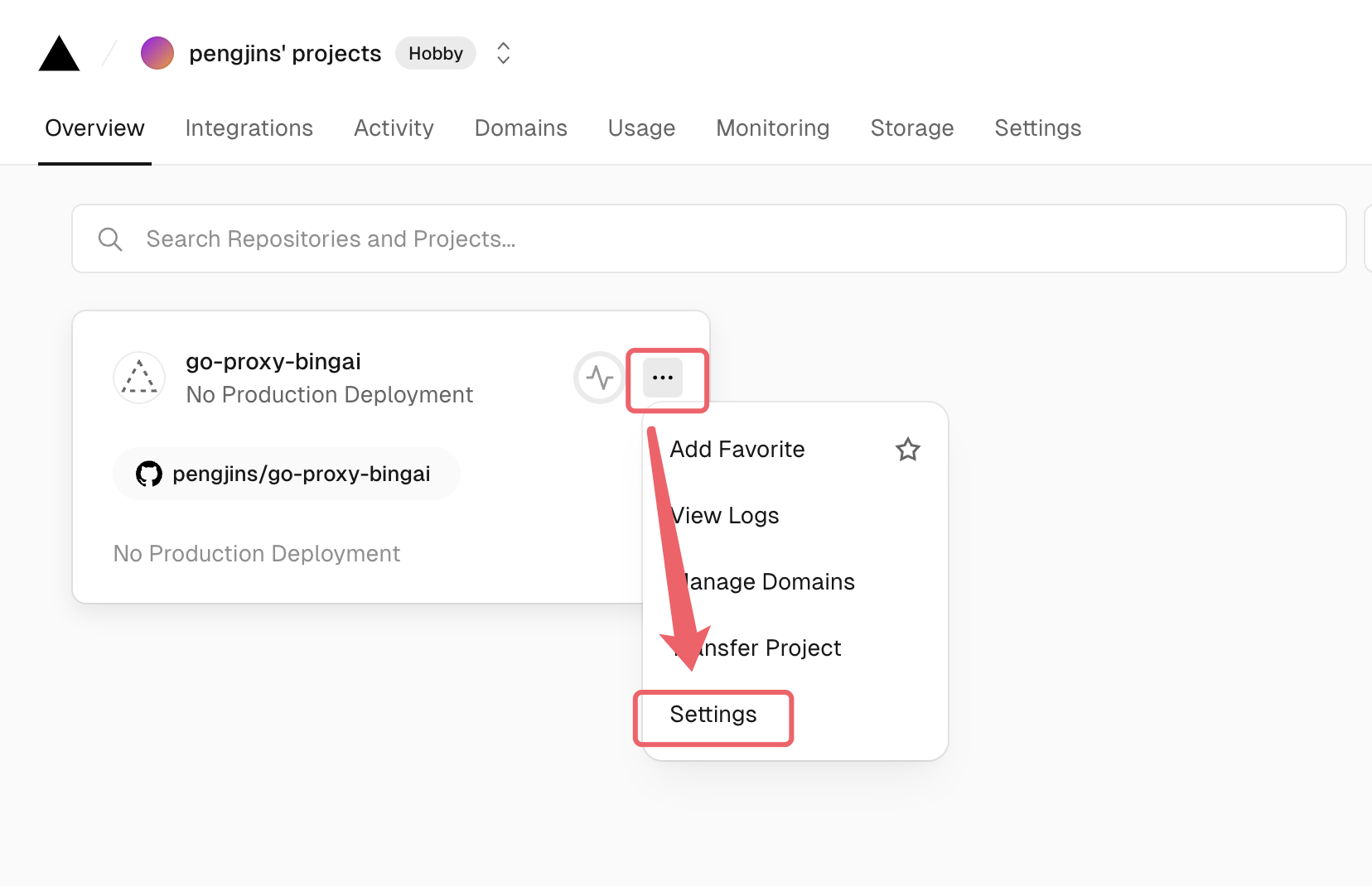
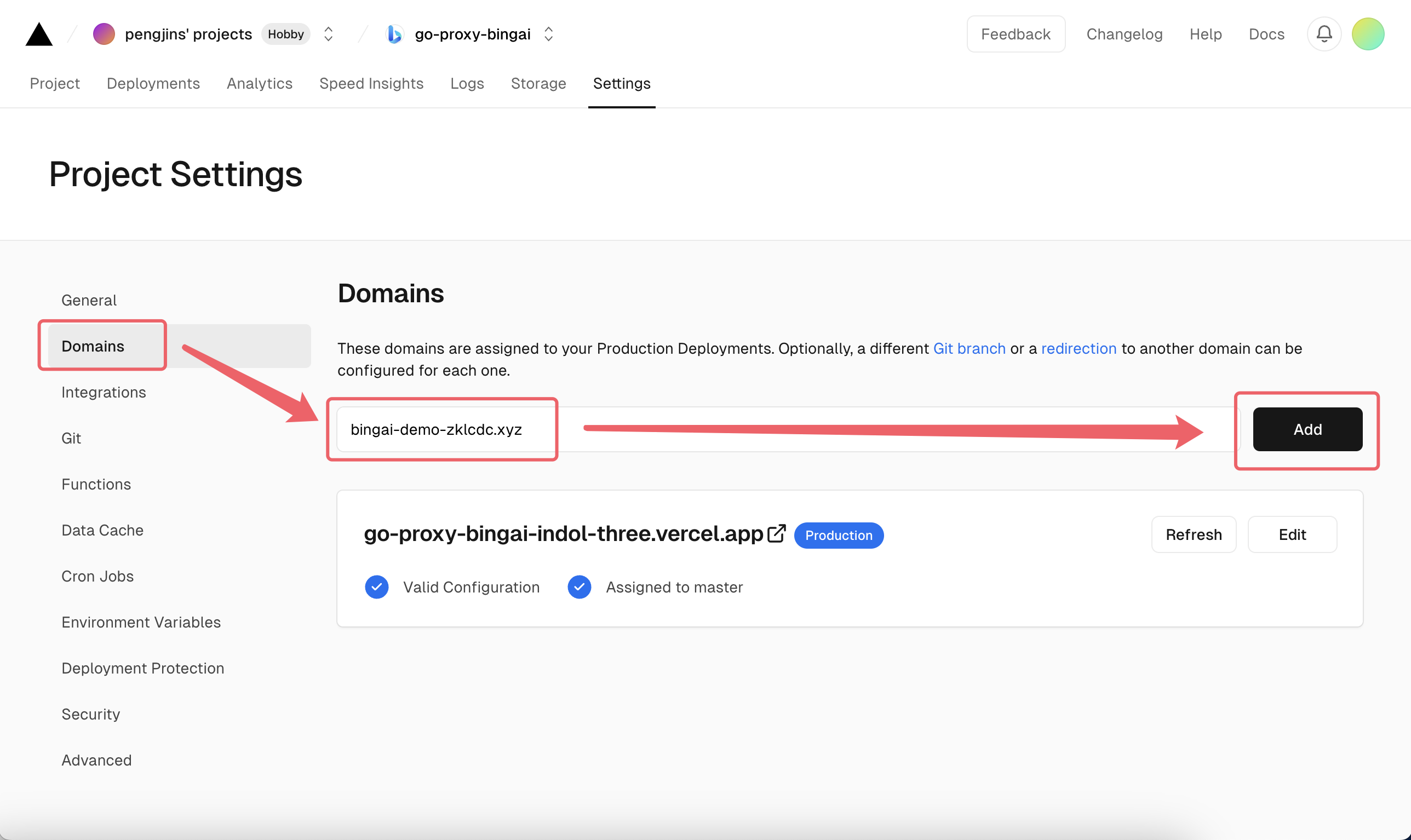
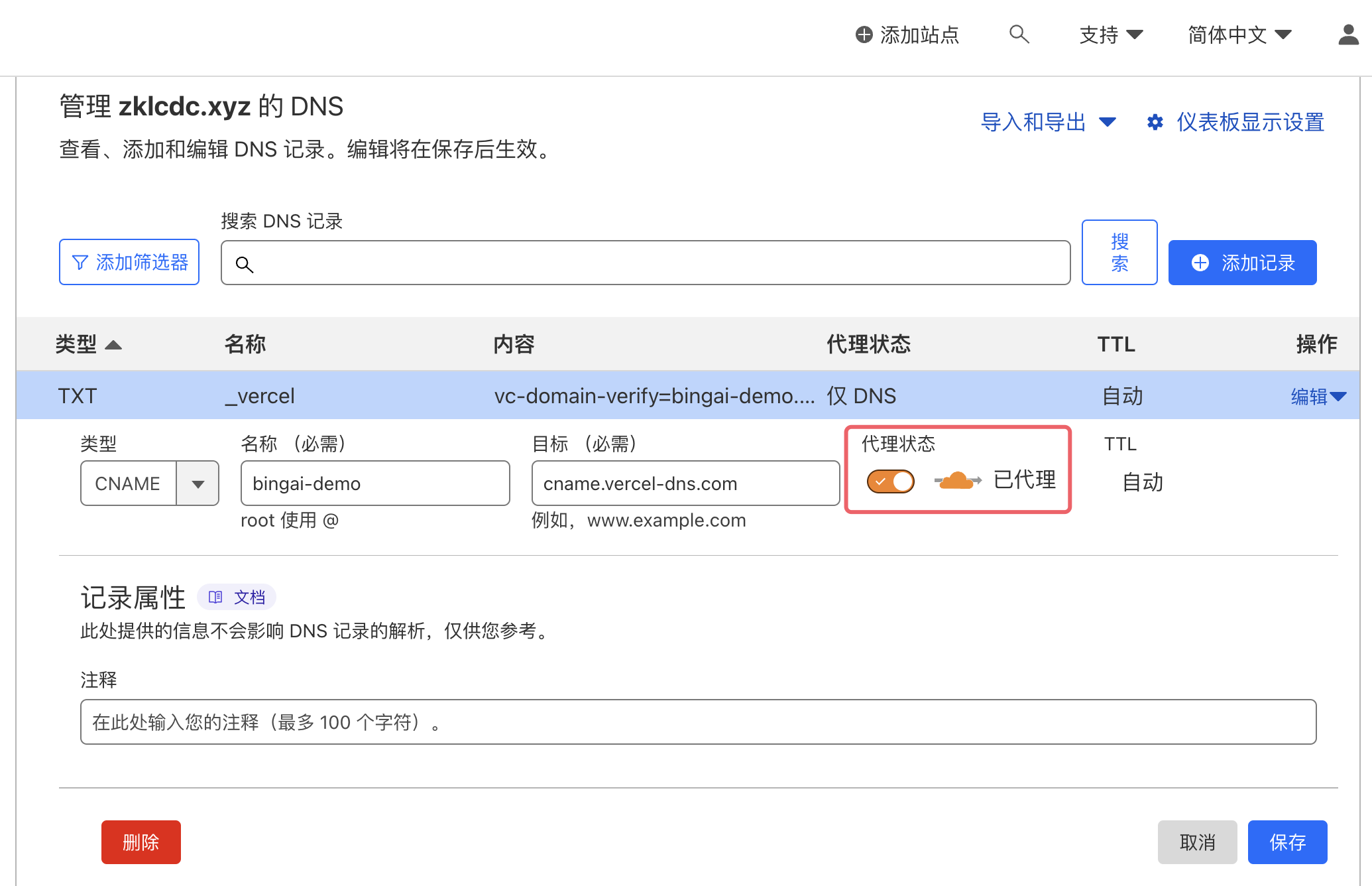
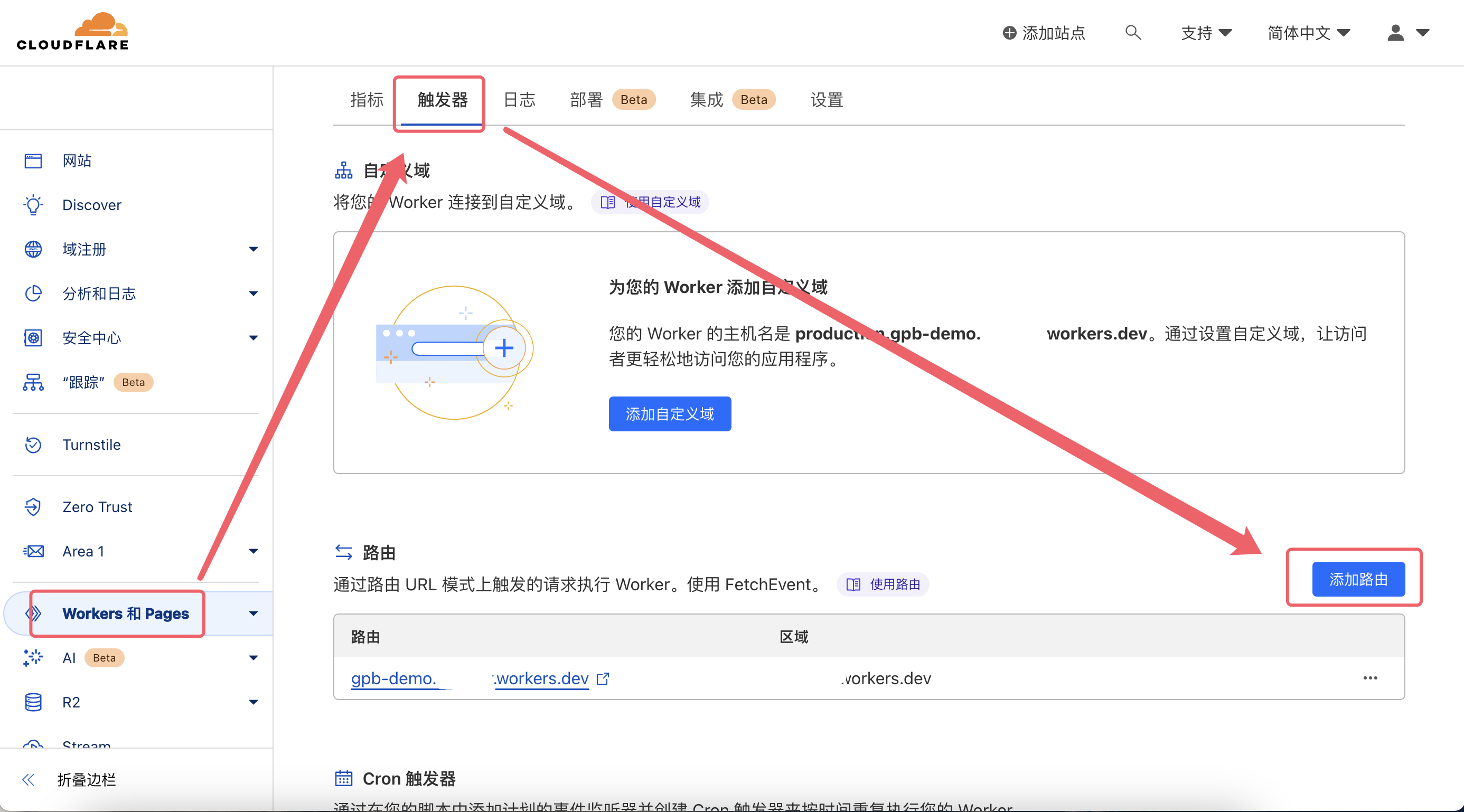
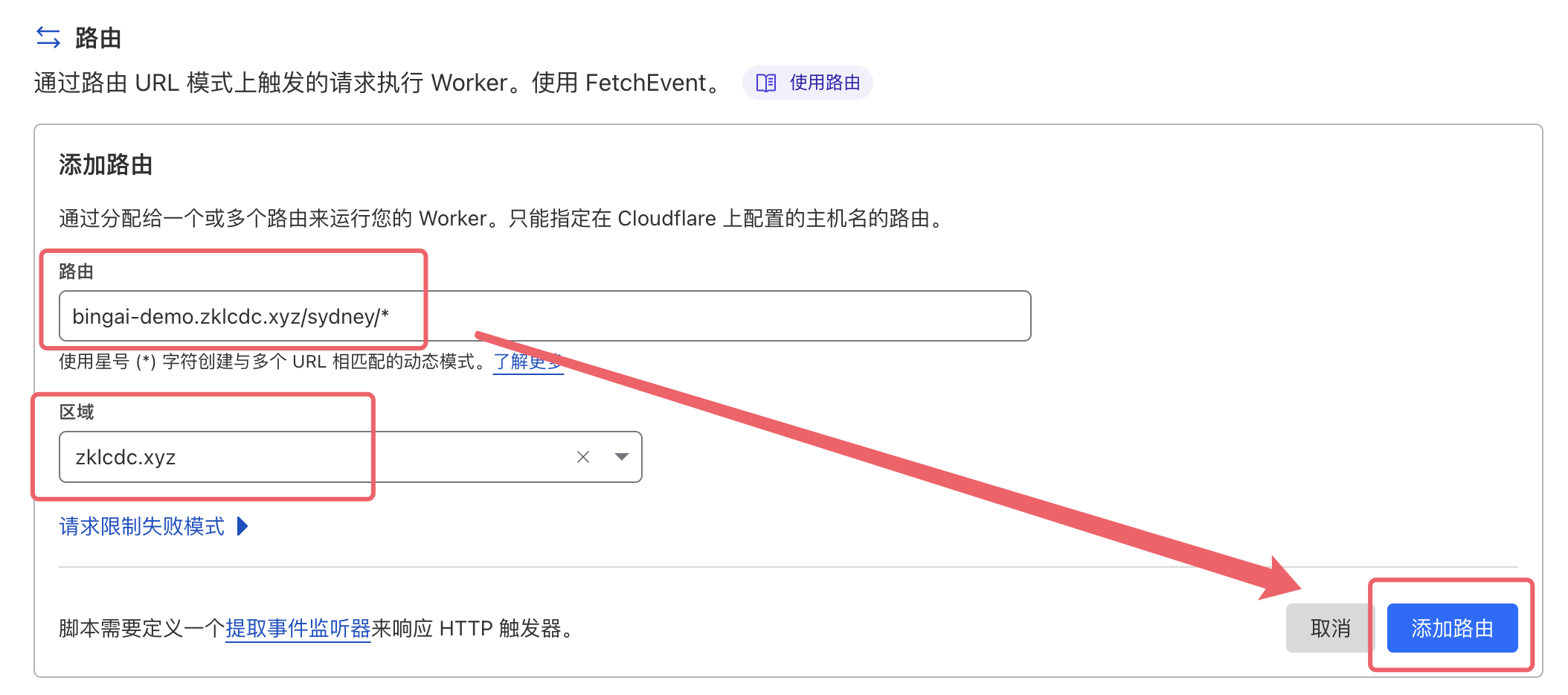
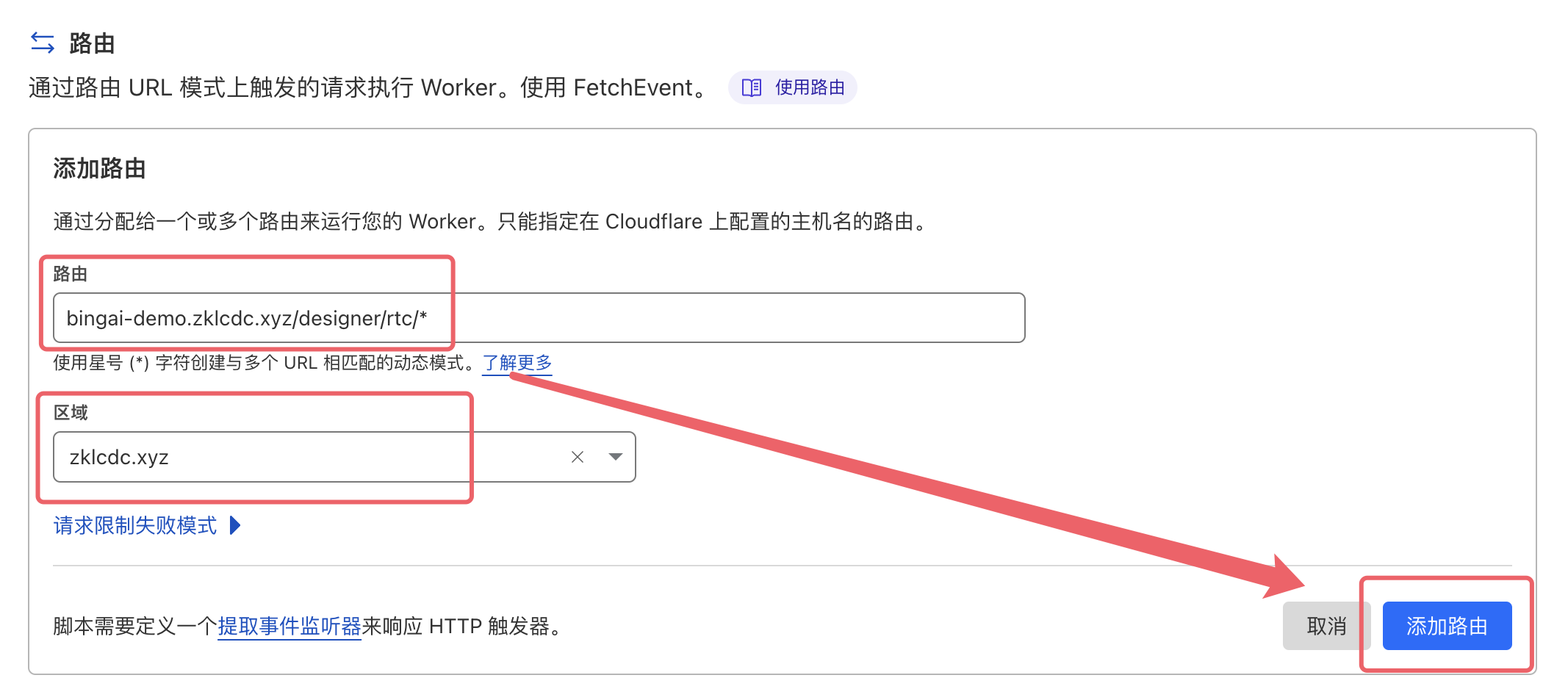
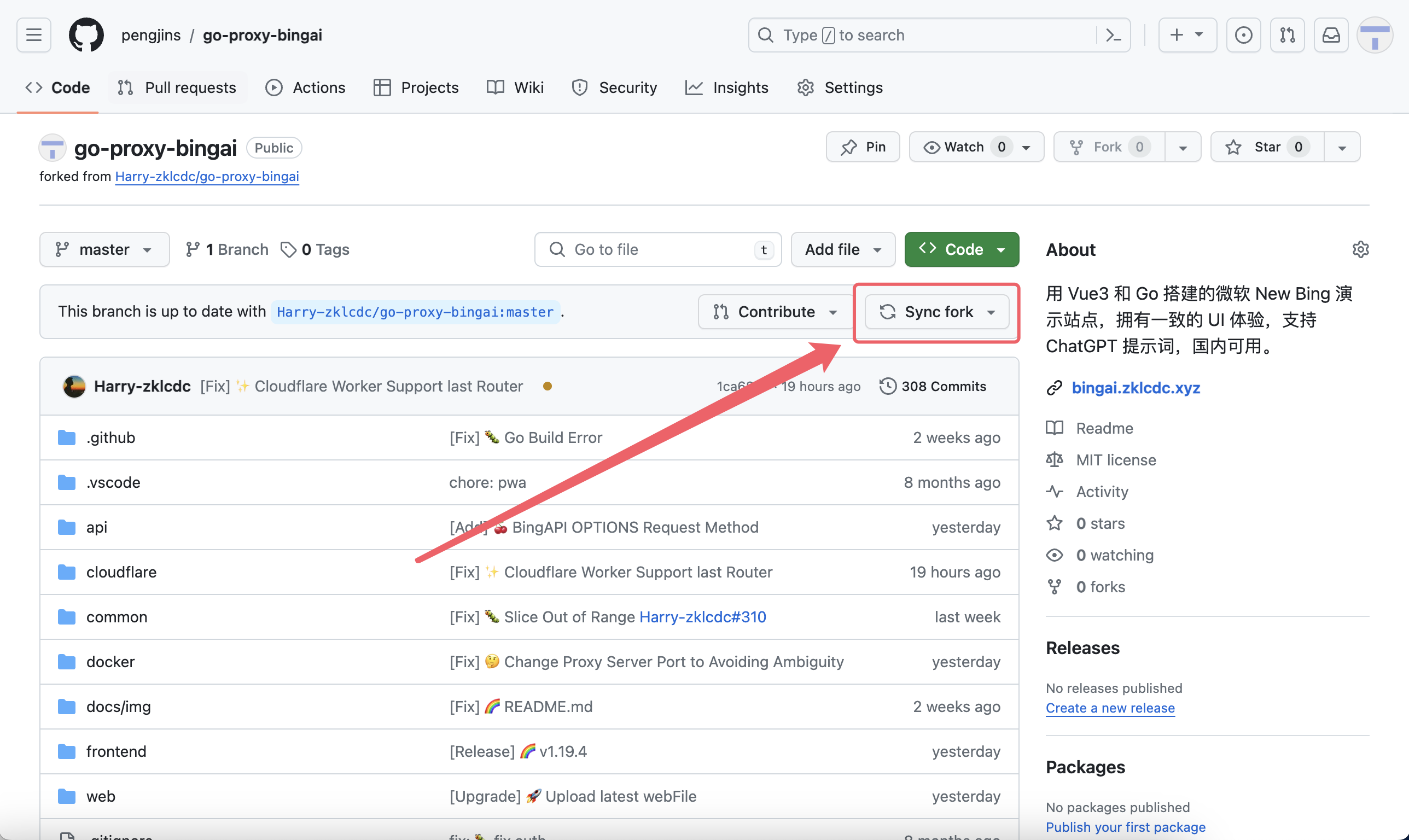
    <content type="html"><![CDATA[<h2 id="前言"><a href="#前言" class="headerlink" title="前言"></a>前言</h2><p>  2024 年重大更新 100% 免登陆 自动过验证 国内可用  支持 Openai API 格式调用。<br><img src="https://cdn.jsdelivr.net/gh/laogou717/IMG/LAOGOU/1-14/1.gif" alt="功能演示"></p><h2 id="✍️作者的开源项目"><a href="#✍️作者的开源项目" class="headerlink" title="✍️作者的开源项目"></a>✍️作者的开源项目</h2><p><a href="https://github.com/Harry-zklcdc/go-proxy-bingai#%E6%95%99%E7%A8%8B%E5%8D%81%E5%88%86%E9%87%8D%E8%A6%81">https://github.com/Harry-zklcdc/go-proxy-bingai#教程十分重要</a> </p><div class="terminal-loader" style="border: 0.1em solid #333; background-color: #1a1a1a; color: #0f0; font-family: 'Courier New', Courier, monospace; font-size: 1em; padding: 1.5em; width: 20em; margin: 100px auto; box-shadow: 0 4px 8px rgba(0, 0, 0, 0.2); border-radius: 4px; position: relative; overflow: hidden; box-sizing: border-box;">  <!-- ... other elements ... -->  <div class="text" style="display: inline-block; white-space: nowrap; overflow: hidden; border-right: 0.2em solid green; animation: typeAndDelete 4s steps(30) infinite, blinkCursor 0.5s step-end infinite alternate; margin-top: 1.5em; max-width: 100%;">正在努力更新中...敬请期待...</div></div><style>@keyframes blinkCursor {  50% {    border-right-color: transparent;  }}@keyframes typeAndDelete {  0%,  10% {    width: 0;  }  45%,  55% {    width: 100%;  }  90%,  100% {    width: 0;  }}</style><h2 id="不想部署直接用下面的演示站点"><a href="#不想部署直接用下面的演示站点" class="headerlink" title="不想部署直接用下面的演示站点"></a>不想部署直接用下面的演示站点</h2><p>1.<a href="https://laogou-go-proxy-bingai.hf.space/">https://laogou-go-proxy-bingai.hf.space</a></p><p>2.<a href="https://xx1.laogou666.com/">https://xx1.laogou666.com/</a></p><p>3.<a href="https://harry-zklcdc-go-proxy-bingai.hf.space/">https://harry-zklcdc-go-proxy-bingai.hf.space</a></p><p>4.<a href="https://dongsiqie-bing.hf.space/">https://dongsiqie-bing.hf.space</a></p><p>5.<a href="https://dongsiqie-bingai.hf.space/">https://dongsiqie-bingai.hf.space</a></p><p>6.<a href="https://bingai.zklcdc.xyz/">https://bingai.zklcdc.xyz/</a></p><h3 id="自己挑选你想要使用的平台部署这个项目"><a href="#自己挑选你想要使用的平台部署这个项目" class="headerlink" title="自己挑选你想要使用的平台部署这个项目"></a>自己挑选<span style="text-decoration: underline wavy green;">你想要使用的平台</span>部署这个项目</h3><ul><li><p>抱脸部署：<a href="https://huggingface.co/spaces/Harry-zklcdc/go-proxy-bingai?duplicate=true&visibility=public">https://huggingface.co/spaces/Harry-zklcdc/go-proxy-bingai?duplicate=true&amp;visibility=public</a></p></li><li><p>抱脸部署验证服务：<a href="https://huggingface.co/spaces/zklcdc/pass?duplicate=true&visibility=public">https://huggingface.co/spaces/zklcdc/pass?duplicate=true&amp;visibility=public</a></p></li><li><p>在 Replit 部署：<a href="https://replit.com/@sanwuchengqun/Go-Proxy-BingAi?v=1">https://replit.com/@sanwuchengqun/Go-Proxy-BingAi?v=1</a></p></li><li><p>Vercel 部署：<a href="https://vercel.com/new/clone?repository-url=https://github.com/Harry-zklcdc/go-proxy-bingai">https://vercel.com/new/clone?repository-url=https://github.com/Harry-zklcdc/go-proxy-bingai</a></p><ul><li>BYPASS_SERVER &#x3D;验证服务地址</li><li>USER_KievRPSSecAuth&#x3D;在 bing 官网控制台获取</li></ul></li><li><p>Zeabur 部署：<a href="https://zeabur.com/zh-CN">https://zeabur.com/zh-CN</a></p></li></ul><h3 id="获取-Newbing-登陆-Cookie-脚本复制"><a href="#获取-Newbing-登陆-Cookie-脚本复制" class="headerlink" title="获取 Newbing 登陆 Cookie 脚本复制"></a><strong>获取 Newbing 登陆 Cookie 脚本复制</strong></h3><figure class="highlight plaintext"><table><tr><td class="gutter"><pre><span class="line">1</span><br><span class="line">2</span><br><span class="line">3</span><br></pre></td><td class="code"><pre><span class="line">javascript: (function() &#123;var value = document.cookie.split(&#x27;; &#x27;).</span><br><span class="line">find(row =&gt; row.startsWith(&#x27;_U=&#x27;)).split(&#x27;=&#x27;)[1];prompt</span><br><span class="line">(&#x27;Copy to clipboard: Ctrl+C, Enter&#x27;, value);&#125;)();</span><br></pre></td></tr></table></figure><h3 id="演示站点："><a href="#演示站点：" class="headerlink" title="演示站点："></a>演示站点：</h3><ul><li><a href="https://bingai.zklcdc.xyz/">https://bingai.zklcdc.xyz</a></li></ul><h3 id="制作自己的代理"><a href="#制作自己的代理" class="headerlink" title="制作自己的代理"></a>制作自己的代理</h3><ul><li><p>首先进入<span style="color: #3491f9; "><a href="https://dash.cloudflare.com/">Cloudflare 首页</a></span>点击左侧的<strong>Workers&amp;pages</strong><br><img src="https://cdn.jsdelivr.net/gh/laogou717/IMG/LAOGOU/Desktop/58456.png" alt="Cloudflare 首页"></p></li><li><p>然后创建应用<br><img src="https://cdn.jsdelivr.net/gh/laogou717/IMG/LAOGOU/abnerworks.Typora/image-20240115060824815.png" alt="workers 页面"></p></li><li><p>创建 workers<br><img src="https://cdn.jsdelivr.net/gh/laogou717/IMG/LAOGOU/abnerworks.Typora/image-20240115061143596.png" alt="确认创建页面"></p></li><li><p>输入一个名字，然后点击<span style="color: #3491f9; ">蓝色</span>按钮创建</p><p><img src="https://cdn.jsdelivr.net/gh/laogou717/IMG/LAOGOU/abnerworks.Typora/image-20240115061615200.png"></p><ul><li>点击编辑代码开始操作<br><img src="https://cdn.jsdelivr.net/gh/laogou717/IMG/LAOGOU/abnerworks.Typora/image-20240115062044603-20240115103949217.png"></li></ul></li><li><p>进入编辑页面后左侧点击页面图标，然后新建  <code>bjs.js</code> 和 <code>index.html</code>文件，并把下面对应的<span style="color: #3d9983; ">代码复制粘贴</span>进对应的地方<br><img src="https://cdn.jsdelivr.net/gh/laogou717/IMG/LAOGOU/abnerworks.Typora/image-20240115062455367.png"><br><img src="https://cdn.jsdelivr.net/gh/laogou717/IMG/LAOGOU/abnerworks.Typora/image-20240115062607520.png"></p></li><li><p><span style="color: #ff8332; ">bjs.js 代码</span></p></li></ul><p>地址：<a href="https://github.com/Harry-zklcdc/go-proxy-bingai/blob/master/cloudflare/bjs.js">https://github.com/Harry-zklcdc/go-proxy-bingai/blob/master/cloudflare/bjs.js</a></p><p><del>- <span style="color: #ff8332; ">index.html 代码</span></del></p><p><del>地址：<a href="https://github.com/Harry-zklcdc/go-proxy-bingai/blob/master/cloudflare/index.html">https://github.com/Harry-zklcdc/go-proxy-bingai/blob/master/cloudflare/index.html</a></del></p><p>作者说可以不用加<span style="text-decoration: underline wavy red;">index.html,</span>worker.js 会自动解析，所以请略过这一步</p><ul><li>不要忘记把下面的替换掉原本的<span style="color: #ff8332; ">worker.js 代码</span>都完成后点击右上角的按钮 <strong>保存并部署</strong></li></ul><p>地址：<a href="https://github.com/Harry-zklcdc/go-proxy-bingai/blob/master/cloudflare/worker.js">https://github.com/Harry-zklcdc/go-proxy-bingai/blob/master/cloudflare/worker.js</a></p><p><img src="https://cdn.jsdelivr.net/gh/laogou717/IMG/LAOGOU/abnerworks.Typora/image-20240115072526716.png" alt="保存并部署"></p><ul><li>最后返回创建的应用，点击<strong>触发器</strong>添加一个域名并做好 DNS 解析，点击 添加域名</li></ul><p><img src="https://cdn.jsdelivr.net/gh/laogou717/IMG/LAOGOU/abnerworks.Typora/image-20240115081709448.png" alt="绑定域名"></p><p>更详细的内容可以 <a href="https://www.bilibili.com/video/BV1gK4y1c749/?spm_id_from=333.999.0.0">点击这里</a>观看我的视频</p><p>如果是为了给 Vercel 做本站支持请添加路由，这段没写呢，去翻之前视频吧…</p><h2 id="📎-参考文章"><a href="#📎-参考文章" class="headerlink" title="📎 参考文章"></a>📎 参考文章</h2><ul><li><a href="https://github.com/Harry-zklcdc/go-proxy-bingai">Harry-zklcdc 开源网站</a>.</li></ul>]]></content>


    <summary type="html">&lt;h2 id=&quot;前言&quot;&gt;&lt;a href=&quot;#前言&quot; class=&quot;headerlink&quot; title=&quot;前言&quot;&gt;&lt;/a&gt;前言&lt;/h2&gt;&lt;p&gt;  2024 年重大更新 100% 免登陆 自动过验证 国内可用  支持 Openai API 格式调用。&lt;br&gt;&lt;img</summary>


    <category term="AI纪元" scheme="http://www.laogou717.com/categories/AI%E7%BA%AA%E5%85%83/"/>
    
    
  </entry>
  
  <entry>
    <title>国内怎么部署go-proxy-bingai项目,Newbing镜像网站</title>
    <link href="http://www.laogou717.com/2024/02/05/AI%20era/bing/Vercel/"/>
    <id>http://www.laogou717.com/2024/02/05/AI%20era/bing/Vercel/</id>
    <published>2024-02-05T06:27:38.087Z</published>
    <updated>2024-02-11T23:40:58.624Z</updated>
    
    <content type="html"><![CDATA[<h1 id="Vercel-部署"><a href="#Vercel-部署" class="headerlink" title="Vercel 部署"></a>Vercel 部署</h1><ul><li>文档作者：<a href="https://github.com/Harry-zklcdc/go-proxy-bingai">Harry-zklcdc</a></li></ul><blockquote><p>在正式进行 Vercel 部署之前请先完成「<a href="https://github.com/Harry-zklcdc/go-proxy-bingai/wiki/Cloudflare-Worker-%E9%83%A8%E7%BD%B2">Cloudflare Worker 部署</a>」, 并确保域名绑定至 Cloudflare<br>Cloudflare Worker 部署方式无法使用 <a href="https://github.com/Harry-zklcdc/go-proxy-bingai/wiki/BingAPI">BingAPI</a></p></blockquote><h2 id="1-注册账号"><a href="#1-注册账号" class="headerlink" title="1. 注册账号"></a>1. 注册账号</h2><blockquote><p>如果你已经注册账号了，可以跳过此步骤，进入下一步骤</p></blockquote><p>进入 <a href="https://vercel.com/">Vercel 官网</a>, 点击右上角的「Sign Up」按钮开始注册</p><p><img src="https://cdn.jsdelivr.net/gh/laogou717/IMG/LAOGOU/image-20240130133646673.png"></p><p>点击「Hobby」, 并填入你的用户名，然后点击「Continue」</p><p><img src="https://cdn.jsdelivr.net/gh/laogou717/IMG/LAOGOU/image-20240130133933476.png"></p><p>点击「Continue with Github」, 登录并绑定你的 Github 账号</p><p><img src="https://cdn.jsdelivr.net/gh/laogou717/IMG/LAOGOU/image-20240130134004519.png"></p><p>进入此页面，代表注册完成 🎉！</p><p><img src="https://cdn.jsdelivr.net/gh/laogou717/IMG/LAOGOU/image-20240130134401223.png"></p><h2 id="2-部署项目"><a href="#2-部署项目" class="headerlink" title="2. 部署项目"></a>2. 部署项目</h2><p>进入 Github <a href="https://github.com/Harry-zklcdc/go-proxy-bingai">项目地址</a>, 点击「Fork 按钮」</p><p><img src="https://cdn.jsdelivr.net/gh/laogou717/IMG/LAOGOU/image-20240130135009512.png"></p><p>然后点击「Create fork」按钮</p><p><img src="https://cdn.jsdelivr.net/gh/laogou717/IMG/LAOGOU/image-20240130135046269.png"></p><p>等待 fork 完成后，回到 Vercel, 找到刚才 fork 的项目，点击「Import」按钮</p><p><img src="https://cdn.jsdelivr.net/gh/laogou717/IMG/LAOGOU/image-20240130135340560.png"></p><p>在「Environment Variables」中填入<code>BYPASS_SERVER</code>, 即「人机验证服务地址」, 比如</p><figure class="highlight bash"><table><tr><td class="gutter"><pre><span class="line">1</span><br></pre></td><td class="code"><pre><span class="line">https://zklcdc-pass.hf.space</span><br></pre></td></tr></table></figure><p>效果如下，然后点击「Add」按钮</p><p><img src="https://cdn.jsdelivr.net/gh/laogou717/IMG/LAOGOU/image-20240130140046871.png"></p><p>然后再点击「Deploy」按钮，等待部署完成，在此期间可以先完成接下来的操作</p><h2 id="3-绑定域名"><a href="#3-绑定域名" class="headerlink" title="3. 绑定域名"></a>3. 绑定域名</h2><blockquote><p>[!NOTE]</p><p>Vercel 提供的域名在中国大陆地区易遭受 DNS 污染导致无法访问，建议绑定域名</p></blockquote><p>进入 Vercel 控制台，点击项目右上方三个点，进入「Settings」设置</p><p><img src="https://cdn.jsdelivr.net/gh/laogou717/IMG/LAOGOU/image-20240130141843620.png"></p><p>然后点击「Domains」, 填入自己的域名，然后点击「Add」</p><p><img src="https://cdn.jsdelivr.net/gh/laogou717/IMG/LAOGOU/image-20240130142142471.png"></p><p>然后到 Cloudflare 控制台中添加对应的域名解析，一共两次，一次是 TXT 解析，一次是 CNAME 解析</p><p>（具体添加解析方法请出门右拐隔壁百度 or Google）</p><blockquote><p>[!NOTE]</p><p>添加解析时，请把 Cloudflare 代理打开，如下图所示</p></blockquote><p><img src="https://cdn.jsdelivr.net/gh/laogou717/IMG/LAOGOU/image-20240130143004623.png"></p><h2 id="4-修改-Cloudflare-Worker-路由"><a href="#4-修改-Cloudflare-Worker-路由" class="headerlink" title="4. 修改 Cloudflare Worker 路由"></a>4. 修改 Cloudflare Worker 路由</h2><p>进入 Cloudflare Worker 控制台, 点击「触发器」, 然后点击「添加路由」</p><p><img src="https://cdn.jsdelivr.net/gh/laogou717/IMG@main/LAOGOU/%E4%BF%AE%E6%94%B9%E8%B7%AF%E7%94%B11.png"></p><p>然后在路由中添加<code>刚才绑定的域名 + /sydney/*</code> 和 <code>刚才绑定的域名 + /designer/rtc/*</code>, 比如：</p><figure class="highlight plaintext"><table><tr><td class="gutter"><pre><span class="line">1</span><br><span class="line">2</span><br></pre></td><td class="code"><pre><span class="line">bingai-demo.zklcdc.xyz/sydney/*</span><br><span class="line">bingai-demo.zklcdc.xyz/designer/rtc/*</span><br></pre></td></tr></table></figure><p>然后区域选择你的域名, 最后点击「添加路由」</p><p><img src="https://cdn.jsdelivr.net/gh/laogou717/IMG@main/LAOGOU/%E4%BF%AE%E6%94%B9%E8%B7%AF%E7%94%B12.png"></p><p><img src="https://cdn.jsdelivr.net/gh/laogou717/IMG@main/LAOGOU/%E4%BF%AE%E6%94%B9%E8%B7%AF%E7%94%B13.png"></p><p>等待 Vercel 部署完成, 即可使用绑定的域名访问</p><h2 id="5-后续升级"><a href="#5-后续升级" class="headerlink" title="5. 后续升级"></a>5. 后续升级</h2><p>在 Fork 的项目地址中，点击「Sync Fork」, 等待 Vercel 自动部署完成后即可</p><p><img src="https://cdn.jsdelivr.net/gh/laogou717/IMG/LAOGOU/image-20240130144302921.png"></p>]]></content>


    <summary type="html">&lt;h1 id=&quot;Vercel-部署&quot;&gt;&lt;a href=&quot;#Vercel-部署&quot; class=&quot;headerlink&quot; title=&quot;Vercel 部署&quot;&gt;&lt;/a&gt;Vercel 部署&lt;/h1&gt;&lt;ul&gt;
&lt;li&gt;文档作者：&lt;a</summary>


    <category term="AI纪元" scheme="http://www.laogou717.com/categories/AI%E7%BA%AA%E5%85%83/"/>
    
    
  </entry>
  
  <entry>
    <title>Open-Interpreter部署教程]五分钟部署一个自己的桌面贾维斯!!!</title>
    <link href="http://www.laogou717.com/2024/01/13/Github/Open-Interpreter/"/>
    <id>http://www.laogou717.com/2024/01/13/Github/Open-Interpreter/</id>
    <published>2024-01-13T00:47:26.563Z</published>
    <updated>2024-04-07T01:05:18.000Z</updated>
    
    <content type="html"><![CDATA[<aside>⌨️ 这是一个开源再Github上的开源项目，对标Openai官方的代码解释器（高级数据分析）。</aside><blockquote><p>视频演示</p></blockquote><p><a href="https://user-images.githubusercontent.com/63927363/264166941-37152071-680d-4423-9af3-64836a6f7b60.mp4">官网视频</a></p><h1 id="工具地址"><a href="#工具地址" class="headerlink" title="工具地址"></a>工具地址</h1><blockquote><p>B站视频教程,过审后会显示在这里</p></blockquote><p><a href="https://player.bilibili.com/player.html?aid=920030181&bvid=BV1su4y1n7v4&cid=1311192101&p=1">部署演示视频</a></p><blockquote><p>Open-Interpreter 项目地址</p></blockquote><p><a href="https://github.com/KillianLucas/open-interpreter">GitHub - KillianLucas&#x2F;open-interpreter: OpenAI’s Code Interpreter in your terminal, running locally</a></p><blockquote><p>官方文档解锁更多玩法</p></blockquote><p><a href="https://docs.openinterpreter.com/">Introduction - Open Interpreter</a></p><blockquote><p>环境配置</p></blockquote><ul><li><p>配置Key</p><blockquote><p>这里以nova chat 举例</p></blockquote>  <figure class="highlight jsx"><table><tr><td class="gutter"><pre><span class="line">1</span><br></pre></td><td class="code"><pre><span class="line"><span class="variable constant_">OPENAI_API_KEY</span>  你的key</span><br></pre></td></tr></table></figure>  <figure class="highlight jsx"><table><tr><td class="gutter"><pre><span class="line">1</span><br></pre></td><td class="code"><pre><span class="line"><span class="variable constant_">OPENAI_API_BASE</span>   <span class="attr">https</span>:<span class="comment">//api.nova-oss.com/v1/chat/completions</span></span><br></pre></td></tr></table></figure></li><li><p>Python官网，你可以挑选想要安装的版本</p></li></ul><p><a href="https://www.python.org/">Welcome to Python.org</a></p><ul><li><p>视频演示的版本 3.11.6</p></li><li><p>Windows系统</p><p>  <a href="https://www.python.org/ftp/python/3.11.6/python-3.11.6-amd64.exe"></a></p></li><li><p>MacOS系统</p><p>  <a href="https://www.python.org/ftp/python/3.11.6/python-3.11.6-macos11.pkg"></a></p></li></ul><h1 id="安装"><a href="#安装" class="headerlink" title="安装"></a>安装</h1><blockquote><p>安装依赖</p></blockquote><p>pip install open-interpreter</p><blockquote><p>运行代码</p></blockquote><ul><li><p>正常运行</p><p>  interpreter</p></li><li><p>无需确认</p><p>  interpreter -y</p></li></ul><h1 id="📎-参考文章"><a href="#📎-参考文章" class="headerlink" title="📎 参考文章"></a>📎 参考文章</h1><ul><li><a href="https://github.com/KillianLucas/open-interpreter">KillianLucas&#x2F;open-interpreter</a></li><li><a href="https://openinterpreter.com/">The open-interpreter</a></li></ul><aside>💡 有关安装或者使用上的问题，欢迎您在底部评论区留言，一起交流~如果觉得文章还不错可以[**点击这里**](https://www.laogou666.com/donate)给请博主喝杯饮料🥤</aside>]]></content>


    <summary type="html">&lt;aside&gt;
⌨️ 这是一个开源再Github上的开源项目，对标Openai官方的代码解释器（高级数据分析）。
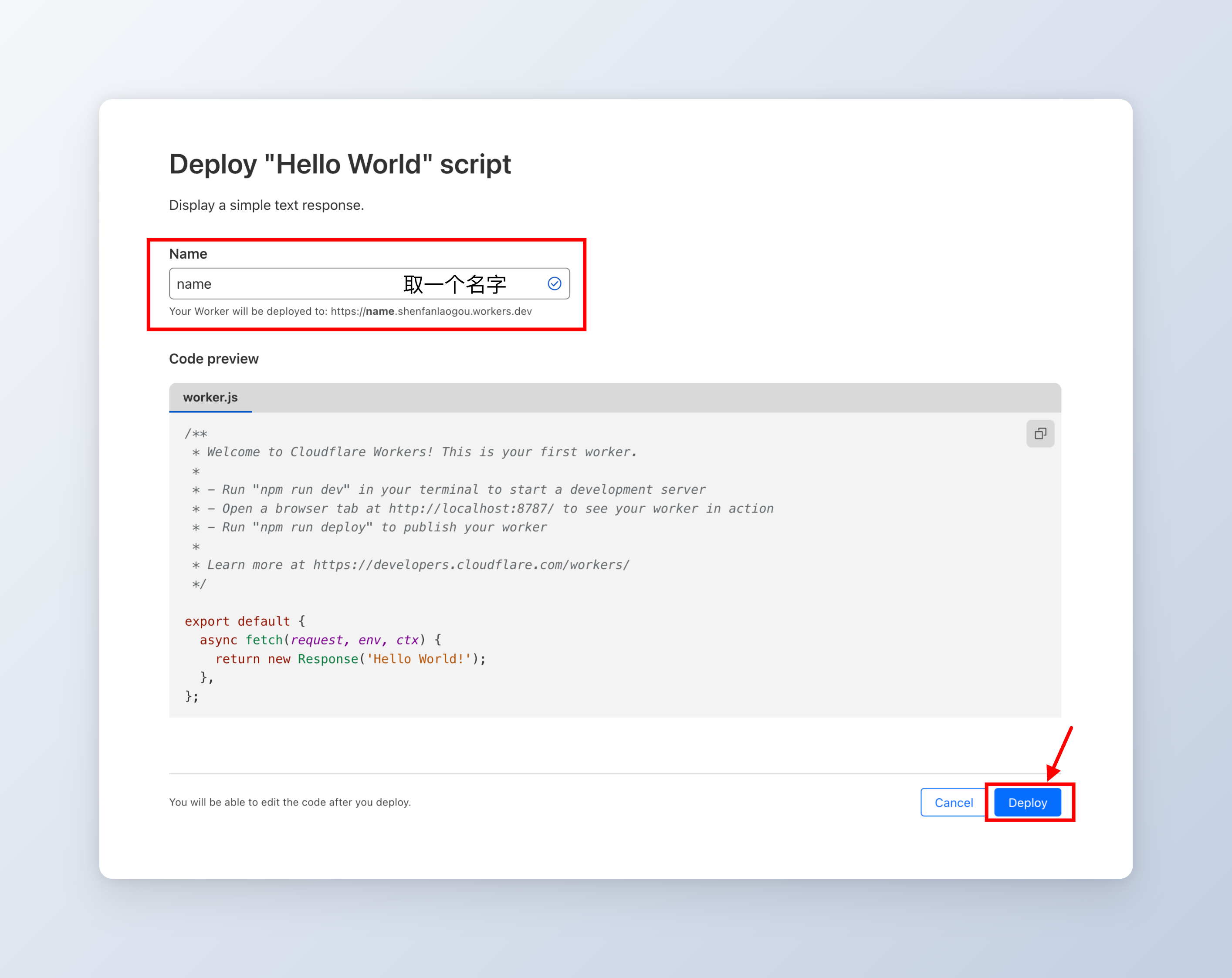
&lt;/aside&gt;

&lt;blockquote&gt;
&lt;p&gt;视频演示&lt;/p&gt;
&lt;/blockquote&gt;
&lt;p&gt;&lt;a</summary>


    <category term="AI纪元" scheme="http://www.laogou717.com/categories/AI%E7%BA%AA%E5%85%83/"/>
    
    
  </entry>
  
  <entry>
    <title>逆天网友!我早晚被笑死!用AI让郭德纲用英文讲相声!</title>
    <link href="http://www.laogou717.com/2023/10/27/AI%20era/amaze/Heygen/"/>
    <id>http://www.laogou717.com/2023/10/27/AI%20era/amaze/Heygen/</id>
    <published>2023-10-27T00:00:00.000Z</published>
    <updated>2024-04-07T02:19:10.000Z</updated>
    
    <content type="html"><![CDATA[<blockquote><p>🤯不得不说这届网友一个比一个抽象,今天我们来看看赛博德纲郭老师。HeyGen是一个能够快速从文本生成视频的平台，通过使用AI生成的头像和声音，无需摄像机或摄制组即可创建视频。</p></blockquote></aside><h1 id="HeyGen"><a href="#HeyGen" class="headerlink" title="HeyGen"></a>HeyGen</h1><div calss='anzhiyu-tag-link'><a class="tag-Link" target="_blank" href="https://app.heygen.com/guest/templates?cid=ee688d84/">    <div class="tag-link-tips">引用站外地址</div>    <div class="tag-link-bottom">        <div class="tag-link-left" style="background-image: url(https://app.heygen.com/favicon.ico)">          <i class="anzhiyufont anzhiyu-icon-link" style="display: none"></i>        </div>        <div class="tag-link-right">            <div class="tag-link-title">HeyGen</div>            <div class="tag-link-sitename"> 官网链接</div>        </div>        <i class="anzhiyufont anzhiyu-icon-angle-right"></i>    </div>    </a></div><h1 id="Rask"><a href="#Rask" class="headerlink" title="Rask"></a>Rask</h1><div calss='anzhiyu-tag-link'><a class="tag-Link" target="_blank" href="https://app.rask.ai/">    <div class="tag-link-tips">引用站外地址</div>    <div class="tag-link-bottom">        <div class="tag-link-left" style="background-image: url(https://app.rask.ai/favicon.ico)">          <i class="anzhiyufont anzhiyu-icon-link" style="display: none"></i>        </div>        <div class="tag-link-right">            <div class="tag-link-title">Rask官网</div>            <div class="tag-link-sitename"> 官网链接 支持上传字幕复制翻译</div>        </div>        <i class="anzhiyufont anzhiyu-icon-angle-right"></i>    </div>    </a></div><h1 id="视频演示"><a href="#视频演示" class="headerlink" title="视频演示"></a>视频演示</h1><blockquote><p>你可以观看视频来查看这期内容</p><iframe src="//player.bilibili.com/player.html?aid=226886152&bvid=BV1Ch41137tR&cid=1081639816&p=1" scrolling="no" border="0" frameborder="no" framespacing="0" allowfullscreen="true"> </iframe></blockquote><aside>💡 有关安装或者使用上的问题，欢迎您在底部评论区留言，一起交流~如果觉得文章还不错可以请博主喝杯饮料🥤</aside>]]></content>


    <summary type="html">&lt;blockquote&gt;
&lt;p&gt;🤯不得不说这届网友一个比一个抽象,今天我们来看看赛博德纲郭老师。HeyGen是一个能够快速从文本生成视频的平台，通过使用AI生成的头像和声音，无需摄像机或摄制组即可创建视频。&lt;/p&gt;
&lt;/blockquote&gt;
&lt;/aside&gt;

&lt;h1</summary>


    <category term="AI纪元" scheme="http://www.laogou717.com/categories/AI%E7%BA%AA%E5%85%83/"/>
    
    
  </entry>
  
  <entry>
    <title>Lobe Chat：开源、高性能的聊天机器人框架</title>
    <link href="http://www.laogou717.com/2023/10/26/AI%20era/mirror/LobeChat/"/>
    <id>http://www.laogou717.com/2023/10/26/AI%20era/mirror/LobeChat/</id>
    <published>2023-10-26T00:00:00.000Z</published>
    <updated>2024-08-23T13:09:14.835Z</updated>
    
    <content type="html"><![CDATA[<p><img src="https://img.laogou717.com/file/0d23a91ad3c5cff53b436.png" alt="lobe.png"></p><h1 id="简介"><a href="#简介" class="headerlink" title="简介"></a>简介</h1><aside><img src="https://img.laogou717.com/file/5a18ff550bb373be2540b.png" alt="https://img.laogou717.com/file/5a18ff550bb373be2540b.png" width="40px" /> LobeChat 是一个开源的、高性能的聊天机器人框架，为开发者提供了强大的工具和功能，以便快速且有效地创建和部署聊天机器人。这个框架支持一键免费部署私人 ChatGPT/LLM 网页应用程序，为开发者带来前所未有的便捷。</aside><p><img src="https://img.laogou717.com/file/cbebb96ad6102fa9e0c66.png"></p><h1 id="核心功能"><a href="#核心功能" class="headerlink" title="核心功能"></a>核心功能</h1><ul><li><strong>快速部署</strong>：支持使用 Vercel 平台一键部署。</li><li><strong>精致 UI 设计</strong>：具有优雅的外观和流畅的交互效果，支持亮暗色主题。</li><li><strong>流畅的对话体验</strong>：支持流式响应和完整的 Markdown 渲染。</li><li><strong>插件支持</strong>：可安装和使用各种插件，同时支持自定义插件开发。</li><li><strong>隐私安全</strong>：所有数据保存在用户浏览器本地。</li><li><strong>自定义助手角色</strong>：允许创建和分享个性化的对话助手角色。</li><li><strong>角色市场</strong>：提供角色市场，丰富对话内容和风格。</li></ul><h1 id="用户体验"><a href="#用户体验" class="headerlink" title="用户体验"></a>用户体验</h1><p>LobeChat 为用户提供了一系列独特的功能，包括：</p><ul><li><strong>主题模式选择</strong>：提供明亮模式和暗黑模式，以及丰富的颜色定制选项。</li><li><strong>移动设备适配</strong>：针对移动设备进行了优化，支持渐进式 Web 应用（PWA）技术。</li></ul><p><img src="https://img.laogou717.com/file/11097c2d930ebfd775386.png"></p><h1 id="项目地址"><a href="#项目地址" class="headerlink" title="项目地址"></a>项目地址</h1><blockquote><p>官网地址和开源地址</p></blockquote><p><a href="https://chat-preview.lobehub.com/welcome#session=inbox">LobeChat</a></p><p><a href="https://github.com/lobehub/lobe-chat">Lobe Chat - 一个开源、现代设计的法学硕士&#x2F;人工智能聊天框架。支持多AI提供商（OpenAI &#x2F; Claude 3 &#x2F; Gemini &#x2F; Perplexity &#x2F; Bedrock &#x2F; Azure &#x2F; Mistral &#x2F; Ollama），多模态（Vision &#x2F; TTS）和插件系统。一键免费部署您的私人 ChatGPT 聊天应用程序。</a></p><h1 id="项目部署与环境变量"><a href="#项目部署与环境变量" class="headerlink" title="项目部署与环境变量"></a>项目部署与环境变量</h1><h2 id="部署项目"><a href="#部署项目" class="headerlink" title="部署项目"></a>部署项目</h2><ul><li><strong>Vercel 部署</strong>：简单几步即可在 Vercel 上部署服务。[中国大陆的免费域名污染严重,需要绑定域名]</li></ul><p><a href="https://vercel.com/new/clone?repository-url=https://github.com/lobehub/lobe-chat&env=OPENAI_API_KEY&envDescription=Find%20your%20OpenAI%20API%20Key%20by%20click%20the%20right%20Learn%20More%20button.&envLink=https://platform.openai.com/account/api-keys&project-name=lobe-chat&repository-name=lobe-chat">点击在Vercel部署</a></p><ul><li><p><strong>Zeabur 部署</strong>：方便在私有设备上部署服务。但目前zeabur正在更新，会报错[中国大陆免费域名可用,无需购买域名也可以直连]</p><p>  需在变量里设置<code>EXPERIMENTAL_SERVERLESS=1</code></p><p>  <a href="https://zeabur.com/zh-CN">点击在Zeabur部署</a></p>  <figure class="highlight jsx"><table><tr><td class="gutter"><pre><span class="line">1</span><br><span class="line">2</span><br><span class="line">3</span><br></pre></td><td class="code"><pre><span class="line"><span class="variable constant_">OPENAI_API_KEY</span>=你的key</span><br><span class="line"><span class="variable constant_">OPENAI_PROXY_URL</span>=端点如果是官方的api可以不去填写</span><br><span class="line"><span class="variable constant_">ACCESS_CODE</span>=访问密码,如果你在变量里设置key,未来你账号的安全必须填写密码,<span class="number">6</span>位</span><br></pre></td></tr></table></figure></li></ul><h2 id="环境变量"><a href="#环境变量" class="headerlink" title="环境变量"></a>环境变量</h2><p>本项目提供了一些额外的配置项，使用环境变量进行设置：</p><table><thead><tr><th>环境变量</th><th>类型</th><th>描述</th><th>示例</th></tr></thead><tbody><tr><td>OPENAI_API_KEY</td><td>必选</td><td>在 OpenAI 账户页面申请的 API 密钥</td><td>sk-xxxxxx…xxxxxx</td></tr><tr><td>OPENAI_PROXY_URL</td><td>可选</td><td>如果手动配置了 OpenAI 接口代理，可用此配置项覆盖默认的 OpenAI API 请求基础 URL</td><td>默认值: <a href="https://api.openai.com/v1">https://api.openai.com/v1</a></td></tr><tr><td>ACCESS_CODE</td><td>可选</td><td>访问此服务所需的密码，应为 6 位数字或字母</td><td>awCT74 或 e3@09!</td></tr></tbody></table><h1 id="📎参考链接"><a href="#📎参考链接" class="headerlink" title="📎参考链接"></a>📎参考链接</h1><ul><li><a href="https://github.com/lobehub/lobe-chat">项目主页</a></li><li><a href="https://github.com/lobehub/lobe-chat/wiki">官方文档</a></li><li><a href="https://github.com/lobehub/lobe-chat/issues">提交问题</a></li></ul><aside>💡 有关安装或者使用上的问题，欢迎您在底部评论区留言，一起交流~如果觉得文章还不错可以请博主喝杯饮料🥤</aside>]]></content>


    <summary type="html">&lt;p&gt;&lt;img src=&quot;https://img.laogou717.com/file/0d23a91ad3c5cff53b436.png&quot; alt=&quot;lobe.png&quot;&gt;&lt;/p&gt;
&lt;h1 id=&quot;简介&quot;&gt;&lt;a href=&quot;#简介&quot; class=&quot;headerlink&quot;</summary>


    <category term="AI纪元" scheme="http://www.laogou717.com/categories/AI%E7%BA%AA%E5%85%83/"/>
    
    
  </entry>
  
  <entry>
    <title>任意地区打卡钉钉蓝牙打卡时序漏洞分析</title>
    <link href="http://www.laogou717.com/2023/03/26/TBug/dingtalk/"/>
    <id>http://www.laogou717.com/2023/03/26/TBug/dingtalk/</id>
    <published>2023-03-26T10:55:44.000Z</published>
    <updated>2024-08-28T01:20:28.670Z</updated>
    
    <content type="html"><![CDATA[<p><img src="https://gw.alicdn.com/imgextra/i4/O1CN013OYoqp1foK6tig7lJ_!!6000000004053-2-tps-864-168.png"></p><blockquote><p>在钉钉的蓝牙打卡系统中，管理员通常设定一个特定的打卡范围，用户只能在这个范围内打卡。然而，最近发现了一个可能的漏洞：实际的打卡位置并非在用户点击打卡那一刻被确定，而是在之前的某个时刻。这一发现通过两个实际场景得到验证：一是用户在离开办公区域后，在非打卡范围内成功打卡；二是在打卡失败后，用户在离开打卡机的路上重新尝试并成功打卡。这表明钉钉的打卡位置抓取逻辑可能存在时序问题，允许用户在非规定区域打卡成功。</p></blockquote><h2 id="钉钉蓝牙打卡-Bug-分析"><a href="#钉钉蓝牙打卡-Bug-分析" class="headerlink" title="钉钉蓝牙打卡 Bug 分析"></a>钉钉蓝牙打卡 Bug 分析</h2><h4 id="正常情况下的打卡流程："><a href="#正常情况下的打卡流程：" class="headerlink" title="正常情况下的打卡流程："></a>正常情况下的打卡流程：</h4><ul><li>管理员设置特定的打卡范围。</li><li>用户必须在该范围内才能成功打卡。</li></ul><h4 id="发现的问题："><a href="#发现的问题：" class="headerlink" title="发现的问题："></a>发现的问题：</h4><ul><li><strong>钉钉打卡位置抓取逻辑异常</strong>：实际打卡位置不是在用户点击打卡的那一刻确定的。</li></ul><h4 id="场景还原："><a href="#场景还原：" class="headerlink" title="场景还原："></a>场景还原：</h4><ol><li><p><strong>下班场景：</strong></p><ul><li>时间：下午六点半，下班。</li><li>操作：<ul><li>关闭电脑，离开办公区域。</li><li>到达楼梯口附近时打开钉钉，出现打卡提醒弹窗，但未立即打卡。</li><li>继续走到楼下小区附近，此时点击之前的打卡提醒弹窗。</li></ul></li><li>结果：<strong>打卡成功</strong>。<ul><li>注意：此时的位置已经不在打卡范围内。</li><li>对照实验：同事在相同位置尝试手动打卡，无法连接到考勤机。</li></ul></li></ul></li><li><p><strong>再次尝试打卡：</strong></p><ul><li>操作：<ul><li>来到打卡机前，再次尝试打卡。</li><li>人脸识别阶段故意未露脸，导致打卡失败，但产生了打卡失败的弹窗。</li><li>未关闭弹窗，继续走到路口。</li><li>在路口点击弹窗上的“重试”按钮。</li></ul></li><li>结果：<strong>打卡成功</strong>。<ul><li>位置已不在规定的打卡范围内。</li></ul></li></ul></li></ol><h4 id="总结："><a href="#总结：" class="headerlink" title="总结："></a>总结：</h4><ul><li>钉钉的蓝牙打卡功能可能存在位置信息抓取时机的 Bug，导致实际打卡位置和用户操作时间不同步，从而使得用户在非指定区域也能成功打卡。</li></ul>]]></content>


    <summary type="html">&lt;p&gt;&lt;img</summary>


    <category term="TBug" scheme="http://www.laogou717.com/categories/TBug/"/>
    
    
  </entry>
  
  <entry>
    <title>老狗自制100+综艺花字包！</title>
    <link href="http://www.laogou717.com/2021/12/23/montage/zyhz/"/>
    <id>http://www.laogou717.com/2021/12/23/montage/zyhz/</id>
    <published>2021-12-23T15:49:20.000Z</published>
    <updated>2024-02-05T22:51:21.642Z</updated>
    
    <content type="html"><![CDATA[<h1 id="老狗自制100-综艺花字包！"><a href="#老狗自制100-综艺花字包！" class="headerlink" title="老狗自制100+综艺花字包！"></a>老狗自制100+综艺花字包！</h1><p><img src="https://img.laogou717.com/file/431e663f3a6ef92b51528.jpg" alt="老狗自制100+综艺花字包！"></p><p>🔥总是觉得花字用时方恨少,本套花字包含剪映的主流样式,以及一些自制样式。[ps:目前仅支持带有旧版标题的版本]   </p><h2 id="正文部分"><a href="#正文部分" class="headerlink" title="正文部分"></a>正文部分</h2><h3 id="展示样式"><a href="#展示样式" class="headerlink" title="展示样式"></a>展示样式</h3><p><img src="https://lgblog.vercel.app/_next/image?url=https://cdn.sanity.io/images/cl1ktc5x/production/2df62cc3947dd8a9cccd22c113930d0bd7d406f8-2000x1124.png&w=3840&q=75" alt="封面"></p><p><img src="https://lgblog.vercel.app/_next/image?url=https://cdn.sanity.io/images/cl1ktc5x/production/01ca3a301f1ef43ead01fb262469eac1e7b826aa-2000x795.png&w=3840&q=75" alt="贴图文件"></p><p><img src="https://lgblog.vercel.app/_next/image?url=https://cdn.sanity.io/images/cl1ktc5x/production/1428cf29829eaf8d392be3312f9fa38a0bf9bc2a-2000x786.png&w=3840&q=75" alt="文件展示"></p><p><img src="https://lgblog.vercel.app/_next/image?url=https://cdn.sanity.io/images/cl1ktc5x/production/882c42ffeaf57913b75b49ec381b2e84311ede8e-2000x1084.png&w=3840&q=75" alt="Pr旧版标题页面"></p><h3 id="获取地址"><a href="#获取地址" class="headerlink" title="获取地址"></a>获取地址</h3><div class="btns rounded grid5">            <a class="button no-text-decoration" href='https://pan.baidu.com/s/1C0x5SgGXGbEyFMXYni4Nsw?pwd=6666/' title='下载花字'><i class='anzhiyufont anzhiyu-icon-bolt'></i>下载花字</a><a class="button no-text-decoration" href='https://www.bilibili.com/video/BV1484y1y7jk/?spm_id_from=333.999.0.0&vd_source=b88a7cc0809f8c12510c0765d39efef7/' title='查看教程'><i class='anzhiyufont anzhiyu-icon-book'></i>查看教程</a>          </div><figure class="highlight plaintext"><table><tr><td class="gutter"><pre><span class="line">1</span><br><span class="line">2</span><br></pre></td><td class="code"><pre><span class="line">1链接：https://pan.baidu.com/s/1C0x5SgGXGbEyFMXYni4Nsw?pwd=6666 </span><br><span class="line">2提取码：6666 </span><br></pre></td></tr></table></figure><h2 id="引用"><a href="#引用" class="headerlink" title="引用"></a>引用</h2><ul><li><a href="https://www.bilibili.com/video/BV1484y1y7jk/?spm_id_from=333.999.0.0&vd_source=b88a7cc0809f8c12510c0765d39efef7">内容介绍及使用方法</a></li></ul>]]></content>


    <summary type="html">&lt;h1 id=&quot;老狗自制100-综艺花字包！&quot;&gt;&lt;a href=&quot;#老狗自制100-综艺花字包！&quot; class=&quot;headerlink&quot; title=&quot;老狗自制100+综艺花字包！&quot;&gt;&lt;/a&gt;老狗自制100+综艺花字包！&lt;/h1&gt;&lt;p&gt;&lt;img</summary>


    <category term="剪辑后期" scheme="http://www.laogou717.com/categories/%E5%89%AA%E8%BE%91%E5%90%8E%E6%9C%9F/"/>
    
    
  </entry>
  
  <entry>
    <title>网站故障说明</title>
    <link href="http://www.laogou717.com/1970/01/01/%E5%85%AC%E5%91%8A/Malfunction/"/>
    <id>http://www.laogou717.com/1970/01/01/%E5%85%AC%E5%91%8A/Malfunction/</id>
    <published>1970-01-01T00:00:00.000Z</published>
    <updated>2024-04-07T02:21:36.000Z</updated>
    
    <content type="html"><![CDATA[<h1 id="重要通知-网站域名更新与临时解决方案"><a href="#重要通知-网站域名更新与临时解决方案" class="headerlink" title="重要通知: 网站域名更新与临时解决方案"></a>重要通知: 网站域名更新与临时解决方案</h1><p>深深地向大家道歉。由于我个人的疏忽以及域名服务商处理不够积极的问题，导致我们的网站遇到了一些技术问题，这影响了您的体验。我在这里详细说明发生了什么，目前的状态，以及我们的临时解决方案。</p><h2 id="问题说明"><a href="#问题说明" class="headerlink" title="问题说明"></a>问题说明</h2><p>我们的域名 <strong>laogou717.com</strong> 在 <strong>2024年3月29日</strong> 到期。尽管我本人以为已经设置了自动续费，但事实证明，并没有。当我发现并尝试手动续费时，遗憾的是，域名并未立即恢复，反而显示为未激活状态。这导致了我们的文章及导航网站的图标，大部分无法正常显示。</p><h2 id="当前状态"><a href="#当前状态" class="headerlink" title="当前状态"></a>当前状态</h2><p>由于目前正值周末，域名服务商的国外客服尚未回复我们提交的工单。根据我的经验，这个问题可能需要 <strong>1-3天</strong> 才能得到解决。</p><p><img src="https://img.laogou717.com/file/26c7a3fc4627618fc8230.png" alt="域名未激活状态"></p><p>由于这一问题，我们的网站目前处于不完整的状态，影响了用户的正常访问。</p><p><img src="https://img.laogou717.com/file/3fe17d631e8bd4b7a7365.png" alt="网站图标加载失败"></p><h2 id="临时解决方案"><a href="#临时解决方案" class="headerlink" title="临时解决方案"></a>临时解决方案</h2><p>为了尽量减少这一事件对您的影响，我们已经设置了一个临时域名 <strong><a href="https://ailaogou717.zeabur.app/">ailaogou717.zeabur.app</a></strong> 以供访问。我们希望在主域名恢复之前，您能暂时使用此链接访问我们的网站。</p><p><img src="https://img.laogou717.com/file/564fc620a265fc5dcbaf3.png" alt="AI导航网站临时站点"></p><h2 id="后续措施"><a href="#后续措施" class="headerlink" title="后续措施"></a>后续措施</h2><p>我们深感抱歉因个人疏忽和服务商的处理延迟给您带来的不便。请知悉，我们正在尽一切努力解决这一问题，并将从中吸取教训，未来将进一步加强网站的稳定性和制定更周全的应急预案，避免类似情况的再次发生。</p><p>我们深知这次事件可能影响了您对我们网站的信任，但请您相信，我们全力以赴地解决问题，并始终致力于提供最佳的服务和体验。感谢您的理解与支持。</p><p>如果您有任何问题或需要进一步的帮助，请随时与我们联系。</p><p>祝好</p><p>[老狗&#x2F;JonasTech]</p>]]></content>


    <summary type="html">&lt;h1 id=&quot;重要通知-网站域名更新与临时解决方案&quot;&gt;&lt;a href=&quot;#重要通知-网站域名更新与临时解决方案&quot; class=&quot;headerlink&quot; title=&quot;重要通知: 网站域名更新与临时解决方案&quot;&gt;&lt;/a&gt;重要通知:</summary>


    <category term="notio" scheme="http://www.laogou717.com/categories/notio/"/>
    
    
  </entry>
  
</feed>